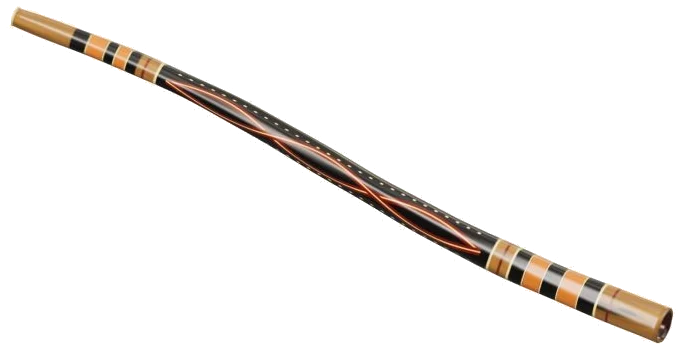
Play a deep, rich drone in your browser: This is a virtual didgeridoo that you can play online. It’s a true recording of a drone playing on a didge (the name for this instrument), so what you’re hearing isn’t synthesized but the actual instrument itself. It is a real hollow eucalyptus tree trunk with a beeswax rim, modeled in 3D and placed on your screen. Zoom in on it and even turn it around to see how it looks.
Play it using your keyboard, your fingers or a mouse, no need for any plugin, account or microphone. There is no button for sound. It says Tap a note to play on the bottom status line. Your first sound will prepare the recording and it will display Sound ready.
How to Use the Virtual Didgeridoo
The Full screen button makes the didgeridoo fill your screen. Press Esc or click Exit full screen to get back to the page. The Volume slider is in the bottom bar. The question mark up top accesses sound credits and help.
Six pads labeled Toot, Growl, Oh, Ee, Wah, and Drone are here instead of a sequence of notes. Underneath the model, it says: Recorded drone · six articulations. The pads alters the vocal tract color and articulation of a recorded drone, based off the help window. (They don’t make a didgeridoo sound like a chromatic flute.) Think of these as various shapes of that deep sound. Drone is the straight, unchanging tone; the others adds different vowel colors. Growl introduces a pulsing, rough edge; Toot leaps up to a sort of overblown register for a higher call.
Press and hold a pad to continue the sound; release it to switch it off. Slide your mouse (or finger) across the pads to glide from one sound to another, and note that the pad’s name appear under the model as you play it.
The six pads is positioned on the A, W, S, E, D, and F keys of a computer keyboard. The Drone is on A and the Toot is on F. Each pad displays its key. Long press any of them to hear the sound through the length of the pad, and the Space bar plays the pad you last selected when held down. The didgeridoo is in its own frame on the page too, so first click inside it then play from the keyboard.
Auto breath allows the drone to continue alone when desired. Tap the Auto breath button (on screen) to turn it on or off. When auto breath is active, tapping a pad will switch to that sound while the drone continues playing. This allows the drone to move from a drone to a wah to a growl all in one go without interrupting the sound. Tap Auto breath once more to stop.
There are two tone shaping sliders. On the right side, beside the Auto breath button, is the Vowel slider that alters the resonance of the sound from a more open, bright color at the top end to a darker, closed color at the bottom end. When you press one of the pads they sets their own color for the vowel. So try pressing a pad, then move the slider to change the color of the sound.
Below the pads is the Breath slider which controls how hard you blow. Even though the drone is sounding, lower settings will be softer and mellow, while higher settings will be brighter and louder.
You can also play the 3D didgeridoo directly. Just touch it anywhere and it will play the pad you last selected. Pick a sound on the pads then press and hold the trunk to continue playing.
To play for practice, select one of Drone & calls, Vowel journey, or First pulse from the menu above the pads. To hear the song, click Play. This will change the button to say Pause and then Resume. The square ■ button stops everything. The button with the circular arrow, ↻, repeats the piece in a loop. Below that is a Tempo slider from 50-150, followed by a strip of the names of the coming pads showing you how long they last (in beats). Tap on any pad in this strip to hear it alone.
Click Game if you want to learn the piece for yourself. The pad you need turns green and the next one turns amber. The strip marks each of these NOW and NEXT. There’s also a counter that tells you how far you’ve got. You control the pace, every correct press takes you forward in the game straight away, even if you repeat pads. When you get to a different pad it will sound out too, but won’t take you forward until you press the green one. Then it says Complete! Press Game again to go back into free play.
Click 3D · Rotate the didgeridoo around and look at it from any angle. Use your mouse to drag the background around (or with a touchscreen, two fingers) to spin and zoom, or scroll to zoom in/out. You can also touch the instrument which will still make sounds. ↺ resets the camera, while turning 3D · Rotate back off restores the didgeridoo to its initial view.
Resonant filtering creates the vowel sounds; Growl adds a rough, pulsing edge through amplitude modulation; and Toot raises the approximate register.
With a fresh start, turn on Auto breath, press Drone, Wah, Ee, Oh one after another and hear it change colors as the drone continues. Then select Game, pull the Tempo slider down and try First pulse.
You should of tried the different modes. It is more funner then just playing one note. The luxurios sound is naturaly amazing. It can absorbs the room. I recieve great feedback when playing this. You’ll find the moddern tones so comfortabley.