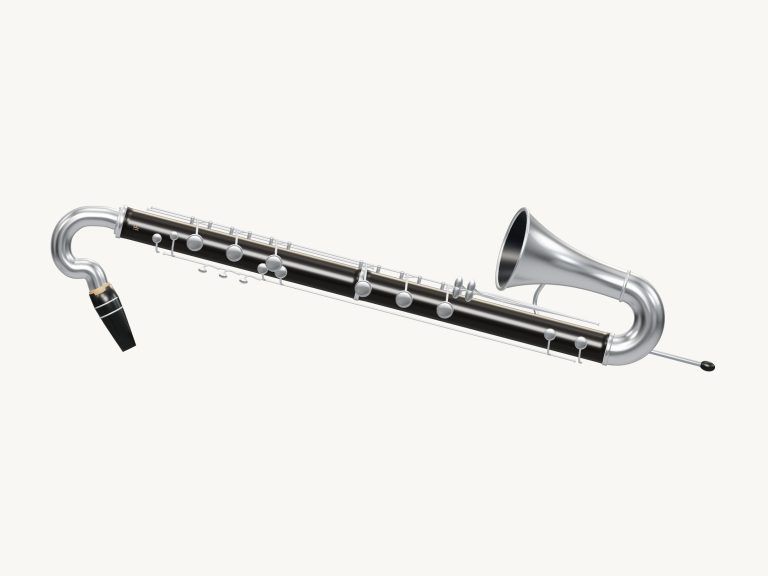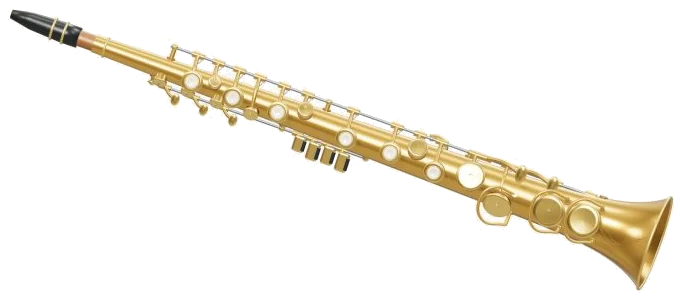
Here’s a virtual soprano saxophone for the web that places a shiny new B♭ soprano sax in your browser waiting to be played. Zooming in and turning around the virtual instrument is possible; the widget has a 3D model of the soprano sax. You will hear real soprano saxophone recordings. There is one at each strength (soft and strong). This means you’ll hear the sound of a real saxophone, not a synthesizer.
There’s nothing to install. Just play using your computer keyboard, tap on your tablet or phone, or use a mouse. Click the button in the top corner to turn on sound. Once it has loaded the recordings, the button will change to Sound on. The status line at the bottom will say Preparing the recorded sounds…. When they’re all loaded, just tap any note, the first one will start playing automatically.
How to Use the Virtual Saxophone
Tap the question mark to open a brief help panel (with the credits). Tap the four-corners icon in the top corner to go full-screen. Press Esc or tap that same icon again to leave full-screen mode and return to the page.
Above is the row I have called the notes. This contains 25 pads that span two full octaves, from C4 to C6. These are the sharps and flats that is on pads just a little darker in colour. They are labelled as they appear when written for saxophones. The actual concert pitch of each pad sounds like this: a B♭ soprano. You can see both of these in the app. Pressing the pad marked C4 will reveal the big note name underneath the instrument says C4. Beside this, it says ‘sounds B♭3’.
Tap a pad for a short breath, or hold it down to sustain the note for as long as you like. Letting go of the pad allows the note to fade away. If you slide to another note while the previous note is sounding, the saxophone will slur smoothly into the new note. Pressing the Space bar (or the green Blow button) from the keyboard plays the selected note for as long as held down. Switch Keep blowing on and you can play longer phrases. The saxophone continues to sound on its own until you click on any pad which then changes the note. Click Keep blowing again to turn this off. Or, use the Esc key or Stop button to silence everything together.
A W S E D F T G Y H U J K are the keys of the first octave (C4, C5) on a computer keyboard. This is arranged as if it were a miniature piano where the natural notes form the home row and the flats and sharps is found on the next row up. From there, O, L, P, and; cover C♯5, E5. Meanwhile, F5; C6 are covered by Z through to M on the bottom row, along with the comma key. Each pad displays the letter it plays, meaning you don’t need to learn the placement at all. The saxophone is framed separately on the page, allowing you to click it before playing from the keyboard.
From 15 to 100 percent, the Breath slider controls breath strength. At lower levels it leans on the soft recordings and provides a gentler start for each note. At higher levels the stronger recordings comes in with a brighter tone. Three presets are available under your sound: Natural is the initial sound; Velvet is darker and softer; and Concert blows harder in a bigger room. The Volume slider at the bottom sets the overall level. The Room slider adds or subtracts reverb.
In the menu choose PLAY A LITTLE then select one of the melodies: River walk, Morning light, Twinkle, Twinkle or Ode to Joy. Hit the Listen button to play it back to you, and adjust the tempo between 50 and 180 using the Tempo slider. Then hit Play along. A counter and progress bar appears to keep track of where you are in the melody. The pad you’re supposed to play lights up in green. The next note to play is shown on the panel, along with the notes that come after. There’s no penalty and no timer. The game simply waits for you, with no timer and no penalty. At the end, it says Beautiful. You played it. It also has a Play again button.
You can also play the 3D model. Tap the instrument in the normal view to play. Tapping any point on the saxophone will blow the note you have selected, and the keys on the model will play the natural notes from C4-F5. It’s not a fingering lesson; as the help panel points out, the model keys are just handy note shortcuts. To look around, click 3D view. You can drag the background of this view to turn the saxophone and use scroll/pinch to zoom, with the keys remaining playable. The little arrow button beside it returns the view to where it was, and turning 3D view off restores the front view.
To capture what you play directly from the instrument there is a Record button in the footer that does not require the microphone. When it displays Finish, click on it and you will see a Save link to retain the recording. Note that each new take will overwrite the previous one so make sure to save before recording another.
These are recordings from the Music Technology Group at Universitat Pompeu Fabra, shared via a CC-BY-4.0 licence and edited to SFZ by kinwie. The recordings are trimmed, tuned and looped to allow each note to be held for as long as desired.
For those of you unfamiliar with the online virtual soprano saxophone, the Natural preset is what you should of used and the notes C, D, E, F and G are on the home row keys: A, S, D, F and G. Select Twinkle and listen to it at a slow tempo. When you feel more comfortable, try playing along. Soon you’ll be on your way to feeling that this online virtual soprano saxophone is your very own instrument.