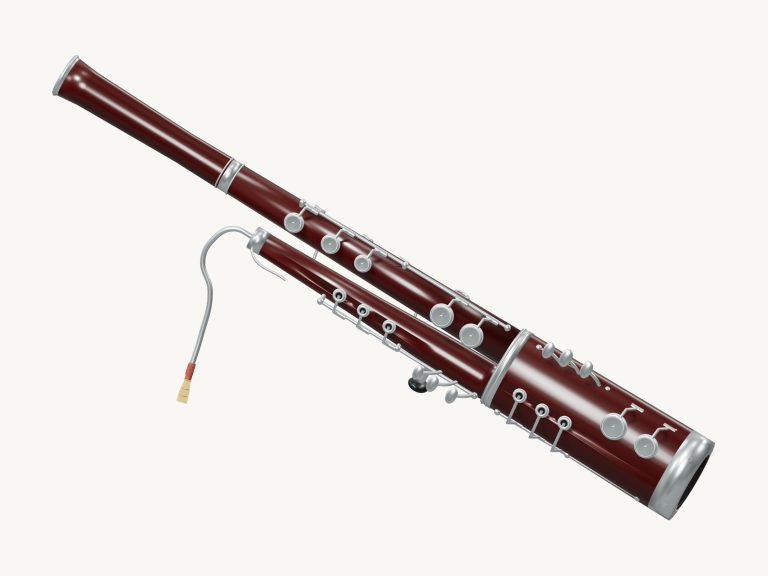
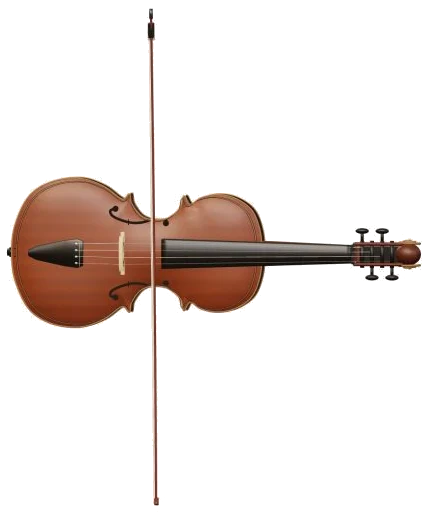
Play an oboe with a singing voice right in your browser with this online virtual oboe. It’s like having a double-reed woodwind instrument with a singing voice. There are 20 silver keys to play on the on-screen oboe, which is a 3D model. You can even zoom in and turn it around to have a closer look.
Each note are played back by recorded oboe samples (not just simple electronic tones), so you’re really hearing the sound of a reed. Nothing needs to be installed or downloaded; simply play with your keyboard on your computer, your fingers on a tablet or phone, or a mouse. No start button here either. When you tap, hold, or press a key on your keyboard, the sound turns on.
How to Use the Online Oboe
Once the recordings are ready, the message underneath the widget change from “Tap, hold, or use your keyboard” to “Recorded instrument sound”. Clicking on the top corner’s question mark reveals a brief “How to play” guide as well as the sound credits.
There are 25 note pads below the model that span all of the semitones from B♭3, B♭5. As you can see from the label underneath the oboe, it says: “Concert pitch · B♭3, B♭5″. Each of the note pads has the exact same note as its name. Tap the pad for a brief note or hold it down and the note continue to sound.
You can also tap the keys on the 3D oboe itself. These light up when played and sound the note from B♭3 through to F5. Drag your finger across these keys to jump between notes.
The keyboard uses the letters A W S E D F T G Y H U J K O L P; Z X C V B N M and, to play all 25 notes. As you press each note on the keyboard it plays through the complete set of 25 notes, ascending a semitone for each note. Every pad is labelled with the letter of the keyboard it will produce and the comma (,) produces the high B♭5 and the ‘a’ is the lowest note at B♭3.
The oboe is framed separately on the page. Click into this first and then begin playing directly from the keyboard. The word PLAYING appears above the note you just played, while a bar below shows its position. To play the note press the Space bar (or the Blow button) and keep it down until you want to stop.
With Keep air on, the breath will keep going by itself. With the sound turned on, each tap of another key/pad change the note but continues playing. This makes smooth melodies simple. Click Keep air again to turn this off. Press the stop button or the Esc key to silence everything at once.
You blow on it and the strength of that blowing is controlled by the slider marked 10, 100. As you increase the volume of blowing, the sound gets louder. If you move the slider up or down while playing a note, it will alter that note as well. This allows you to swell and fade just like a human player would.
Three presets determine the overall character. The default one is called Natural. Gentle plays more softly with a mellower tone and more room. Concert plays with a strong breath and the biggest echo. Each preset move the Expression and Room sliders for you.
The Room slider adds the echo of a room around the oboe, from 0 to 50. The Volume slider in the bottom corner sets the overall level.
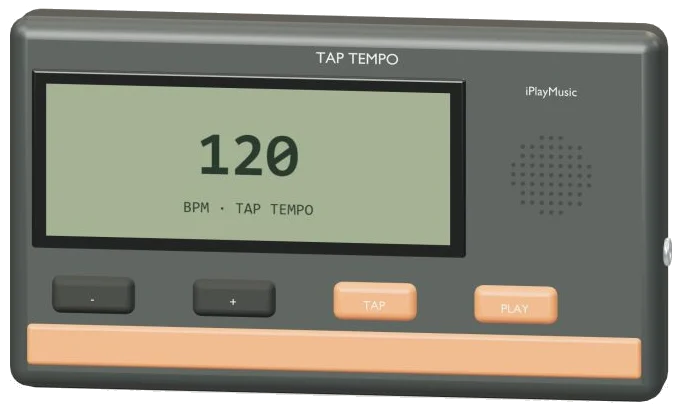
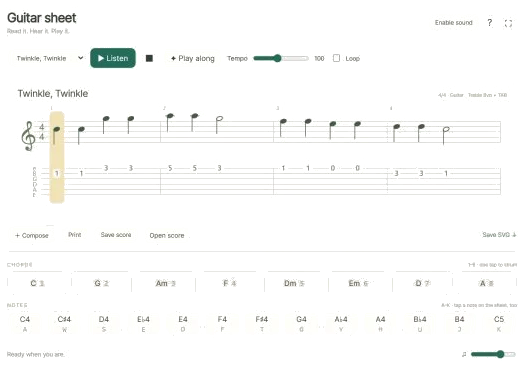
Select one of the tunes (Morning walk, Twinkle, Twinkle, or Ode to Joy) in the PLAY A LITTLE menu to learn how to play it. Tap on ▶ Listen to hear the oboe play back what you’ve selected with the correct rhythm; tap it again to make it stop earlier. Dragging the Tempo slider adjusts the speed different than 40, 180 bpm. Tapping on the tune pauses any playing currently underway.
Tap ◇ Game mode to start the game mode when you’re ready to play along. It will display a panel that says “Tap the green note”, then turn the next note green on both the pads and on the 3D keys. Boxes above say play now, NEXT, or then to show upcoming notes, and they also show the letters. The game waits for you to play the correct note and continues when you do, letting you take each step at your own pace. How far you’ve come is shown by a progress bar and counter. At the end, the game says “Beautiful. Play it again?” followed by a ↻ Again button. Leave it by pressing Stop or clicking Game mode a second time.
● The Record button allows you to record yourself directly on the instrument (no mic required). During recording, the button displays as ■ Finish take. Press this to complete the recording. Then, a Save take link will appear so you can save the recording to your device.
To explore the online virtual oboe, click ↻ Rotate 3D to rotate the model by dragging the background. Pinch or use the scroll wheel on your mouse to zoom in/out. You can even do this while the keys are playing. To return to the front view, click the ⌂ button. Alternatively, clicking Rotate 3D again will also take you back to the front view.
Beginners should of use the Natural preset and press some of the keys on the oboe (C4-G4). Try playing these notes using just your fingers on the pads. Next, enable Keep air and tap each key again to hear how they connect without any gaps. Once comfortable with this, try playing Twinkle, Twinkle slowly. Then change to Game mode to give it a try.