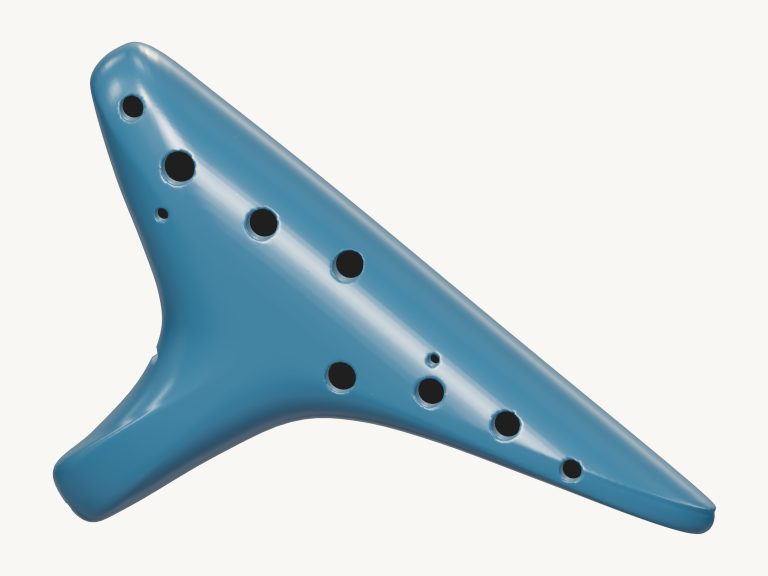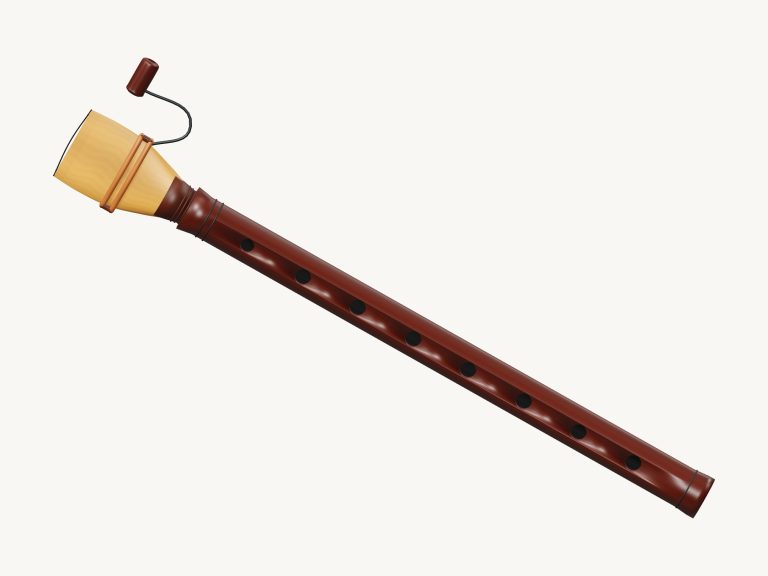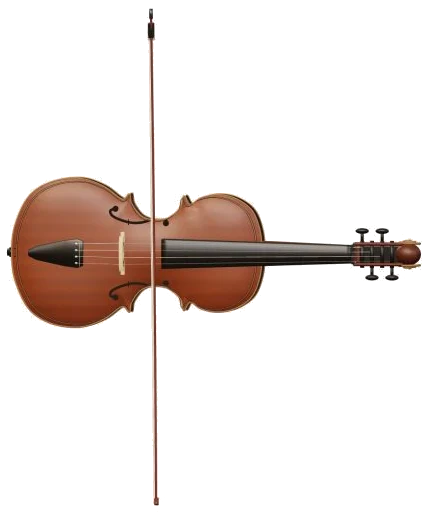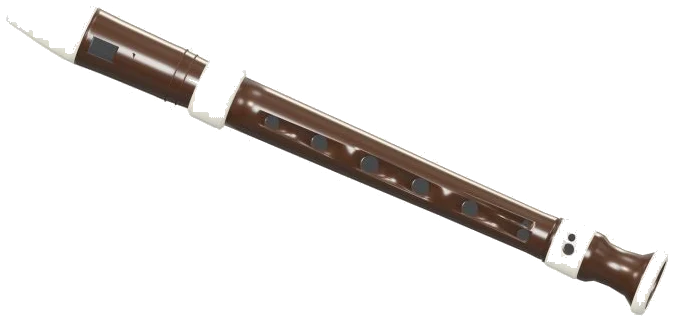
This online virtual tool allows you to play a soprano recorder straight from your browser. It is a 3D model of a recorder that appears on the screen, allowing you to zoom and turn it around. It even has a rear thumb hole and seven front hole. It also features the windway, the labium, and the beak. Each note are played using real recordings. This isn’t a synthesiser but a genuine wind instrument that you hear.
It can be played either with your finger(s) on a tablet or phone, or a mouse. Alternatively, you can use your computer keyboard. There are no plugins, accounts or microphone required. No dedicated sound button here. Tap a note to play.
How to Use the Online Recorder
The bottom line reads: Tap a note to play. When you do, your initial note gets the sounds going. Bottom line reads: Sound ready. Top question mark reveals sound credits and help. Full screen button makes the recorder take up your entire screen. Press Esc or click Exit full screen to return to the page. Volume slider is in the bottom bar.
There are 25 notes covered by the note pads. These cover C4 to C6, including all semitones in between. Each note sounds one octave higher than written on a soprano recorder. Below are the written notes as shown on the pads. The line underneath the model spells it out for you. If you select the note you want to play, you will see: Written C4 · sounds C5.
Place a pad over the note and it will continue to sound while held. Release and the sound stops. Alternatively, you can slide your mouse or finger across the pads allowing you to glide from one note to another.
A is played as C4 on the keyboard of a computer. Then comes the next set of notes: W S E D F T G Y H U J K. The key marked with the letter K plays C5. Next come the keys O L P; then Z X C V B N M. Finally, the comma key sounds the highest note of all: C6. Every single key is a semitone above the preceding key. Each has the letter of the note written on the pad.
If you wish to hold a long note simply hold down the key. To play the note that you have chosen most recently, hold down the Space bar.
The Recorder appears in its frame on the page. Before playing from the keyboard, click here first. To get it to continue playing, turn on Auto breath. No need to hold anything down. It says Auto breath: off until you tap it. That is the main idea. The hint next to it summarizes it.
Tap once to continue playing. Tap notes to change pitch while it’s on. Every time you tap a pad, it moves the melody. It does this without stopping. With just one tap you can play smooth tunes. Tap Auto breath again to turn it off.
How hard you blow makes a difference. The Breath slider controls how strongly you blow. Lower settings is softer and mellower. Higher settings are brighter and louder. It works even if a note is already sounding.
Play the 3D recorder. You can also touch any of the holes to make it play a note. It’s a C major scale ranging between C4 and C5. If you touch another part of the recorder, then it will play the last note you chose. As you play, the holes illuminate. The help window says these little controls are shortcuts to notes. They don’t constitute a full fingering tutor. Use the pads to play all the notes in the range.
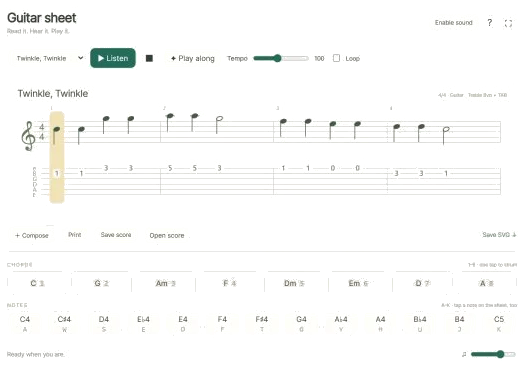
Songs are in the menu above the pads. Select one: Morning steps, Twinkle, Twinkle, Ode to Joy. Tap Play song. Listen to the song play back. The button becomes Pause and then resumes. Tap the ↻ button to repeat the song. Tap the square ■ button to stop everything.
Drag the Tempo slider up/down. It goes from 50 to 150. Above the pads is a preview of the upcoming notes. And you can see how long each note will be (in beats). Tap a note in the preview strip to hear it by itself.
Click Game to teach yourself a song. The pads light up in order with the ones you need turning green. Then the next one turns amber. They’re marked NEXT and NOW by the strip. You can see how well you’ve done on the counter. Each time you get it right, the game moves forward immediately. Even if you repeat a note. You set the pace. You control how fast it goes. If you hit a wrong note, it will tell you which green note to try. When you get to the end, it says Complete! Play it again or choose a new song. Click Game again to return to free play.
Click 3D · Rotate to look all around the recorder. Drag the background to turn. Scroll to zoom. On a touchscreen, use two fingers to rotate and zoom. In this view, touches on the recorder still play notes. The button ↺ resets the camera. Switching 3D · Rotate off returns the recorder to its starting view.
If you’re a beginner on the recorder, begin with these seven keys: A, S, D, F, G, H and J. The corresponding notes sound like this: C, D, E, F, G, A and B. Notice that the scale ascends.
Next select Twinkle, Twinkle. Press Play to listen to the song. In Game, play along. Use the Tempo slider to reduce the speed for practicing. It would of been better to use a slower speed. You should of used the slider.