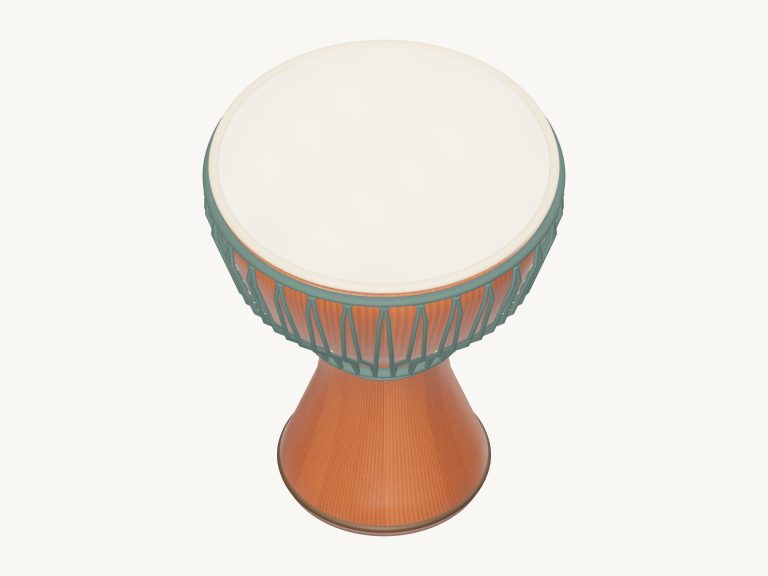
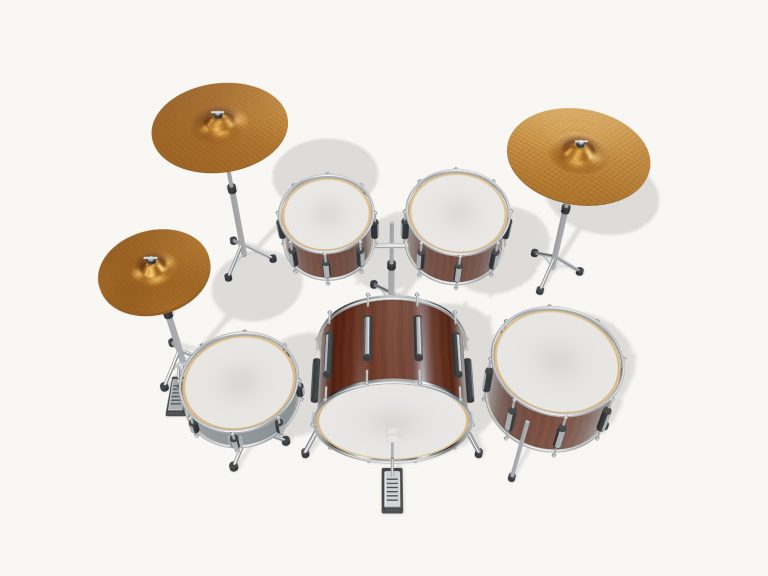
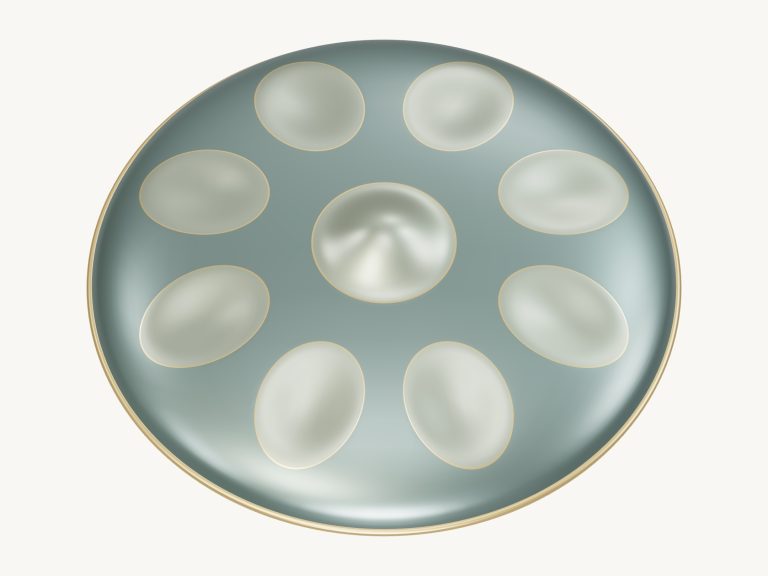
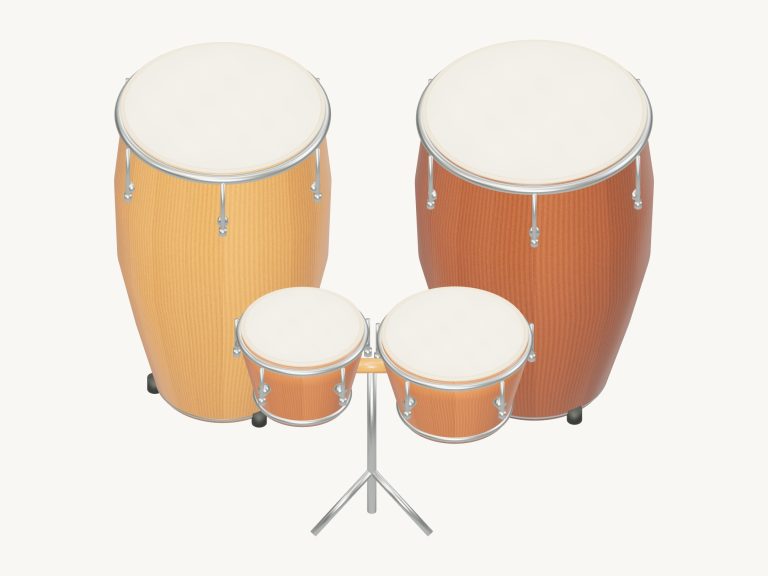
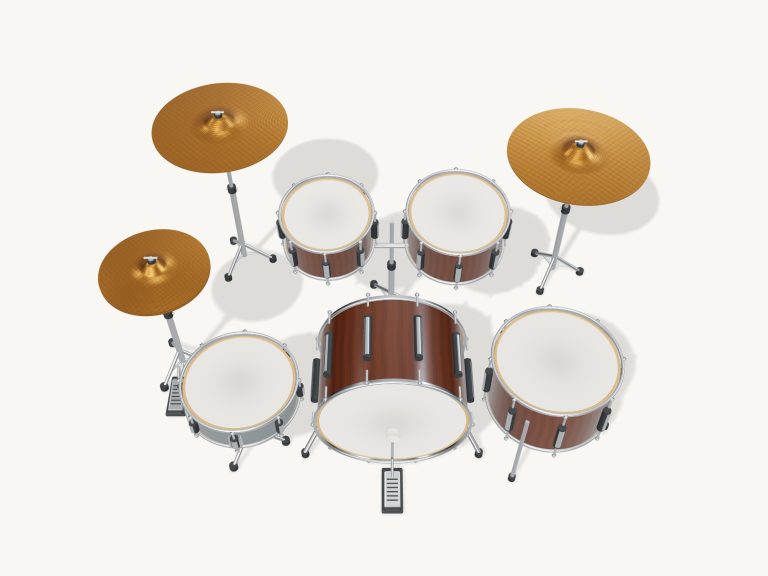
It’s an entire drumline battery right on your computer. This online virtual marching drum set include two hand cymbals, a marching bass drum, five tenor drum, and a marching snare. The 3D drumline model can be zoomed and rotated. All hits are real recordings of marching drums (no synthesized sounds), which means you’ll hear a booming bass and crisp snare. To play, use your fingers or mouse to tap the drums, or play them from your computer keyboard. There’s no need for a download or plugin.
At the top there is a button that says Loading… as the drums prepare to go and then Enable sound. When you press the button it activates the sound and the button turns into Sound on. Pressing it again toggles the sound to Sound off. To the right of it are a Settings button, a question mark for the guide, and a Fullscreen button. The Fullscreen button puts the drumline in full-screen mode. There is an Exit button when in fullscreen. Pressing the Esc key will also take you out of fullscreen.
How to Use the Virtual Drums
The 3D drumline has a row of drum pads below it too that you can tap instead. These are labelled ten pads: Snare L, Snare R, Rimshot, Spock, Tenor 1, Tenor 2, Tenor 3, Tenor 4, Bass, Cymbals. They also have a little hint like ‘Marching bass’ or ‘Snare accent’ or ‘Left hand’. The Spock is the highest tenor, followed by the four tenors in order from high to low. A little display indicates what you just hit, and you can play with multiple keys or fingers at once.
Like an actual drumline, the snare is played with both hands. Tap on the left or right side of the 3D snare to play a left or right hand stroke. Use the Rimshot pad or shift-click on its head for a rimshot. The Flam button produces a soft extra note immediately preceding the principal hit. Pressing the Roll button plays alternating sixteenth notes at the chosen tempo; let up to stop. The Cut button mutes ringing cymbals. ■ Stop button silences everything.
Everything stays within reach of your hands on the keyboard. On the snare, the left hand is A, the right hand is S. Rimshot is played by D. Spock is played by F. Tenor 1-4 are played by G-H-J-K. Bass is played by X or Space bar. Cymbal clash is played by L. Flam is played by Z. Snare roll is held down with V. Use C to cut the cymbals. Press Esc to stop playing or exit fullscreen. Making a hit harder is done with Shift. To use, just click inside the widget first then start playing from the keyboard.
Four patterns are available in the cadence menu: First march, Paradiddle · R L R R L R L L, Around the tenors, and Street cadence. In the Cadence section each beat is laid out as a button with B for bass, 1 to 4 for the tenors, and L and R for snare sticking. Tap on any of the beats and it will play the corresponding combination. The counter displays the tempo and count. The current beat lights up. Clicking Listen lets you loop and play along with the selected cadence. Start by setting the Tempo slider between 40 and 200 BPM (it starts at 104). When you select a cadence, it sets the starting tempo based off that rhythm. While listening, the Roll button works too.
Tap the Game Mode button to learn a cadence. You’ll be taught two cycles as slowly as you like. The amber preview pad shows you what’s coming up and the green pads highlight what to play next. Tap the green beat to play through the entire combination. You can also hit them all together or one at a time. If you hit wrong it won’t send you back but will remember where you are so you can simply try again. The progress bar, beat counter and a queue of the upcoming beats let you know how far along you’ve got. When you’re finished you’ll see Cadence complete! The restart arrow starts again and pause saves your progress. In the game, tapping on the 3D snare plays whatever is highlighted on the left or right hand or rimshot. This makes it easy to follow the sticking.
Volume, Tuning, Room sliders is under Playing & sound in the Settings panel. Room adds a touch of ambience. Tuning is +/- four semitones. Hold Shift (or press harder with a pen) for a stronger hit. Soft, Natural, and Strong are touch buttons. The snare, rimshot, bass and cymbals each have separate recordings for soft and hard hits. Tenors have a single recording that’s shaped by how hard you play. Show names on the 3D kit can be switched off too. Your volume, tuning, and room settings are remembered in your browser.
Click Rotate 3D to look around the drumline. Zoom in for a closer look. Drag the shells or empty space to rotate. Heads remain playable as you explore. Reset view returns to the clear playing angle.
The marching drum samples are by S. Christian Collins and Amir Oosman from MuseScore Drumline, shared under CC0. The open marching cymbals are by Sam Gossner from VCSL (also CC0), taken from MuseScore General 0.2.1. Together they give this virtual marching drum kit a recorded marching snare, rimshots, five different tenors, a bass, and even hand cymbals.
If you are just starting out on a drumline, select First march. Reduce the speed and listen out for the snare and bass combination. Use Game mode next to practice your sticking with A and S using the Paradiddle. Take it slow initially, but before long you’ll be marching in time to the online virtual marching drums. Actually, it’s naturaly easy to get into the rhythm once you find the beat. Try it yourself to see how it works. It is much more fun than just watching.