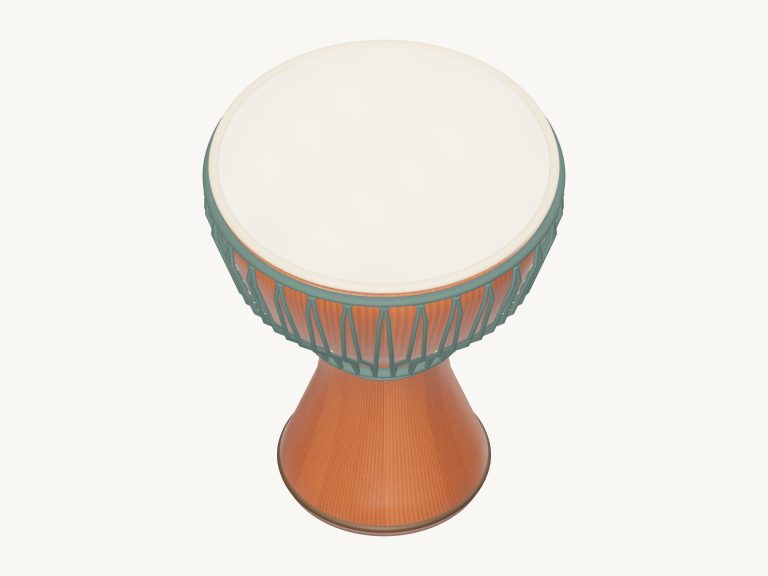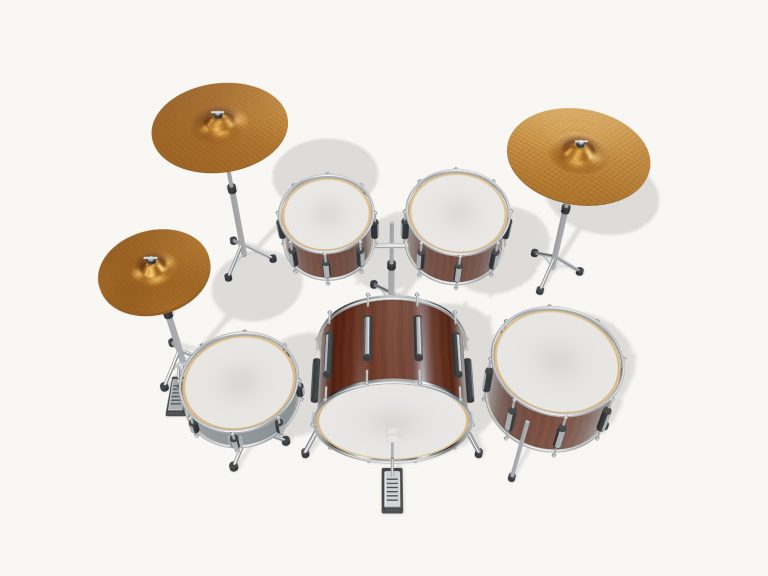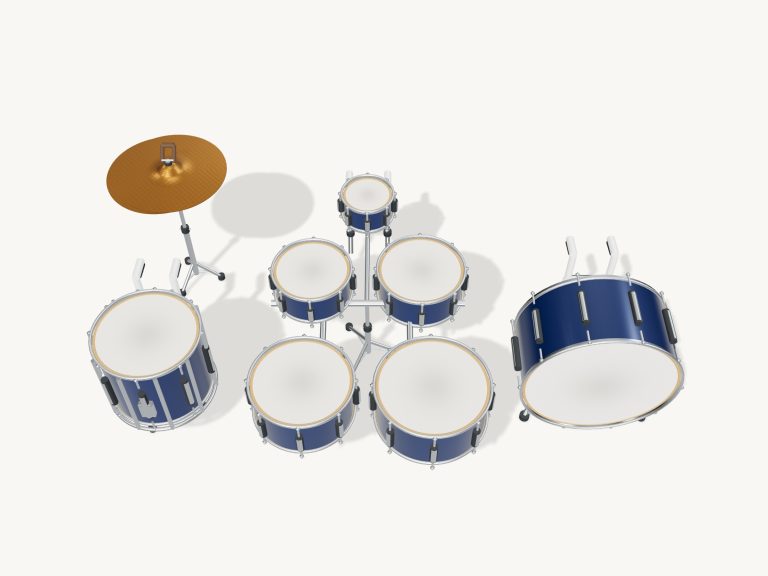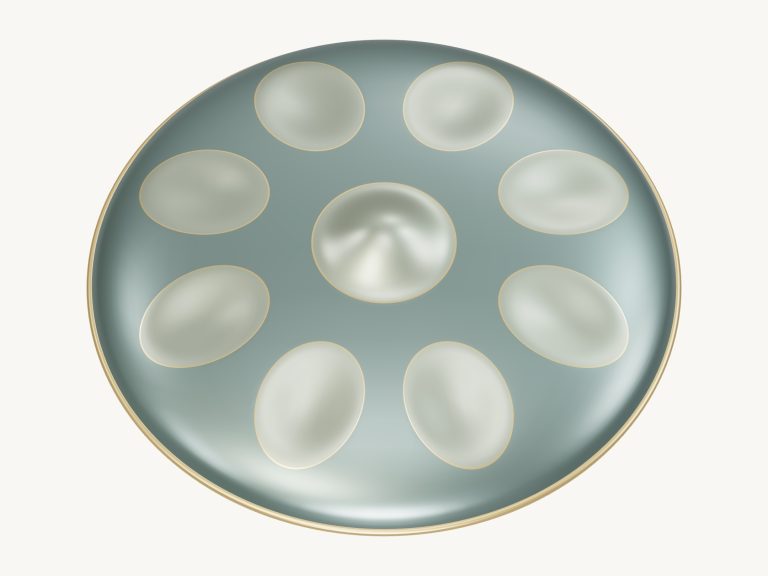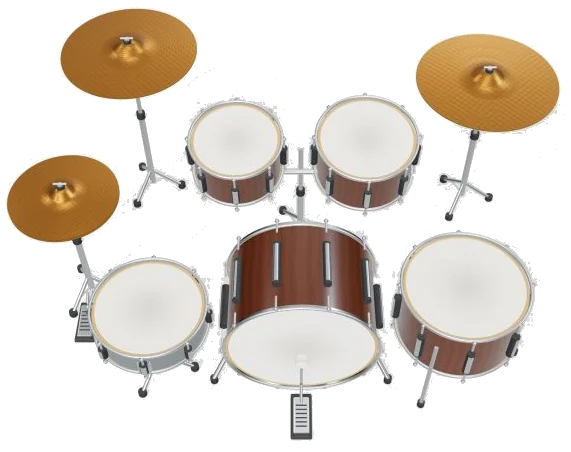
These are online virtual drums. What this offers are an entire set of virtual drums played right within your browser. Every sound is from a real recording of an actual physical drum kit. In addition, the drums is a detailed 3D model that you can zoom in on and rotate on your screen. So it’s not some synthesized beep but real drums and cymbals you’re hearing.
You don’t need to install or download anything either. Just tap the drums with your fingers on a tablet or phone, or with a mouse if playing on a computer keyboard.
How to Play the Online Virtual Drums
As the kit loads, the sound button say Loading… Then: Enable sound. When you tap it, the audio begins playing and the button changes to say: Sound on. Tap it again if you wish to mute the audio, which will change the button to say: Sound off.
A Fullscreen button beside the sound button allows you to give the kit your entire screen. It says Exit when you’re in fullscreen mode. The Escape key also returns you to normal mode.
There is a question mark for the How to play guide. A Settings button is beside the sound button.
There are two options to play the drums. The first is to play on the row of ten drum pads below: Kick, Snare, Hi-hat, Open hat, Hat pedal, High tom, Mid tom, Floor tom, Crash and Ride. A brief hint appears on each pad along with its key. For example, it says Steady pulse for the ride, Let it ring for the open hat, and Backbeat for the snare.
The second option is to play on the 3D kit, tapping on the heads and cymbals which wear their names. Multiple keys and/or fingers can be used at the same time and the last drum played has its own little display.
There are three different sounds on the hi-hat; the closed, the open and the pedal. As with a real hi-hat, the open hit rings until cut-off by the closed hat or the pedal. A normal click will play the closed hat, while a Shift-click is an open hit. The Choke button cuts off ringing cymbals and Stop mutes everything together.
S is the snare and X or the Space bar is the kick. D and E are the closed hat and open hat and R the hat pedal. F is the high tom, G is the mid tom and H is the floor tom. J is the crash, K is the ride. Press C to choke the cymbals or Esc to stop all playing and leave fullscreen. To play something with an accent at full strength, hold Shift as you tap the key.
The kit resides in its own frame on the page and you have to click inside the widget first before starting to play from the keyboard.
Four patterns are available in the groove menu: First rock beat; Four on the floor; Syncopated groove and Around the kit. Each is indicated by short codes like H for hat, S for snare, and K for kick. A numbered label also shows the step where each plays within the pattern shown in the Groove section. You can tap on any of the beats to hear that full combination played back. Tap the Listen button to play along on top and loop the chosen groove. The current beat lights up.
The Tempo slider ranges between 40 and 200 BPM. When you select a groove, it starts at its own tempo.
When you’re ready to learn a pattern, click on Game mode and it will teach you two cycles of the groove at your own pace. The drums you need to play now glow green, and the next cue appears in amber so you always know what’s coming. You can play the entire combination with one tap by tapping on the green beat button. If this is a combination like Kick + Hat, then you must hit both these hits together or one after the other. If you make a wrong note it keeps your place so you can just try again. There is a progress bar, cycle counter and a queue of upcoming beats showing you how far you’ve come. If you want to pause the game, it saves your place. The round arrow restarts you from the beginning. Once you’ve finished, you’ll see Groove complete!
The 3D hi-hat also follows the need for an open, closed or pedal stroke in game mode.
There’s a Volume slider, a Tuning slider (which adjusts the kit down by four semitones or up by four) and a Room slider for a little ambience in the Playing & sound section of the Settings panel. There are also Touch buttons: Soft, Natural and Strong, which control the hardness of your key presses and taps. Each element of the kit has both a hard and soft recording of the kick, snare, toms and crash, so if you want to really change the sound and not just the volume, go strong. For those who use a pen instead of their finger, it’s the pressure that controls the strength.
Your volume, tuning and room settings will be saved in your browser for next time, too, and you can turn off Show names on the 3D kit for a cleaner look.
Rotate 3D: Click this button to look around the kit. On a touchscreen, you can pinch zoom in and out from the heads. You can drag empty space or the drum shells to spin them around. As you explore, the cymbals and heads continue to play. Click Reset view to go back to the usual playing angle.
There are 16 real sample recordings used in the online virtual drums. All the drum kit samples are from menegass with the ride being a trivialAccapella sample released under the free CC0 licence through Sonic Pi. There are soft and hard samples for the kick, snare, toms and crash with just one sample per way of playing for the hi-hat and ride.
Beginners should select the First rock beat. Reduce the tempo. Tap Listen to hear the combination of kick, snare and hi-hat. Next, switch to Game mode and tap out each pad in turn following the green pads. When comfortable with the sequence, increase the tempo and perform in time with the loop.