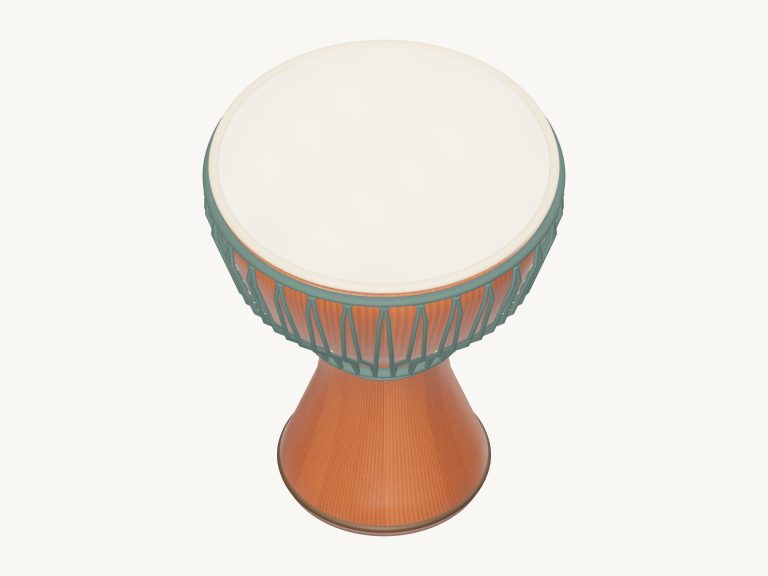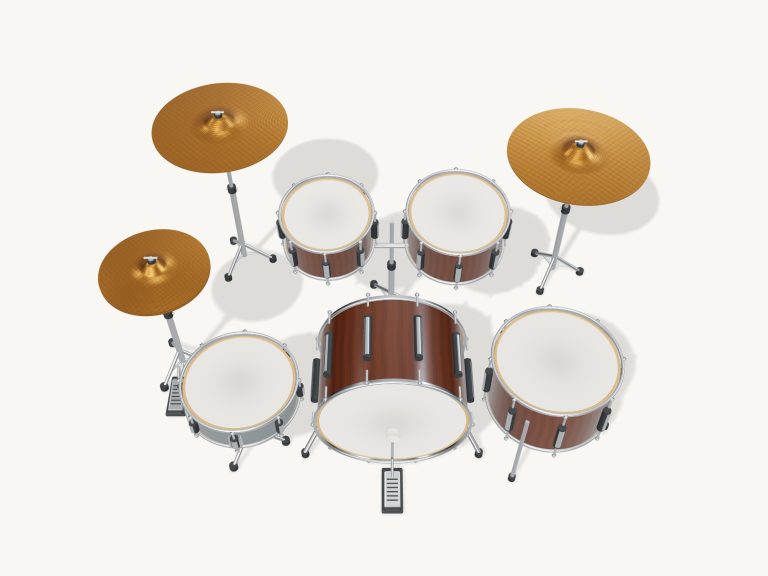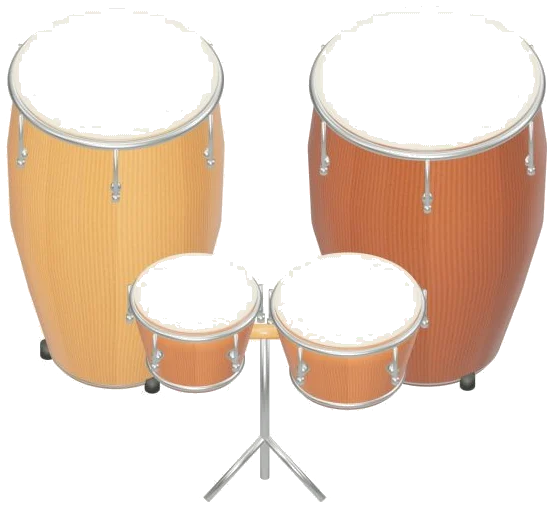
This is a virtual hand drum set you can play right in your browser. Four Latin percussion instruments are included: a tumba, a conga, a low bongo, and a high bongo. Every stroke you hear comes from 48 acoustic recordings of real drums. No synthesizers is used.
The drums can be played using a computer keyboard, fingers on a tablet/phone, or even just a mouse. There is no need to sign up or install anything. You can also turn the 3D model around and see the drums from various angles.
How to Play the Drums
To get started, tap the Enable sound button at the top of the widget. While the recordings load, the button counts up. Once done, it says Sound on. You can also tap a drum before they’re finished loading to start.
Beside that is a round record button. Tap the question mark for help and credits. This opens the help and credits section. There’s also a Fullscreen button which fills the screen with the drums. Exit fullscreen by tapping the button again or pressing Esc.
At the front of the set are the two bongos. Behind them are the taller conga and tumba. Each drum has two playing zones on each drumhead. If you hit the centre of a head, it will produce an open stroke. This creates a full ringing tone. If you hit the outer edge of the head then this will create a muted stroke which is drier and shorter in sound. Below the drums, it says to hit the center for an open sound and the edge for a muted sound.
The key that plays each head is printed on the head itself. In the corner, there’s a little label indicating the last stroke you played. You can also play multiple drums simultaneously. On the touchscreen, you can tap with both your hands. As you slide your finger from one zone to another, it will play the new zone as you cross over into it.
Eight buttons for strokes is located beneath the drums. The drums are grouped together. Each drum has both a Mute pad and an Open pad. As you play they light up. Even if the 3D view doesn’t load they continue to function.
It can be played quite easily using a computer keyboard. Open strokes are Q W E R with the muted strokes being A S D F. The order is high bongo, low bongo, conga, and finally the tumba. The high bongo belongs to Q and A. Low bongo belongs to W and S. Conga belongs to E and D. Tumba belongs to R and F.
The drums live in their frame on the page. Before playing from the keyboard, click within the widget. To begin a continuous roll, either use the Space bar or the Roll button. It will perform the last stroke selected. At normal settings this is six strikes a second. While picking additional strokes, the roll will continue. You can transfer it from one drum to another. You can even change from mute to open and back again without pausing. To stop the roll, press Space again or click the button. Everything stops immediately with the square stop button or by pressing the Esc key.
Speed is adjustable from 0.5× to 2× on the Speed slider. It can be altered while it’s playing. That’s not just for the grooves but also for the rolls.
There are three presets in the Touch menu: Soft touch; Natural hands; and Lively hands. These alter the strength of the strike that has been recorded. These range from a gentle tap to a firm hit. The livelier settings have a slight increase in sound of the room. There is a volume slider at the bottom of the widget that controls the overall level.
Get it going with one of the ready-made patterns in the Rhythm menu. The patterns are Four-drum jam, Evening circle, Conga pocket, Bongo bounce, and First steps. Hit Groove to hear the pattern looping round. The beats light up as a row of dots. Play along above them. First steps is a simple, slow pattern played on just the two bongos. Four-drum jam scurries around the entire set at a brisker pace.
The Play along button turns the chosen rhythm into a game called Play Along. On pads and drum there’s a green target that indicates which stroke you should play. The name of the stroke is shown on the guide, with the key in brackets after it. As soon as you hit the correct stroke, the game continues. When it is running, you cannot hear other strokes, so you can take your time. The Then line gives a preview of the next three strokes coming up. If the same stroke occurs twice in succession then the target will say AGAIN. There’s also a progress bar and counter showing how far through you’ve got. If you get to the end of the pattern it says LOVELY. At any stage, click End game to stop.
It’s a round record button that captures what you play. It takes the sound direct from the instrument. There’s no need for a microphone. Hit the button again and you stop. You get a Save recording link. This allows you to keep your take. Your recording is stored locally on your browser.
Scroll to zoom in or out. Turn the drums by dragging the background. All the pads and drumheads remain playable. You can still play them while exploring. Front view brings the camera straight back. Look around the set by clicking Explore 3D.
This set contains 48 acoustic samples of the drums. They are from the Versilian Community Sample Library. These are CC0 recordings. There are eight articulations. Each drum has both a muted and open stroke. Alternate strikes and dynamics are also included. Repeated strikes don’t all sound identical as they would on a real drum. A muted stroke is one where you dampen the skin with your hand. The two zones are just a convenient way to access the two recordings.
For those of you who have never played hand drums before, select First steps. Listen to it a couple of times by clicking on Groove. Next, play along with the pattern using the same rhythm. Once you feel comfortable, do this a second time starting on the groove. Using the D key between the beats introduce a couple of muted conga strokes.