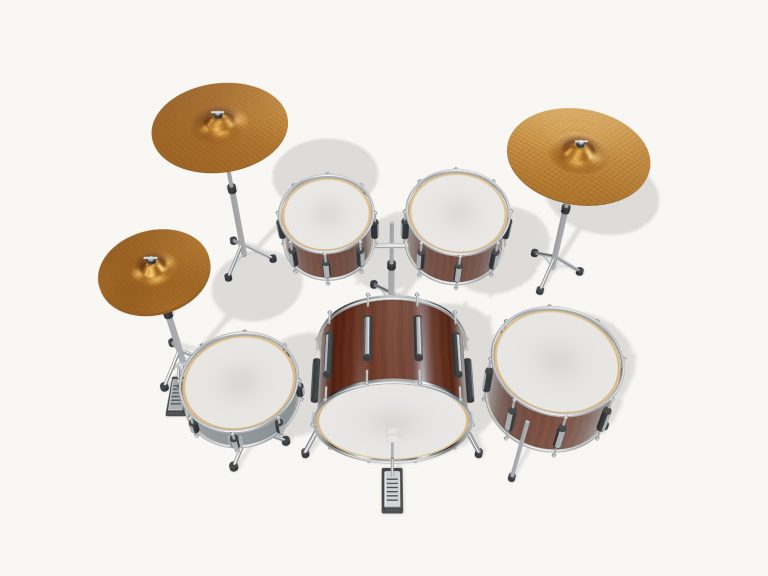
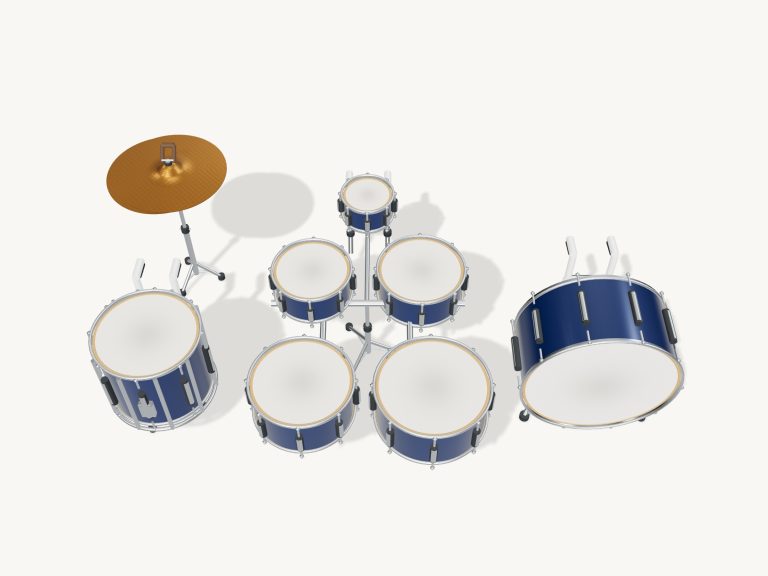
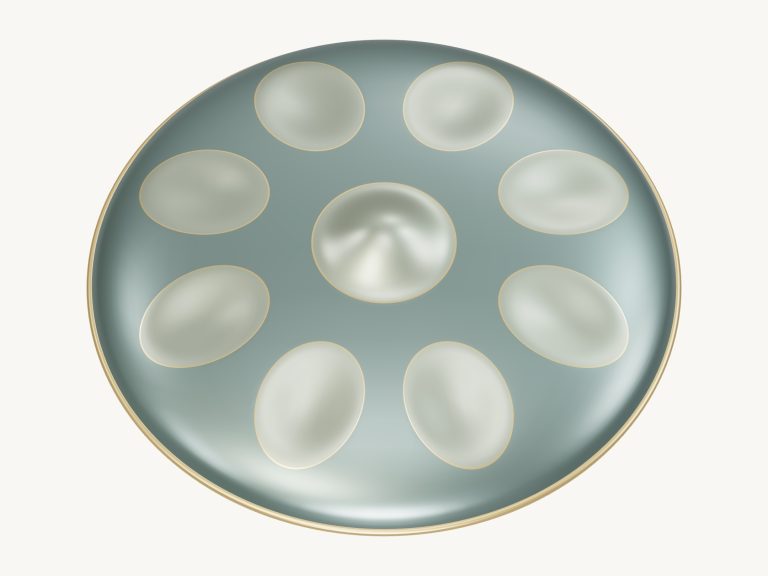
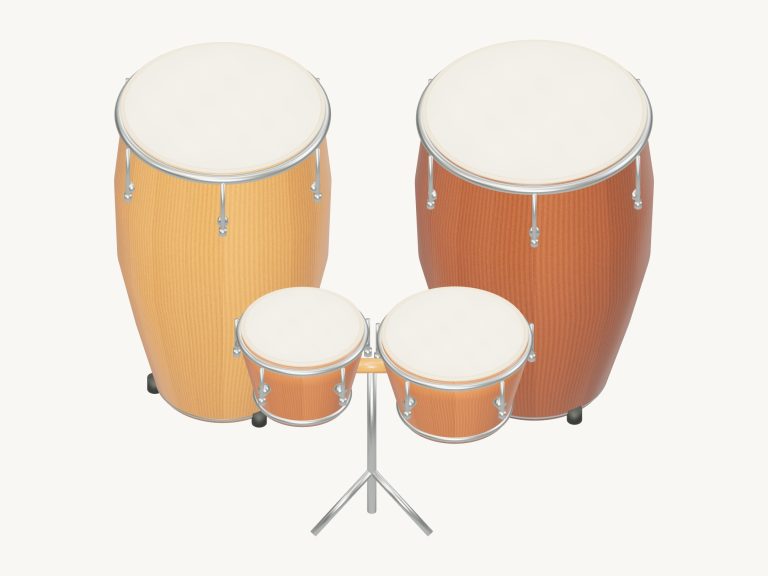
These are online virtual African drums: you don’t need to download anything; just click on them and they appear right there in the browser window. They’re based off actual recordings of a djembe being struck four times (one each for the open, bass, slap, and mute sounds). The screen version of the drum is a 3D model which you can zoom into and turn around. You can hit it with your mouse, your fingertips if using a tablet or phone, or even with keys on your computer keyboard. You don’t need to sign up or install any software.
First, you tap the Enable sound at the top of the widget. Then it loads the recordings and the button counts up. When it’s done, it says Sound on the drum is ready. If you tap on a stroke, it will begin playing the sound as well (in case you forgot).
How to Use Online African Drums
Next to the enable button is a round record button and a question mark. Tap the question mark, and it opens the credits and help. Next to that is a fullscreen button. Tap that, and the djembe takes over the entire screen. To exit fullscreen, either tap the fullscreen button again or hit Esc.
There are four strokes on the djembe. Each of those is assigned a place on the drumhead. It’s indicated by printed ink spots. These are labeled with the names of the strokes. The text below the drum show that the bass is played in the middle. Tap the ink spots for the others. There are four: Bass, Open, Slap and Mute. Tap (or click) on the spot to hear the sound. Drag your finger around the head and it plays a new stroke every time you enter another area. That means you can use both hands and play several strokes simultaneously. According to the help panel, hand technique determines the reality of the slaps and muted strokes. The areas are more of a short cut than a hard and fast rule.
Below that are four pads called Bass, Open, Slap, and Mute. These pads produce the same strokes as the drumhead. There is a little display indicating what stroke you selected last. If for some reason you can’t get the 3D view to load on your device, the pads still function. On the keyboard, the keys A, S, D and F produce Bass, Open, Slap, and Mute. So do the keys J, K, L and;. This allows you to use both hands working together. The labels on each pad and on the head show which key produces it. The drums themselves is inside their frame on the page. Before playing from the keyboard, you have to click into the widget first.
On the final stroke you play, if you press the Space bar or the Roll button, that will keep it rolling. While it’s rolling, you can tap another stroke and it will switch to that. It’s a handy method for creating a longer, rumbling phrase. To stop the roll, hit Space or the button again. If you want to silence everything, use the square stop button. The Esc key has the same effect.
Speed runs from 0.5× up to 2× on the Speed slider. That alters the speed of grooves and rolls. There are three choices in the Touch preset menu: Soft touch, Natural hands and Lively hands. Those presets alter room feel and volume. Lively hands plays louder with more room sound. Soft touch plays quieter with less. Natural hands is the default choice. Below that is the volume slider.
The Rhythm menu holds five original practice rhythms. They are Dance around, Sunset pulse, Circle groove, Call & answer, and First heartbeat. Clicking Groove plays that rhythm looping back on itself. There’s a row of dots indicating where you’re at in the pattern. That’s the groove to jam over. Your own strokes go on top. Clicking Groove again stops it.
To learn a rhythm stroke, stroke by stroke, you click Play along. The word PLAY and the required stroke appear in a panel together with the key it’s played on. The stroke lights up in green on the drumhead and also on the pad. As soon as you play the correct stroke, the game continues. Take it at your own pace. Simply ignore other strokes. There is no penalty for a slip. If the same stroke occurs twice in a row, the cue becomes AGAIN. The next three strokes are previewed in the “Then” line. A progress bar and a counter show your progress. When you complete the round, you see LOVELY and “You found the rhythm”. Whenever you wish to stop, you click End game.
The round record button allows you to capture your playing. It does not use a microphone but records straight from the drum. Click again to stop. A Save recording link appears. Download your take and listen back later.
The djembe is a 3D object. You can explore it by clicking Explore 3D. Turn the drum by dragging the background. Zoom in and out by pinching or scrolling. While exploring, the head zones and pads continues playing. Click Front view to get back to the normal playing angle.
All the sounds are real djembe recordings. The sounds are shared under the free CC0 licence on Freesound. There are four recordings in all: PanPiper5 for the bass and slap, and Infinita08 for the open and muted rim strokes. I trimmed and adjusted the levels with one take per stroke. These are original practice rhythms. Draws the 3D model using Three.js (the app’s credits).
If this is your first time hand drumming, then you select First heartbeat. To listen to how it grooves, you click on Groove. If it’s too fast for you to play, you slide the Speed slider down. Next, you click on Play along and play the same rhythm. Follow the green targets. Go slow. Maintain a steady pulse. Soon, under your hands, the online African drums will sound just like a drum circle in real life.