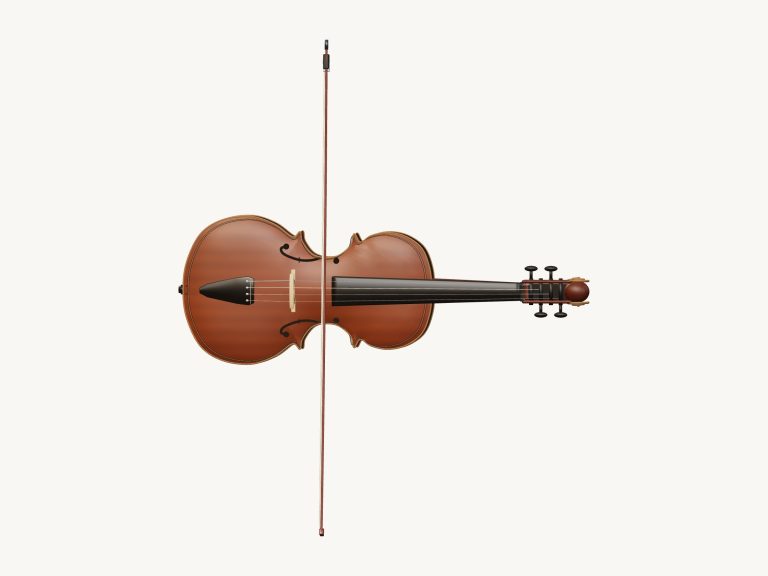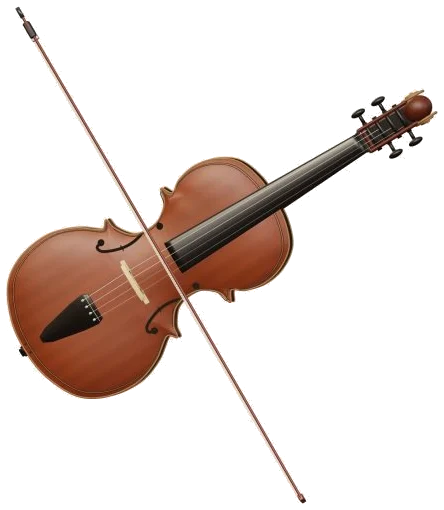
This is an online virtual violin that plays like a real one in your browser. A detailed 3D model of the violin is displayed on-screen; you can zoom and rotate it. Each note is played using 65 real recordings of a solo violinist. It’s not a synthesizer, but a genuine violin you are hear.
And you get to play it on your computer keyboard or with your fingers on your phone or mouse. You don’t need to sign up or download anything.
How to Play the Online Violin
To begin, click on the Enable sound link at the top of the widget. As the button counts up, the online virtual violin will load its recordings. When it shows Sound on the strings, you can play notes and chords.
Clicking on the Fullscreen button displays the violin across the entire screen. The sliders icon open the sound settings. The question mark opens a quick guide. Press Esc to exit fullscreen.
There is a hint under the violin. Tap notes or chords while the bow is moving. Hit the Start bow button and release your finger. The bow continues on its own, leaving only for you to decide which note(s) to play. Use the spacebar to start and stop the bow, or use the esc key or the Stop button to muffle the violin at any time.
From the low G (string) to the bright E string, the four strings is G, D, A and E. These are labeled 1-4 so you can also use the numbers as keys for strings. Below is the row of Notes showing the 13 notes available to play on that string. These notes go a full octave upwards from the open string, and a little label indicates which string it is. The Open string button returns to the unfingered note.
The notes are positioned across a computer keyboard as follows: A W S E D F T G Y H U J K. They zig-zag up from one row of keys to the next, following the same pattern as a piano keyboard with each key a semitone higher then the last. The buttons for each note also shows which key is played.
There’s also a frame on the page containing the violin. You click within this first, then play from the keyboard. When sliding from one note to another, you can drag your finger along the neck of the violin (or even drag across the body of the violin to bow) just as if you were playing the instrument. The same happens with a slider called Slide, found beneath the notes.
If Snap is enabled, it will stop on the exact note. If Snap is off, you’ll have smooth gliding between the pitches, ideal for expressive slides.
From the keyboard, the keys 5, 6, 7, 8, 9 and 0 play the chord pads C, G, Am, F, Dm and Em. You will notice that each pad is a two-string violin harmony called a double stop, which means the violin plays two notes together rather than a single line. If you step through these keys, you will easily be able to hear just how full the instrument can sound in C, Am, F and G.
To its right are three sound presets. Warm is a soft bowed tone. Expressive is played with more expression by leaning into the bow, adding some vibrato, and using a slightly more luxurius room. Pizzicato changes the sound to plucking the strings. At any point you can press the P key and it will switch from arco (bowed) to pizzicato (plucked), or hold down V for an additional vibrato on a sustained note.
However, the Bow speed slider allows you to set the rate at which the bow is repeated, from half speed to double speed. The pitch remains absolutely unchanged throughout. In Game and Listen modes, this also sets the tempo. This allows you to play a tune slowly while you’re learning and then increase the speed again later while you play.
You select a tune from the Tune menu: Twinkle, Twinkle; Ode to Joy, Pizzicato dance, Chord garden or First Light. Clicking Game mode lets you learn it note by note, tapping the single green pad marked PLAY and moving on as soon as you click the right one. Tap it again if it’s stayed on the same note. A counter and progress bar show how far through the tune you are, and the Then row previews the next notes before you can play them. Chord garden teaches the chord pads in the same way.
To shape the tone there are Volume, Expression, Vibrato and Room sliders in the sound settings. By default Easy Bow is switched on. This means that the violin will bow for you as you play the note. If you want to bow and finger the notes separately (as a real violinist would) then you can switch this off.
The Record button allows you to capture what you are playing directly from the instrument without needing to plug in a microphone. Then when you have finished the recording, you can download it with Save. Do this before you close the page or record another one.
Rotate 3D allows you to look around the violin whilst continuing to play. You scroll to zoom, and drag the background or right-drag to rotate. If you’re using a touchscreen, you pinch to zoom and two fingers to rotate.
It was recorded for VSCO 2 Community Edition, which is a free sample library. Lily Lyons plays the recordings. Plucked notes have alternate takes so each time you repeat a note it doesn’t sound the same. Bowed notes have a soft and a loud version that retain the natural vibrato of the player. The playable range from the open G string is G3 to E6. Smooth crossfades are used to repeat bow attacks when the bow continues. As you play, slides and additional vibrato are formed in real-time.
For beginners, select the Warm preset, then play a couple of notes from the Notes row with Easy bow ticked on and either the A or D string selected. After that, you go into Game mode playing Twinkle, Twinkle or Ode to Joy and adjust the Bow speed slider to slow the piece down until it feels right for you.