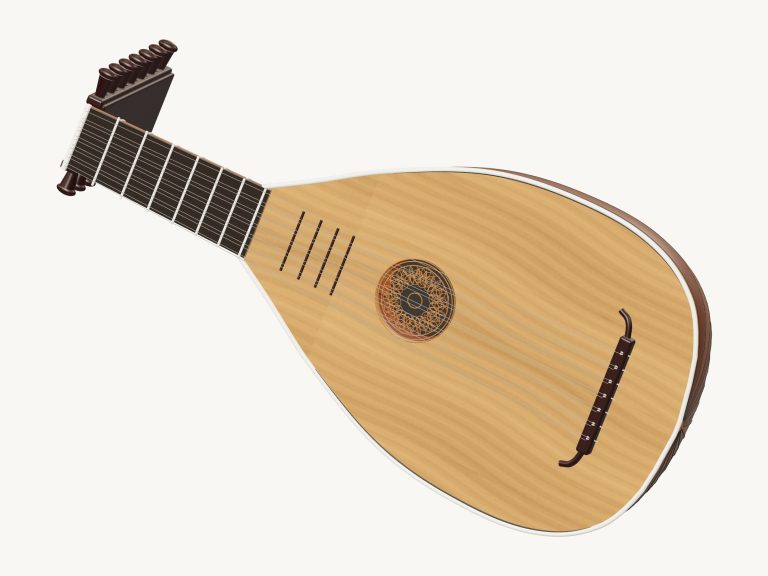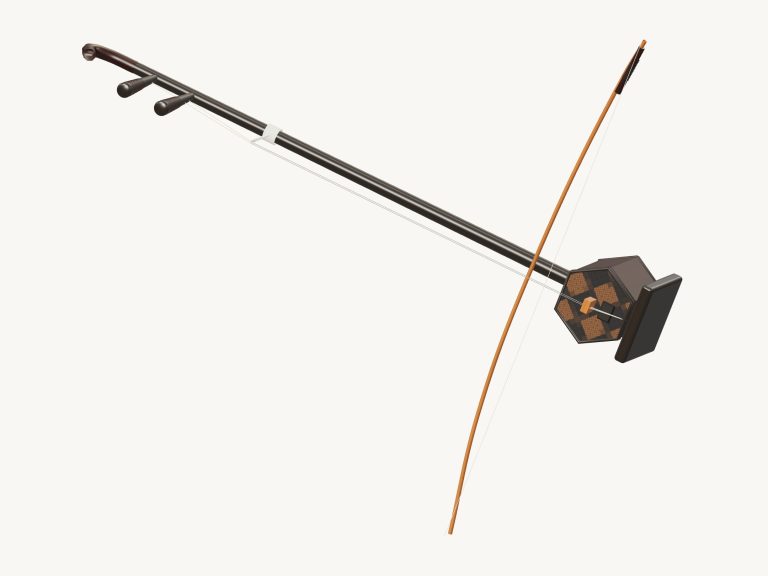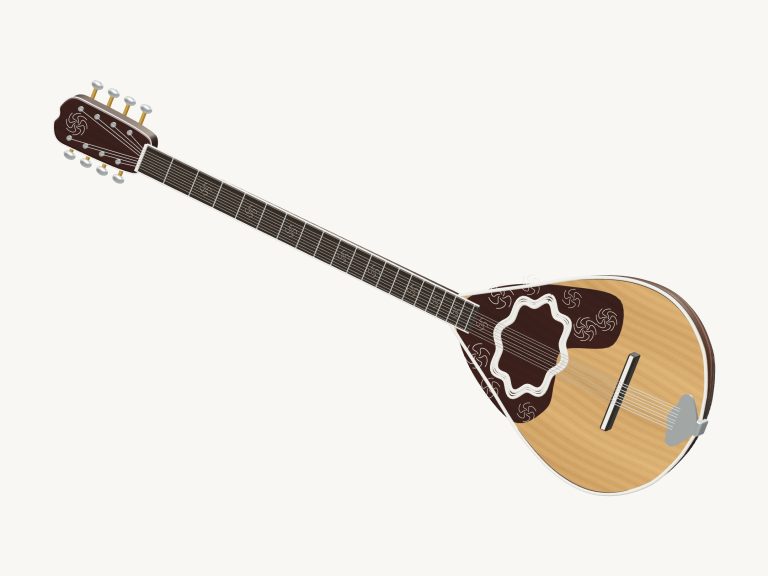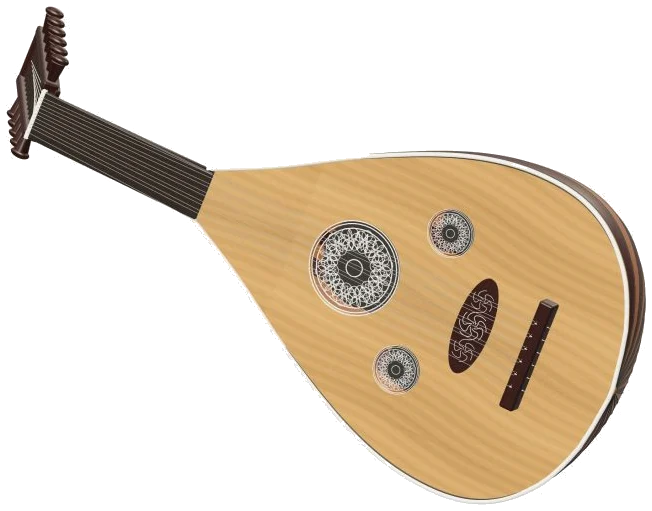
A virtual oud available online that lets you play an Arabic oud right in your browser.
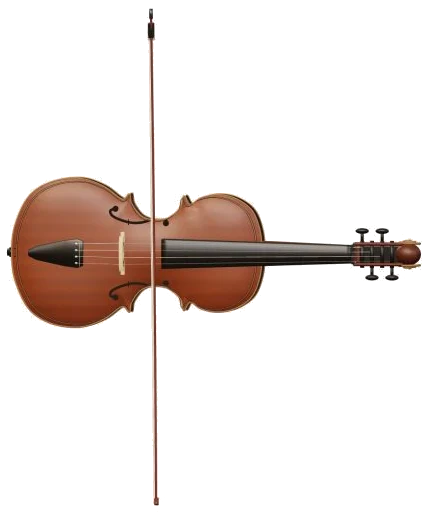
The actual oud is a detailed 3d model of an oud. It include a deep ribbed bowl, a short fretless neck, 11 strings and three pierced roses. It also features six courses of strings. Five of these are paired courses while the other is a single bass string. The image rotate, allowing you to zoom in and out. There is even a real oud recording used for the sound. This isn’t a synthesiser sound.
How to Play the Virtual Oud
Playing is possible via your computer keyboard, your fingers if using a tablet or phone, or a mouse. No need to install anything on your device. No need to register. There is no dedicated sound button. The sound switches on the first time you play. At the bottom is a status line that says Preparing sounds…. And then it says Sound ready. Help and sound credits are accessed by clicking the question mark up top.
Full screen button displays the oud completely. Press Esc or click Exit full screen to back out of it. Bottom bar holds the Volume slider.
Let’s begin with the row of note pads underneath the 3D stage. These are 37 pads. They go from C2 through to C5. That’s three complete octaves. Each note step up by a half-step. To play, simply tap on a pad to pluck the note. It will ring out and fade away naturaly. Dragging your finger across the pads allows you to run up or down the scale. The note you have just played is displayed in the corner of the stage. Each pad displays the corresponding key on the computer keyboard.
Starting on the left-hand side the notes are: A; W; S; E; D; F; T; G; Y; H; U; J; and K. These ascend by one semitone. They are like a piano’s keys. They are followed by O, L, P, and then a semi-colon. Next, they go across the bottom line from Z to the forward slash and finally across the number row from 1 to 0. This allows them to reach the top C5. The Space bar sounds the chosen note once more.
On the page there is a frame containing the oud. Once you click within this you can play from the keyboard. The neck of an oud is represented by the strip above the pads. From the menu select one of the six courses. These vary from 1 · C2 through to 6 · C4. Next, select a position from 0, 12. The open course is position 0. Above this each number represent an additional semitone. Selecting a position produces the note immediately. Again using the Pluck button will replay the selected course and position on the oud. In fact, the oud does not have any frets. The numbered positions are merely a guide indicating where each note falls.
Alternatively, you can play the 3D model itself. Tap/click on any course and it will sound the open note. Strings shimmer. Drag your finger along the courses and they’ll play in sequence. If you touch the body rather than the strings, you’ll hear the currently selected note.
One click plays chords. You can hear C, Dm, F and G as soon as you click on the button. Each time you do this the notes fan out in a real strumming fashion. The Strum down button is called Strum ↓. This will play the highlighted chord from low to high. Strum up is the button called ↑. This plays the chord back down again.
Auto pick button maintains pattern. It plays one note on each beat of the currently set tempo. If previous selection is a chord, then it will roll through the notes of the chord. Clicking another chord button switches the pattern without stopping. It does not stop. Tap note pad and Auto pick will repeat the note you just selected. Click button to stop.
Where the oud really comes into its own is on the Bend slider. This smoothly increases the pitch of the sounding notes. It goes up to two semitones higher. According to the help, it provides quarter tones and continuous pitch. About a quarter of the distance along the slider is where a quarter tone lies. Play a note then move the slider whilst the note is still ringing. Release and it springs back to its normal pitch.
How hard the strings are plucked is set by the Touch slider. It goes from bright and loud through to mellow and soft.
Select a song by clicking on its title in the list above the controls. There are three songs: Rising & Falling, Courtyard Melody, and Quiet Evening. Tap ▶ Play song to hear it. Tap again to stop and start. Tap ↻ to loop the song. Tap ■ to mute everything. Adjust tempo with the slider. This goes up to 150 and down to 50. It operates during playback too. A strip below the list gives you a preview of the upcoming notes. You can see how long each one will last (in beats).
Click ◇ Game when you’re ready to play along. It becomes your turn. Green glow appears on the pad you should use. Amber glow appears on the next note. Move forward with each correct note. This includes repeats of notes. Your progress is shown in a counter. When you play incorrectly, the guide line indicates which green note to try. Complete! You’ll see it at the end. Start again. Choose another song.
Rotate to look around the oud. Drag the background to turn it. Scroll to zoom. On a touchscreen, use two fingers. Rotation can be enabled, and touching the instrument will still play it. To reset the view, press ↺.
For beginners on the oud, select Course 6. Listen through the notes as they rise from 0 to 12 by clicking the numbers. Then play the Courtyard melody in Game mode. Go slowly. When you feel confident about that, introduce a slight bend on a held note. You should of tried the other moddern modes too.