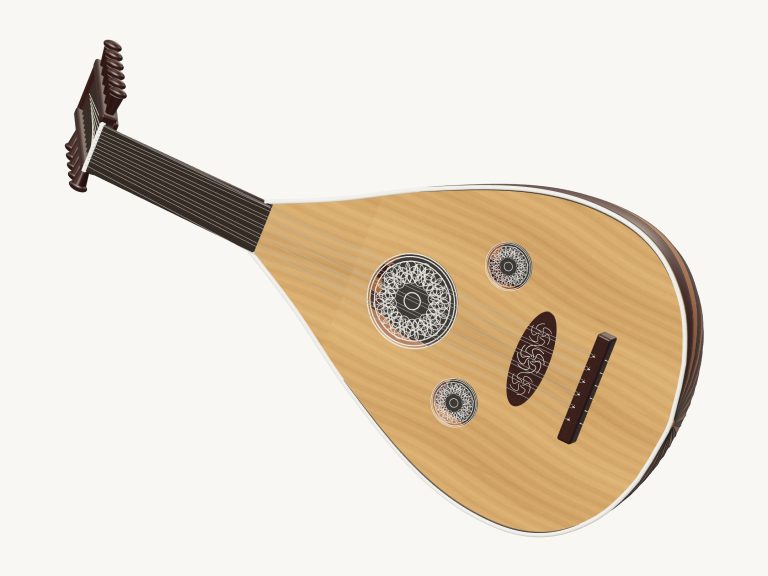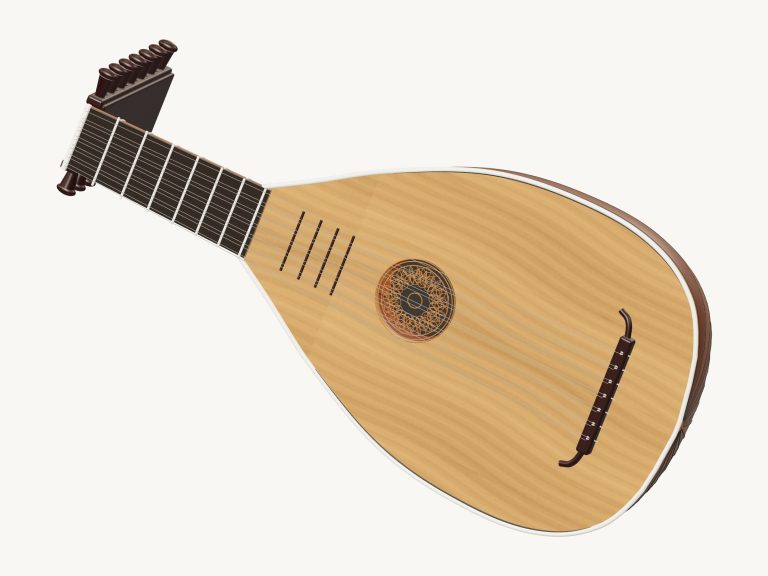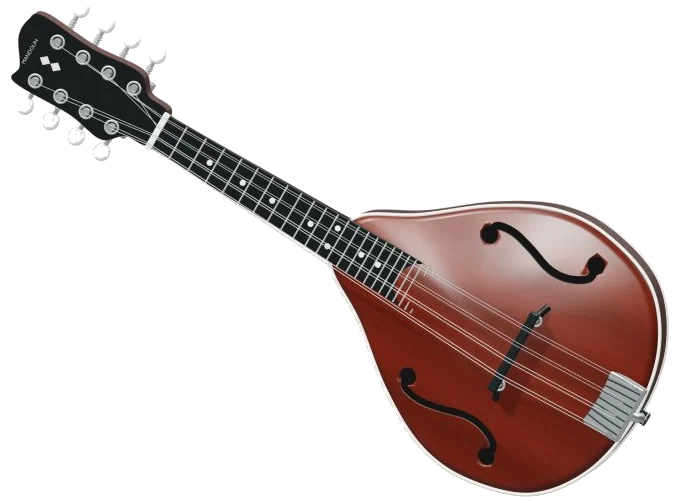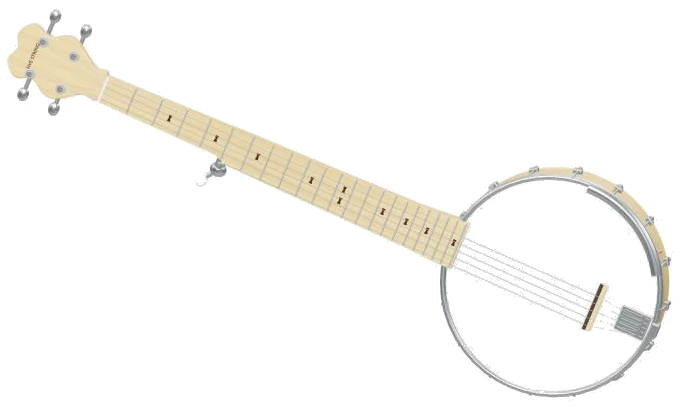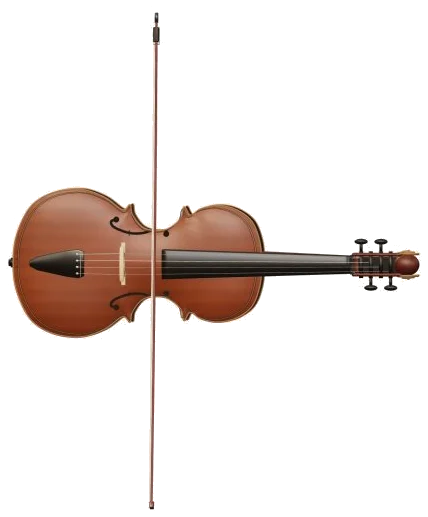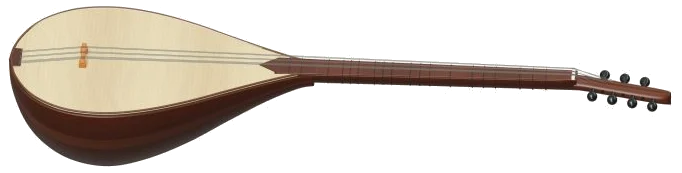
Play an online version of the saz (short-neck bağlama) in your browser. It’s a detailed 3D model of the instrument. It feature seven strings across three courses, a deep bowl-shaped body, and tied frets up the neck. You can zoom and rotate the instrument to get a good look at all its details.
Rather than using a synthesizer, the notes is taken from actual recordings of bağlams. There’s no need to download or install anything; just play it with your computer keyboard, your finger(s) on your phone/tablet or even a mouse. No start button here either. You just play your first note and the sound is switched on. When the recordings are available, the widget will display the message “Recorded instrument sound” at its base.
How to Play the Online Saz
All the controls are located immediately beneath the instrument. The little question mark in the upper corner reveals a brief guide as well as sound credits.
Choose a fretted note by tapping it or a course by tapping it. Pick a note by clicking it on the 3D model. The strings will light up as they vibrate. Or, pick a course by clicking one of the three string courses, which will light up and vibrate when played. After you pick a note, it rings on its own.
There are also 20 note pads below the model, each representing a fret, starting with D3 through to F4. The notes marked by a little ↑ following the note name represent a pitch that is exactly halfway between two semitones. There are five such notes: E♭3↑; F3↑; A♭3↑; B♭3↑ and C4↑. Play each note then its ↑ neighbour and the next note along the line to hear how they differ.
The three course buttons plucks the open strings above the pads: the low has 3 strings (D3), the middle has 2 strings (G3), and the high has 2 strings (A3). You can click on one of these to hear just that course sound. The strings move on the model.
The 20 fretted notes are played in sequence across the range of D3, F4. Each letter represent a key pressed on a computer keyboard, with one fret up for each letter: A W S E D F T G Y H U J K O L P; Z X C. Each pad displays the letter to press and the saz appears in its own frame on the page; click within this frame first then begin to play from keyboard.
Under the word PLAYING is the note you just played, shown by the bar under the model. Pressing the Space bar will play it again as well as the Play button. Holding down the Space bar makes the note repeat until you release the bar. There is also a Keep picking button which does this all by itself. Tap it once and it repeats the selected note over and over. While it’s engaged, tapping any other note, fret, or course changes to that note with one tap. Tap it again to turn it off.
Everything can be silenced together with the Esc key or the ■ Stop button. Repeat speed is the speed of the repeated pick at 5 (one to twelve per second) using a slider. Bend adds an expressive slide that raises the pitch smoothly up to two semitones. A value of zero is normal tuning. This affects the next note and any bending notes that are already ringing. The expression shows how hard the strings is picked, using a range from 10-100 and beginning at 70.
Four buttons are on the play together row: Open, Fifth, Bright, and Soft. These can be played individually by pressing the corresponding number keys 1 to 4 on the keyboard. These each select a small set of notes from the lower end simultaneously and the PLAYING display indicates which set is being selected.
The overall character is set by three presets: Natural (the default), which is the brightest; Soft, which has a little more room but is darker in tone; and Resonant, which adds the biggest echo. The Room slider, running from 0 to 50, adds the echo of a room to each of these presets. Finally, overall level is set by the Volume slider on the bottom right.
In the PLAY A LITTLE menu select one of three short patterns: First steps; Call & answer; or A little journey. To listen to the saz, click ▶ Listen, then click it again to stop. Use the Tempo slider (from 40 to 180) to adjust the speed.
Next click ◇ Game mode. A panel titled play the green note appears. The next note lights up in green on the pads. The keyboard letters show what’s coming next, along with boxes labelled play now and NEXT. As soon as you play the correct note, the game mode moves on. A counter records how well you’re doing. At the end, it invites you to play freely or pick another pattern.
The ● Record button lets you capture what you’ve played straight from the instrument without needing a microphone. When it says ■ Finish take, click it again and a Save take link appears where you can download your recording.
To look around the virtual saz online, click ↻ Rotate 3D. You can then turn the instrument by dragging in the empty area surrounding the model, and zoom in/out with a pinching gesture or scrolling. While doing so, the instrument remains playable. Clicking the ⌂ button takes you back to the initial view. Turning Rotate 3D off has the same effect.
Beginning with the Natural preset, pluck each of the three courses (Low, Middle, High) separately if this is your first experience of the saz. Next, explore Game mode with a slow tempo and take it slowly through the First steps, following the ↑ notes on the pad as you move upwards from D3. You should of tried it before.