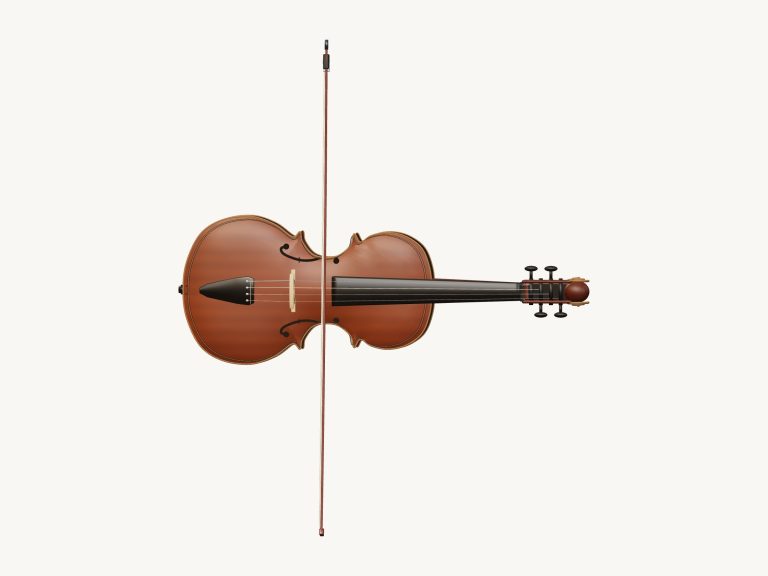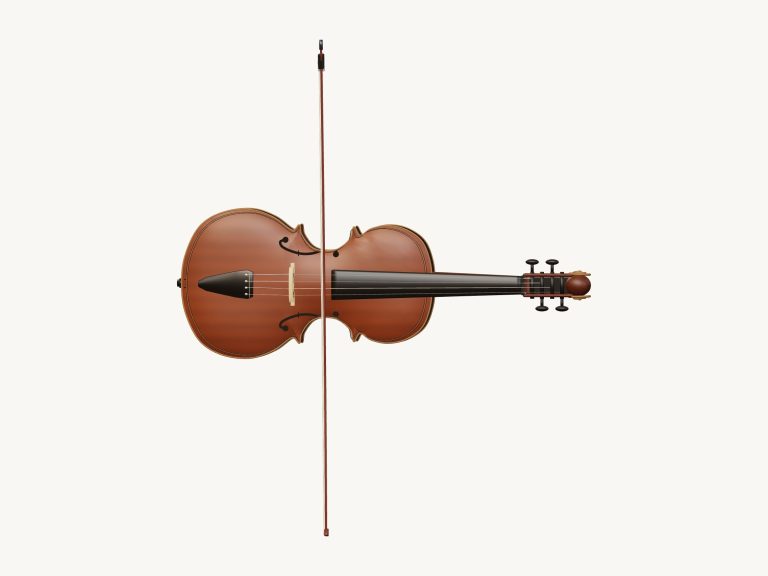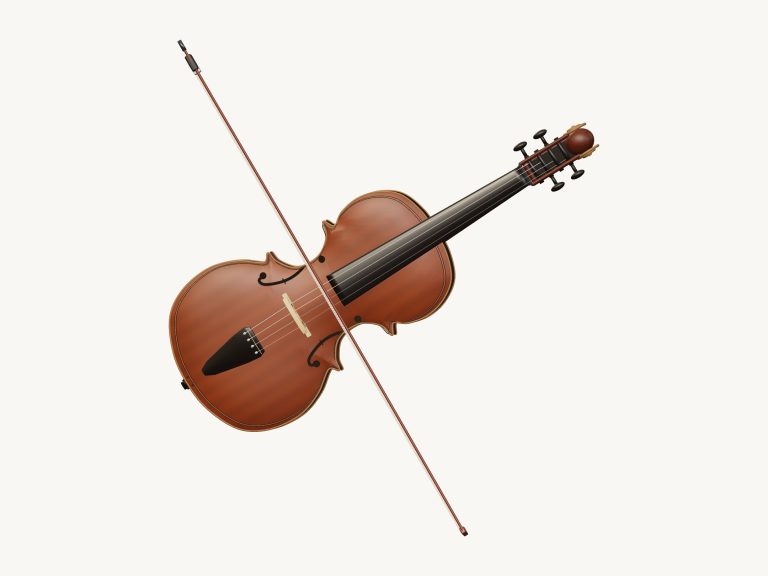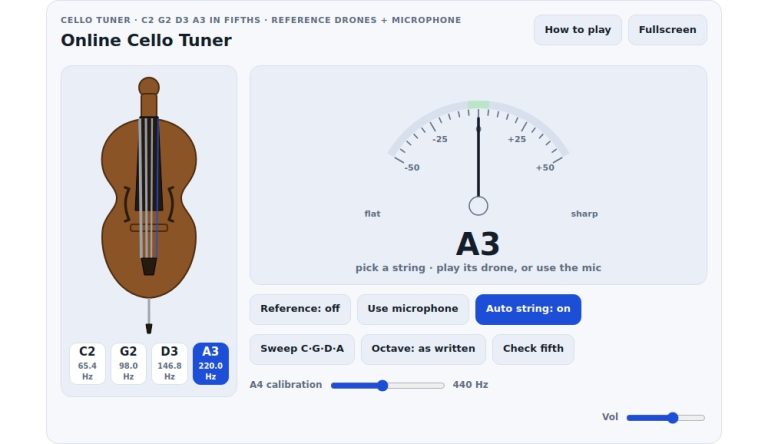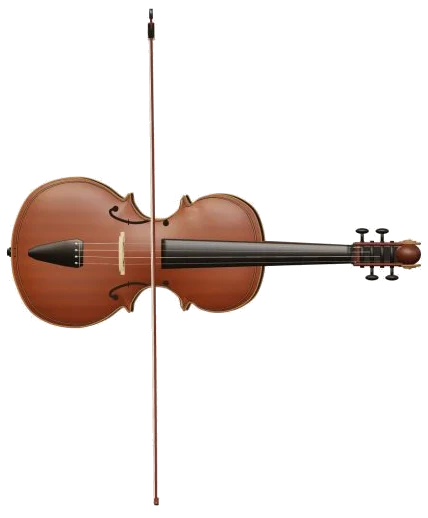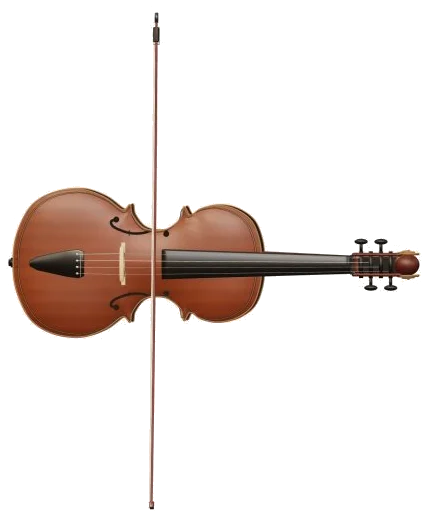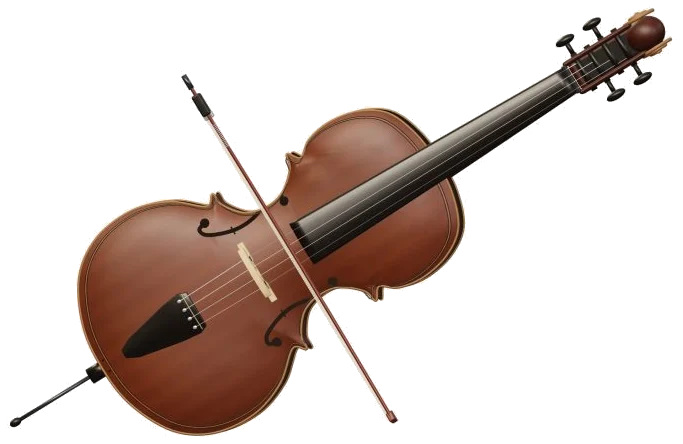
This is a virtual cello for the online world. This puts a fully functioning cello into your web-browser. It is built as a detailed 3D model that can be zoomed and turned. It is voiced using 144 real recordings from a solo cellist. Each note you play is a genuine cello sound.
You can play it with your fingers on your phone/tablet or mouse or even use your computer keyboard to play it. Nothing to download or sign up for.
How to Play the Online Virtual Cello
Go to the widget above and press Enable sound first. The button will count up as the online virtual cello loads its recordings. Once you see Sound on each of the strings, you are ready to play all notes and chords.
Clicking on the sliders icon next to it take you to the sound settings. The ? opens a brief guide and the Fullscreen button makes the cello take over the full screen. Get out of fullscreen by pressing Esc.
That’s the clue in the cello. Tap out notes or chords while starting the bow. Once you’ve clicked Start bow, it will continue without any further input from you. Even when you remove your finger, it just carries on. To stop the bow, simply press the Space bar on the keyboard. Or click Stop if you prefer. The bow stops at that point. Click Stop or press Esc whenever you want silence.
The string buttons select the open string for you to play. From bottom to top they is: C,G,D,A. They are numbered 1-4 from left to right. So if you select number keys then it also choose a string.
Below this is a row of Notes. These are the 13 notes available on that string. That’s one complete octave of notes, starting from the open string upwards. Above this row is a little label indicating which string you’re playing. Pressing the Open string button returns you to the unfingered note.
The notes are positioned on the keys of a computer keyboard: A W S E D F T G Y H U J K. Each key is one semitone up from the previous one. They zigzag back and forth across the home row and the row above it. Just like a piano keyboard, all the note buttons display which key to press to make a sound.
In the middle of the page is the cello, sitting in its own frame. Once you have clicked inside the cello, it will be ready to accept your key presses. To bow like a real instrument, just drag your finger across the cello. To slide from one note to another, drag along the neck. There’s also a slider called ‘Slide’ below the notes which will do this too. If you have Snap enabled it will land on exact notes. If you turn Snap off you can glide smoothly and hear the pitches in between.
Em, Dm, F, Am, G, C are the chords played on the pad. They are all two-string harmonies on the cello. They consist of the root note plus the third above. From the keyboard they are keys 0, 9, 8, 7, 6, 5. It’s easy to see how rich a sound comes from the cello playing in harmony rather than just one line. You can hear this by moving up through these chords: C, Am, F, G.
Beside the chords are three sound presets. Warm gives a soft rounded bowing sound. Expressive has more vibrato. It has more depth of expression and a bigger room. Pizzicato changes to plucking the string. Alternatively, use the Pizzicato button or press the P key to change from plucked to bowed (arco) playing anytime you wish. Hold down the V key to add an additional vibrato to a sustained note.
The bow speed slider controls the rate at which the bow repeats its stroke. It goes from half speed to double speed without changing the pitch. It is the tempo control on the instrument. You can adjust this as you go along and use it to slow a tune down as you are learning it, for example.
Select a tune from the Tune menu. This can be Chord garden, Pizzicato dance, Twinkle, Twinkle, Ode to Joy, or First light. Click Listen and it will play the tune for you. Click Game mode and you’ll learn it note by note.
In Game mode, just play the one green pad marked PLAY. Each time you get this right, it goes directly onto the next note. Tap it again if it doesn’t move. The Then row is a preview of the upcoming notes but they’re quieter. How far into the tune you’ve got will be shown on the progress bar and counter. Chord garden learns the chord pads in the exact same way.
Four sliders shape the tone and the space around it: Room; Vibrato; Expression; and Volume. There’s also an Easy bow that’s switched on by default. That means it automatically bows for you when you play a note. Switch it off if you’d prefer to finger the notes yourself and then bow them as you like, like a cellist does.
Everything you play can be recorded straight from the instrument with the Record button. You don’t need a microphone. The downloaded recording is saved as a Take. Save each take before you close the page or make a new one.
It’s a complete 3D model of a cello on screen. As you play, the bow will move over the strings. Look around it by clicking Rotate 3D. To rotate, drag the background (or right-drag). Zoom using your scroll wheel. If you have a touchscreen, rotate with two fingers and pinch to zoom. Keep playing while you do all this.
The online virtual cello uses real recordings of Kamila Borowiak playing her solo cello. They come from the free Karoryfer × bigcat cello library. There were four plucked takes. There were four bowed dynamics for each direction of the bow, which gave a natural variety to repeated notes. The range of pitches is playable from the open C string (low C2) through to A4. Vibrato and slides are formed live as played.
For beginners, select the Warm preset and pick a string (the D or G one is easiest). With Easy bow enabled, sound out some notes from the Notes row. Once you feel confident, switch to Game mode with something like Ode to Joy or Twinkle, Twinkle. Slow it all down using the Bow speed slider until you’re in sync with the tune.