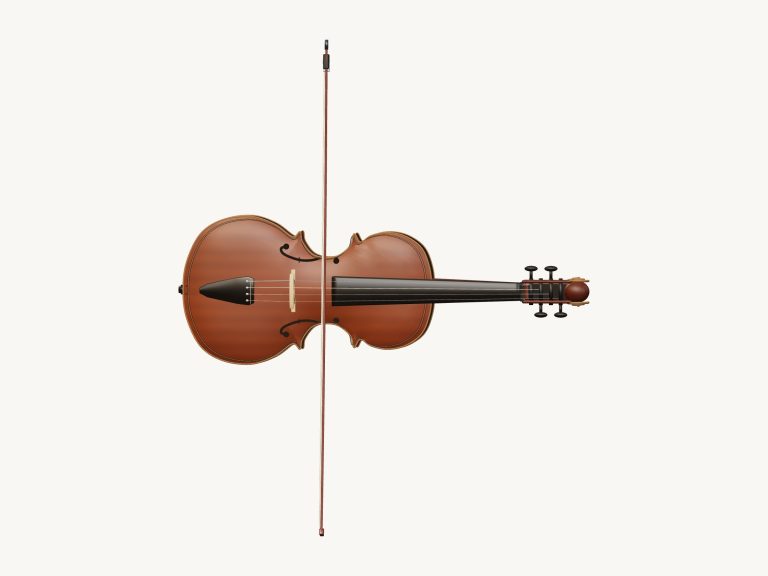
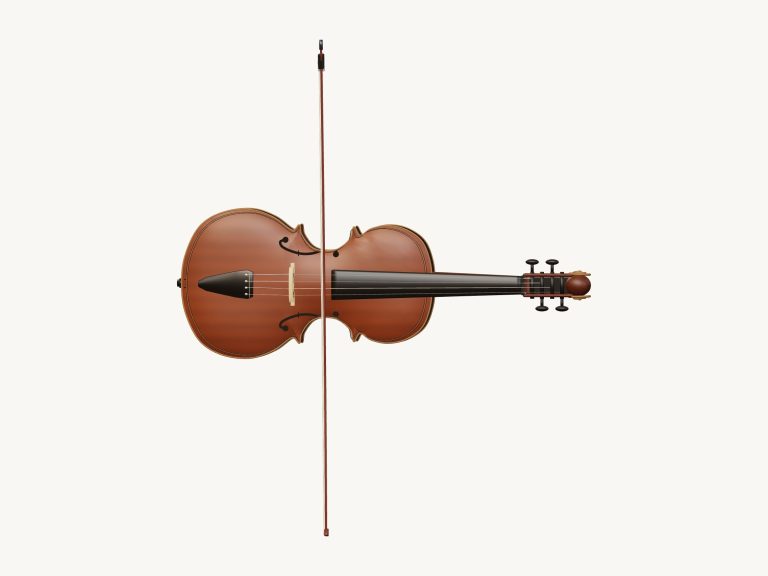
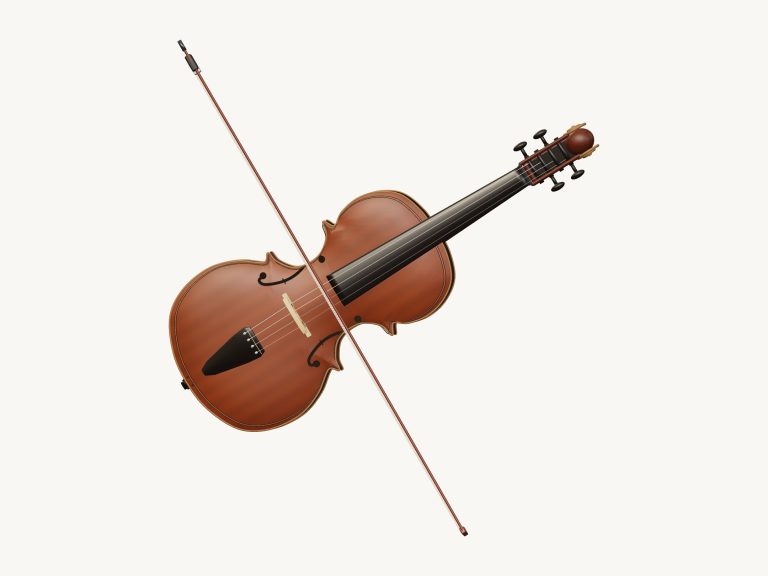
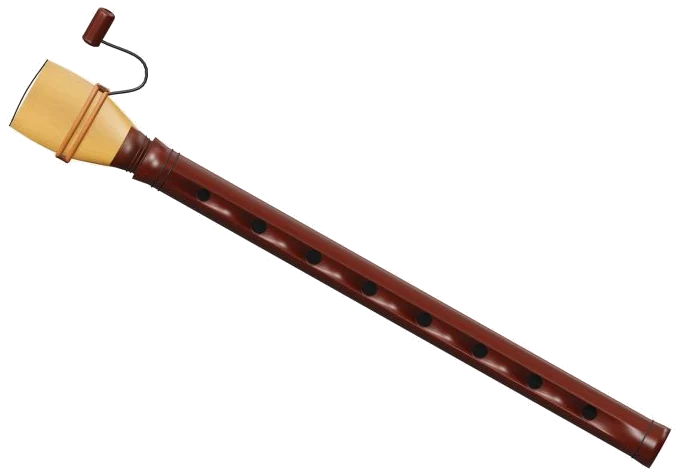
This one’s an online virtual hurdy-gurdy that you can play in your browser. It features a detailed 3D model of a hurdy-gurdy made of maple wood with a 24-key melody section, a rosin-covered wheel that’s cranked by hand, and controls sitting right below it. Zoom in and out and spin the model around so that you can see it from any angle. It sounds like a real recording (not a synthesiser).
To play, use a computer keyboard, your fingers if you’re on a tablet or phone, or a mouse. You do not need to install or download anything. It’s that simple: Play the first note, and it plays. There’s no need for a start button.
How to Use the Virtual Hurdy-Gurdy
When it’s recorded, the message at the bottom will change to say Recorded instrument sound. Tap on the question mark in the right-hand corner for sound credits and a guide. Everything else is found beneath the model of the instrument.
Press any key on the 3D hurdy-gurdy and it will sound that note. You can hold a key down making the note ring out while you hold the key or just press for a short note. As you do this the key move in on the model. While it’s playing, both the wheel and the crank turn.
The grid below the model are 24 note pads. There is one for each key and they’re ordered from G3 upwards to F♯5 in semitones. You can see which note each pad represents. On a small screen it’s sometimes more convenient to use these pads instead.
The letters A, M are used to play the 24 notes between G3 and F♯5 on a computer keyboard. The letters represent a note up one semitone each time. You can see which letter corresponds to which pad.
The hurdy-gurdy is positioned within its own frame on the page. Before you try to play, click inside the frame. Next to the PLAYING word, you can see the final note you played. It is shown on the bar beneath the model. If you hold down the space bar, this will play the note whilst you continue to hold it down. Holding down the Space bar also produces a sort of soft drone below the melody.
This is the primary control of the instrument: the Keep cranking button. One click and the chosen note plays itself, with a drone humming underneath, with the wheel spinning around on the 3D model. Your hand is free to alter the melody notes as you wish. Tap another pad or key and the melody changes to it, still humming away. Click Keep cranking again to stop it. Everything can be silenced together with the ■ Stop button or by pressing the Esc key. This also turns Keep cranking off.
Expression is where you set how strongly the notes are played. It begins at 70, with 10 being the weakest and 100 being full on. This changes notes that are currently being played. Hold a note and move the slider and it will either swell or fade out.
Crank speed is the speed of the spinning wheel and the attack of the bow. Starts at 1 and goes from 0.4-2.5. Turn it up and the wheel turns faster and new notes begin more quickly. Turn it down and each note begin slowly and gently.
There are three presets that determine the overall character. The default is Natural, which is the brightest. Soft provides a slightly darker tone with a bit more room. Resonant adds the largest echo. It also shifts the Room slider for you on each of these presets. Room ranges from 0-50 and adds an echo around the instrument.
The Volume slider at the lower right determine the overall level.
To try this out open the PLAY A LITTLE menu. Here there are three brief patterns to choose from: Call & answer; First steps; or A little journey. Click ▶ Listen to have the hurdy-gurdy play them. Click again to stop. Use the Tempo slider to slow down (40) or speed up (180).
Next click ◇ Game mode. The “play the green note” panel appears. The next note lights up green. The NEXT and play boxes now display the upcoming notes. They also show their keyboard letters. Play the correct note and game mode continues. A counter indicates which point in the pattern you’re at. At the end, a message asks if you want to play freely or pick a different pattern. Leave game mode by clicking it again.
The ● Record button records what you play straight from the instrument. No microphone is required. When it says ■ Finish take, click the record button again. A Save take link will appear where you can download your recording.
To get a closer look at the virtual hurdy-gurdy, click ↻ Rotate 3D. To rotate the model, drag in the empty space surrounding it. Zoom in/out by scrolling/pinch. You can continue playing the instrument during rotation. Click on the ⌂ button to return to the starting view. Switching Rotate 3D off does the same.
If this is your first time playing the hurdy-gurdy, begin with the Natural preset and set the Crank speed to 1. Turn on Keep cranking. Gently tap a couple of nearby pads. Hear the melody sound across the drone. When that’s comfortable, try First steps in Game mode. To hear each pattern before playing it, use Listen with a slow tempo.
It should of been easier to use a modern setup.