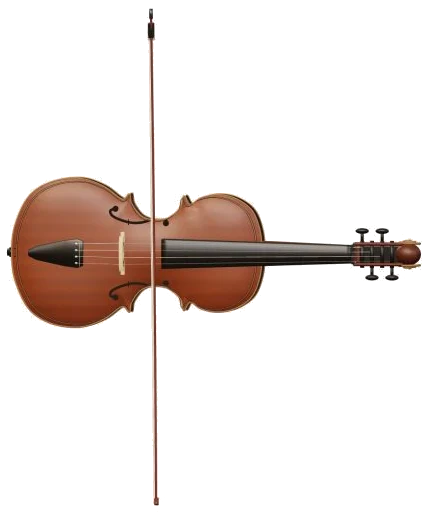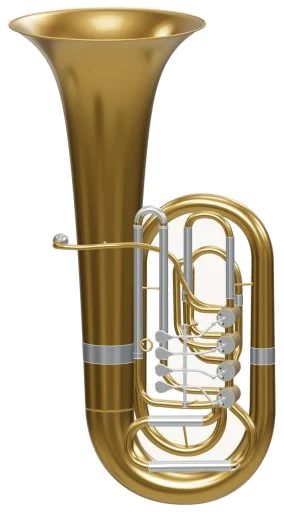
There is even a BB♭ tuba that you can play using only your browser. It’s a 3D model of the instrument shown on screen that you can zoom into and turn around. It features four rotary valves, a wrapped mouthpipe, a main bow, a tall bell, and silver finger levers for each valve. Real recordings of a tuba are used to produce every note which means you hear a genuine brass sound.
There is no need for a plugin, an account, or microphone to play along as it can be played with your fingers, mouse, or computer keyboard. There is no separate sound button. Your first note sets up the sounds and then shows Sound ready on the status line along the bottom of the page. The question mark at the top take you to the sound credits and help, while the Full screen button puts the tuba on your entire screen. Press Esc or click Exit full screen to go back to the page. A Volume slider appears in the bottom bar.
How to Play the Online Tuba
These note pads cover 33 notes, ranging from E1 to C4. These are presented in concert pitch meaning that the name of the note on the pad is the note you will hear. Underneath the model it says: E1 (C4 · concert pitch).
Hold down a pad to play a note. Let go to release it. Moving from note to note you can either use your mouse or finger sliding it across the pads until you find the one you want. The note name underneath the model indicates which note you are playing.
The lowest note is played by A on a computer keyboard, which is E1. From here, the notes ascend via:W S E D F T G Y H U J K O L P; and thenZ X C V B N M,. The sequence ends with the / key, followed by the number keys, where 6 is the highest note and plays C4. Y plays a C2 and V a C3. Each key is one semitone higher than the one before. Every note has its letter printed on the pad. To play a note just hold down the corresponding keyboard key for as long as required. If you want the note you have last selected to sound again, press the Space bar.
The tuba has its own frame on the page and you should of click within this first before playing from the keyboard.
Auto breath, Hold down nothing at all and the tuba sounds. Tap the button marked Auto breath: off to turn it on. The hint next to this button says, “one tap keeps playing, then tap notes to change pitch.” When turned on, a single tap on any pad will change the note but keep the sound going. This allows for a smooth bass line using only single taps. Tap Auto breath once more to switch it off.
The breath slider controls the strength of your breath. A lower setting is softer and mellower. A higher setting will be louder and brighter even if the note is still ringing.
You can also play the 3D tuba. You get four silver levers which sound C2, D2, E2 and F2. If you touch the tuba at any other point it will sound the note you previous chose. As you play, the levers move and light up. When you press C2, D2, E2 or F2 on the keyboard or pads then the corresponding lever move as well. The help window explains that the small controls are not a complete finger tutorial but a set of note shortcuts; use the note pads to get accurate pitches.
Above the pads is a menu, where you can select Twinkle, Morning steps or Ode to Joy for your song. They’re all set at about C2. Tap on Play song and you’ll hear that one. The button turns into Pause and then Resume. Tap the square ■ button to stop everything. Tap the button with the arrow going round in a circle (the ↻) to repeat the song in a loop. A slider labelled Tempo goes from 50 to 150; up top there’s a strip previewing the next notes, which show how many beats they last. Tap one of them in the strip to play just that note.
Click Game to learn the song yourself. A counter counts your progress through the tune; the pad you require turns green; the next one turns amber; the strip marks them NOW and NEXT. You set the pace: every correct press take you on immediately (including repeated notes). If you play the wrong note, the guide tells you what green note to try and at the end it will say Complete! To go back to free play, click Game again.
Click 3D · Rotate to walk around the tuba and see the valves and tubing from every side. To rotate and zoom, use two fingers on a touchscreen, or drag the background to turn it and scroll to zoom in and out. In this view, touches on the tuba will still be played. The ↺ button resets the camera. Turning 3D · Rotate off returns the tuba to its initial view.
For beginners on tuba, try the moddern model one above, press each of its four levers in turn to hear C2, D2, E2 and F2. Select Twinkle, Twinkle and tap the Play song button to listen. Then, play along yourself in Game with the Tempo slider reduced.