The tag line says that this is an online virtual bamboo flute that plays unhurried melodies and sounds like naturaly breath. It’s a widget that sits on your browser and you don’t have to download anything.
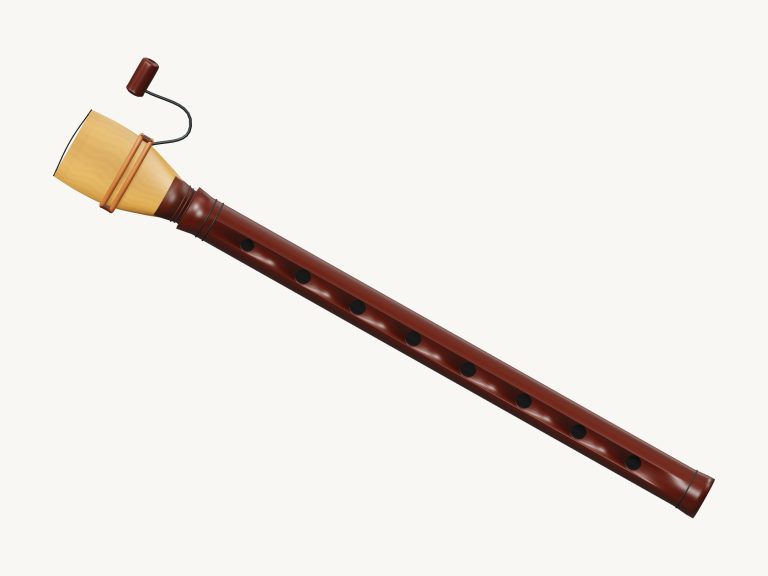
The widget include a 3D model of a bamboo flute with six finger holes. You can zoom and turn the model to see it more closely. A real bamboo flute recording are used to build the sound, which you can then play using a computer keyboard, a tablet, phone or even a mouse.
How to Use the Online Bamboo Flute
To get started, click the Enable sound up top. You’ll see a status message that says, Preparing the recorded sounds… As the audio loads, the button will change to say Sound on once the flute are loaded. You can tap on any note to start playing it, too.
If you tap the question mark beside the sound button, it’ll open the help panel (with the credits). Tap the icon in the corners to go into full screen mode. Hit Esc or click the icon again to go back to the regular page view.
Below this are the notes. These consist of 25 notes covering two full octaves from G3 to G5 on the pads. Each note is printed in concert pitch with sharps and flats being indicated by a slightly darker pad. What you see written on each pad is what you will hear.
Below the flute there are also big letters indicating which note you are currently playing. Tap a pad to play a brief breath; keep it held down to continue the sound until you release your finger. If you have another note ready to be played while the current one is ringing out then the flute will slide gently into that next note (ideal for slow), singing melodies.
To play the chosen note, just hold down the green Blow button and it will sound as long as you do. Alternatively, press the Space bar from the keyboard and it will also sound. Turn on Keep blowing for continuous sound (one click on any pad will jump to the next note). Click Keep blowing again to turn it off. Alternatively use the Stop button or Esc key to mute everything immediately.
You can play every single pad with your computer keyboard too. Start at the bottom, which is a G3 (A), then play every semi-tone up to the highest note, a G5 (comma). From there just go through them as they appear on the keyboard: W, S, E, D, F, T, G, Y, H, U, J, K, O, L, P, semicolon, Z, X, C, V, B, N, M. Remember the flute begins on the G, so the keys aren’t in their normal piano positions of naturals followed by sharps. Just look at the letter on each pad and go from there. Click within the widget first then use the keyboard.
The Breath slider runs from 15 to 100 percent. Higher settings is brighter and more full sounding. Lower settings have a softer start on each note and a quieter, darker breath.
Three presets are offered below the notes under your sound. Natural is the default sound. Velvet is darker and gentler. And Concert is a harder blowing sound in a larger room. Volume in the footer sets the overall level. The Room slider adds or reduces the sense of space.
If you’d like to play a tune, go to PLAY A LITTLE and select one: Ode to Joy, Twinkle, Twinkle, Morning light, or River walk. Listen will play that tune, and you can use the Tempo slider (from 50 to 180) to hear it quickly or slower.
Press Play along. The pad you require becomes green. You see a panel showing the note to play now, the notes coming then and after, a counter, and a progress bar. There is no timer or penalty, the game just waits for you, and when you’re done, it celebrates with a Play again button.
There’s even a 3D model of the instrument that you can play too. Tap anywhere on the flute in the normal view to blow it and play the note you’ve selected. You can tap on each of the six finger holes to play the notes B3, C4, D4, E4, F♯4 and G4. The help panel says these are useful note shortcuts rather than a fingering lesson.
To see into the model, click 3D view. Scroll or pinch to zoom and drag the background to turn the flute as you continue to play. A little arrow button next to this resets the view. Turning 3D view off restores the front view.
To record what you play, hit the Record button at the bottom of the screen and it will record straight from the instrument (no mic required). When it says so, hit Finish take and then Save take to keep the recording. The next time you press the button it overwrites the existing take so make sure you save any you prefer before doing this.
This is a real recording of a low bamboo flute provided by PanPiper5 on Freesound in the public domain (CC0-1.0). According to the credits, the note range of this online virtual bamboo flute was created from a single recorded note (a low G3). This note was pitch-mapped, trimmed, tuned, and looped to allow each note to be held.
If it’s your first time playing the online virtual bamboo flute, leave the Natural preset, drag the Tempo slider down and listen to Twinkle, Twinkle first. Next, try Play along where you’ll use the green pads as slowly or quickly as you like.