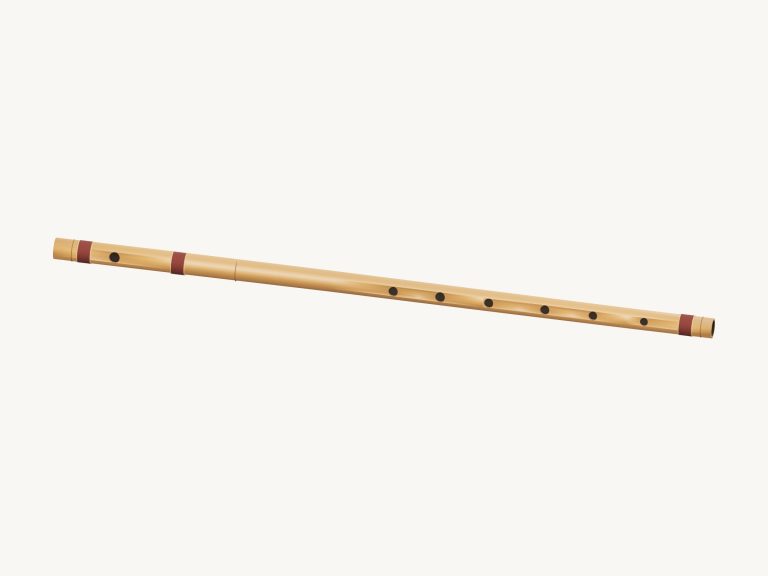
This online widget let you play a concert flute with silver keys on your browser. It features a 3D model of the instrument that can be zoomed and turned, and its sound is based off actual flute recordings. The notes is played without vibrato, using soft and strong recordings to make the sound more like a real instrument then a synth.
There’s no need to create an account or install anything; just play with your computer keyboard, a mouse, or if you have one handy, your phone’s touch screen. To get started, just tap Enable sound up in the widget. As the files load, the button will change to Sound on and the status line will say Preparing the recorded sounds… Once it’s ready, tap a note to start the sound. Then, away you go. You can play straight away.
How to Use the Online Flute
The four-corners icon make the flute take up the whole screen; tap it again or hit Esc to exit full screen mode. The question mark beside the sound button brings up a quick help panel with credits.
The notes are presented under the 3D model and comprise a selection of 25 pads that span two octaves from C4 to C6. Each note is displayed at concert pitch, so what you read on each pad correlates exactly to the sound you hear. The sharps and flats has slightly darker pads. Below the flute are the notes you’re playing in big letters.
With a short breath, just tap quickly; held down, the pad maintains the note until released. For flowing melodies, moving to a next note while an existing note sounds results in a smooth slur into the next. On the keyboard, the Space bar performs this function. The Blow button for each green note also performs this function and retains that note. When you wish the flute to sound continuously by itself, switch Keep blowing to ON. From then on, clicking on any pad immediately alters the note without interrupting. Switch Keep blowing back to OFF; the Esc key or Stop button will silence all notes together.
The notes for C4 to C5 are laid out on A W S E D F T G Y H U J K on the computer keyboard, rather like a miniature piano. The natural notes are played on the home row; the flats and sharps just above. Further up the keyboard, O, L, P and the semicolon produce C♯5 through to E5. The bottom row from Z to M, along with the comma key, stretch down from F5 to the highest C6. As a reminder of which is which, each pad displays its letter.
The flute has its own frame on the page too, so click inside the widget first thing before you start playing with the keys. With the Breath slider set at 15 to 100 percent you blow harder or softer. At low settings, you get the gentle start of each note and favour the soft recording. The Concert preset blow harder in a bigger space. This is an easy shortcut for your sound presets. Start with Natural. Velvet is darker and softer, while Concert is harder blown in a bigger room. The Room slider is how much reverberation surrounds the flute and the Volume slider in the footer is the overall level.
Open the menu at PLAY A LITTLE and select one of the tunes: River walk, Morning light, Twinkle, Twinkle, or Ode to Joy. Click Listen to hear the melody. Adjust the Tempo slider (between 50 and 180) to slow it down or speed it up. Then, click Play along. A panel appears showing the pad that needs to be used, which lights up green. It shows the note to play now, the notes that come then and after, a progress bar, and a counter. There’s no penalty or timer, just patience while it waits for you. When you’re done, it congratulates you and gives you a Play again button.
You can also play the 3D flute. Tapping anywhere on the instrument will play the note you have selected. Between C4 and F5 most of the keys on the model sound their own natural note when tapped on. Tapping elsewhere on the flute will play the note you have selected. The model keys are not meant to teach fingering, but to make playing notes quicker. This is explained in the help panel.
Click 3D view to go into the model. You can explore it by dragging the background to rotate the flute, or scrolling and pinching to zoom in and out. The keys remains playable throughout. Switching 3D view off goes back to the front view and the little arrow button next to that resets the view.
The Record button on the bottom bar will record a performance directly into the app, no mic required, allowing you to retain that take. Hit the Finish take button once complete, and it saves the take with a link to save it. It overwrites each time; be sure to save your preferred take before recording another.
The recordings was made by Versilian Studios, VSCO 2 Community Edition. Simon Dalzell and Sam Gossner recorded it, and Elan Hickler edited it. It was released under CC0-1.0. It is trimmed, tuned, and looped for this online virtual flute to allow each note to be held.
If you haven’t used this online version of the virtual flute before, simply set it to the Natural preset. Press the G, F, D, S, and A keys for notes G4 down to C4 respectively. Hold each one down for a second or two to hear how it sounds. Then, choose Twinkle, listen to it played slowly, and have a go at Play along.