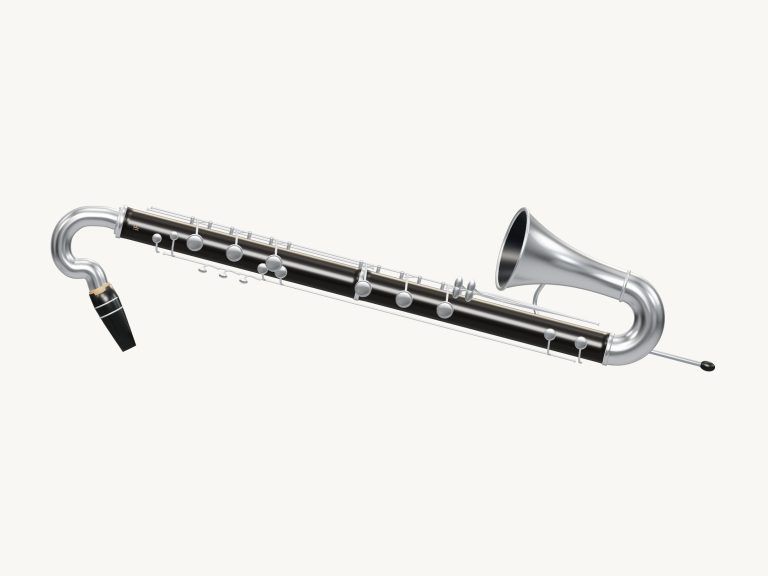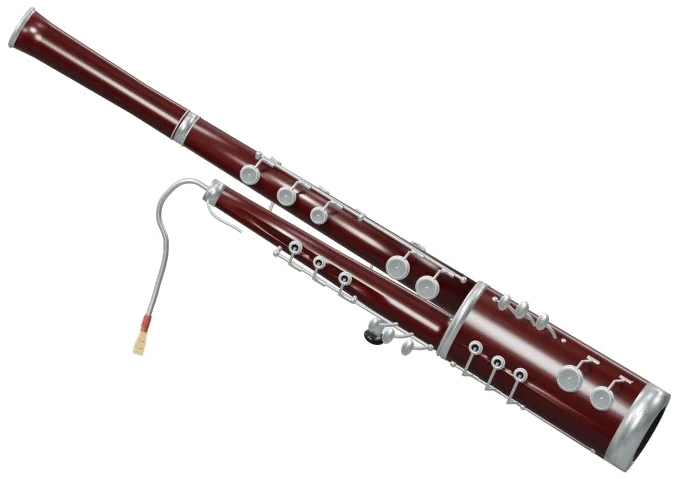
Play this online virtual bassoon (and play a deep), characterful double reed directly in your browser. It’s a 3D model of a bassoon that appears on screen, letting you press keys, turn it around, and zoom in for a closer look. What you hear are not just a simple electronic tone but every note played by recorded bassoon samples, giving you the woody voice of a real bassoon. There’s nothing to install or download. You can play with your computer keyboard, your fingers on a tablet or phone, or even a mouse. No Start button required here either. Just tap out a note and the sound comes to life.
Once the recordings are ready, it will show as Recorded instrument sound in the bottom section of the widget. The sound credits appear alongside a brief guide when you tap on the question mark in the top right-hand corner.
How to Play the Virtual Bassoon
There are also 32 note pads below the model that span all of the semi-tones from B♭1, F4. Underneath the bassoon it says: Bassoon · B♭1, F4 concert pitch. So what’s written on the pad is the note played. Tap the pad for a short note or hold it down to maintain the note.
The 3D bassoon has keys you can push too. These produce notes from B♭1 to F4 with every key lighting up and tipping as it plays. According to the guide, these key groups is not a complete bassoon fingering tutor but a set of shortcut keys that allow players to access concert-pitch notes. Consider it more like a fun way to play directly on the instrument.
The 18 notes of the scale (C3, F4) are playable using only your computer keyboard keys: A W S E D F T G Y H U J K O L P; and Z, which is one semitone higher then each corresponding note. You can also play the lower notes from B♭1, B2 either by touching the pads or using the mouse. The bassoon is framed separately on the page, so click inside it first to begin playing from the keyboard.
The bar under the model shows the note you played last next to the word PLAYING. Tap the Play button (or press the Space bar) to play the chosen note as long as you hold it down. As long as Keep air is switched on, a simple tap of another letter, key or pad will change the note but continue the sound. Press the Keep air button again to stop. To silence everything at once use the Stop button (■), or press the Esc key.
How loudly do you blow? This is controlled by the Expression slider (10-100). A higher number means it will be louder. If you move the slider while a note is being held, it change the note as well.
There are three presets which control the tone. They are Natural (default), Gentle (which darkens the tone with some extra room), and Concert (which adds the largest echo). The Room slider (0-50) adds an echo like playing in a room. The Volume slider in the bottom corner is the overall level.
In the PLAY A LITTLE menu select either Twinkle, Morning steps or Ode to Joy to learn that tune. Press ▶ Listen to hear the bassoon play them one note per beat. Tap again to stop early. There’s also a Tempo slider (from 40 to 180) to change the speed of performance. Selecting another tune will stop what you’re listening to.
Click ◇ Game mode when you’re ready to play along. When you play, the green note panel appears, the next note lights up green on the pads, and the corresponding key has a green ring around it in the 3D bassoon. You see how far you’ve got through the song, what’s coming up next in boxes labelled PLAY NOW and NEXT together with the letter of the note and a counter showing your progress. As soon as you play the correct note, game mode waits for you and then continues. At the end it says Lovely.Play it again? Click Game mode once to exit the game and again to play the tune from the beginning.
The Record button lets you record what you play directly from the instrument (no need for a microphone). When you press this button, it says ■ Finish take while recording. Press again when you’re done and then you’ll see Save take to download your recording.
To explore the virtual bassoon in your browser, click ↻ Rotate 3D to rotate the instrument and look around. While doing so, you can continue to scroll or pinch to zoom, and the keys still play while you rotate. To return to the front view, click on the ⌂ button. Alternatively, turning Rotate 3D off will also have this effect.
For beginners on the bassoon, begin with the Natural preset and sound out the keys A, S, D, F and G while playing C3, D3, E3, F3 and G3. When you’re ready, turn on Keep air and tap those notes again to hear how they blend together nicely, and have a go at Twinkle in Game mode.
You should of tried the other presets too. It makes the sound more luxurius.
You can also find different than expected sounds if you play with the knobs. The bassoon can absorbs different tones. You might find the moddern sound better. It should be more comfortabley to use.