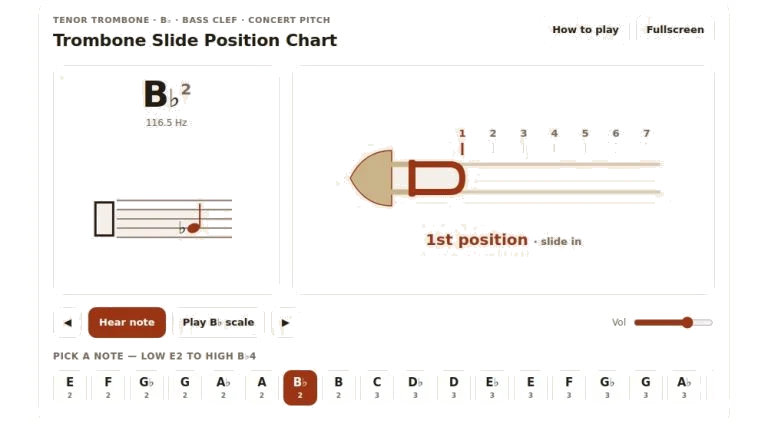
The tenor trombone’s slide positions is displayed in this interactive chart. You can navigate through notes by clicking on interface or using your computer keyboard. If you want to hear what notes sounds like or check fingerings, this is a useful quick reference tool. It includes the standard range of the trombone from low E2 through to high B flat4.
To choose an individual pitch from that range, simply click on note strip located below. The buttons displays the note’s name and its octave number. When you click on one of these buttons it will not only play the appropriate tone but update visual diagram too. Adjacent to play control are some arrow button which allow you to step up or down chromatic scale semitone by semitone. This is useful when practising your slide change muscle memory or checking half-step intervals.
How to Use the Trombone Tool
For those who like to navigate with their keyboard, there is a map of the widgets that is assigned to each key. Left/right arrows moves down/up through the notes. Spacebar plays the selected note but does not change location. A toggles between alternate/primary positions for notes where there are two valid locations for slides. This demonstrates the nature of many notes being placed in either position based off which is most suitable tonally and/or easiest to reach from previous note.
In the centre is a simplified illustration of the trombone slide. It shows which of the seven conventional positions that note are played in. On the right are numbers zero through to six for stations one to seven respectively. A vertical line marks current position. If you choose a note that has an alternative position then the Alternate button will appear in the transport bar. You can toggle this option on and off to compare the primary and secondary options side by side. This visual guide confirms connection between the height of the note and length of the trombone’s slide.
As you can see from the diagram above, each note is shown alongside its frequency in hertz and large note name. To hear sound of any note simply click either on the diagram or the note name directly above it. For those used to reading sheet music, there’s also a more traditionally notated version at the top of the page here; that’s the bass clef staff. It connects the unfamiliar world of abstract slide positions to our familiar way of reading sheet music.
In the transport bar next to the playback buttons, there is volume control. This controls overall volume of the synthesized tone. It sets to a reasonable middle position that are suitable on most speakers. You can increase it if you wish to hear the attack of the notes better or reduce it if you want to practice at low levels later in the evening.
The Play B flat Scale feature shows how positions slide through an entire major scale. Pressing it plays each note in sequence, helping you visualize the smooth sliding motion required for scale passages. This allows you to get a feel for the slidy action needed when playing scale passages. If you press the button again it stops the sequence.
The FullScreen mode takes over your whole screen so that the slide diagram is more legible (particularly on small screens) and eliminates any distractions. To get into full-screen, press F when the widget has focus or use the Fullscreen button. If you want a quick reminder about all the controls, just click the Help button. It’ll open up a summary of them. Use the question mark key to turn the panel on/off.
Next, spend a few minutes discovering the various registers. Familiarise yourself with where they are and play some long tones on each one. Then, use the alternate position option to learn about varying movement of the slide from register to register at the same pitch point. It’s designed as an aid to your practicing routine and should of complement rather than substitute it. Get stuck into the controls now and discover which way you find easiest to use different than how you like to learn.