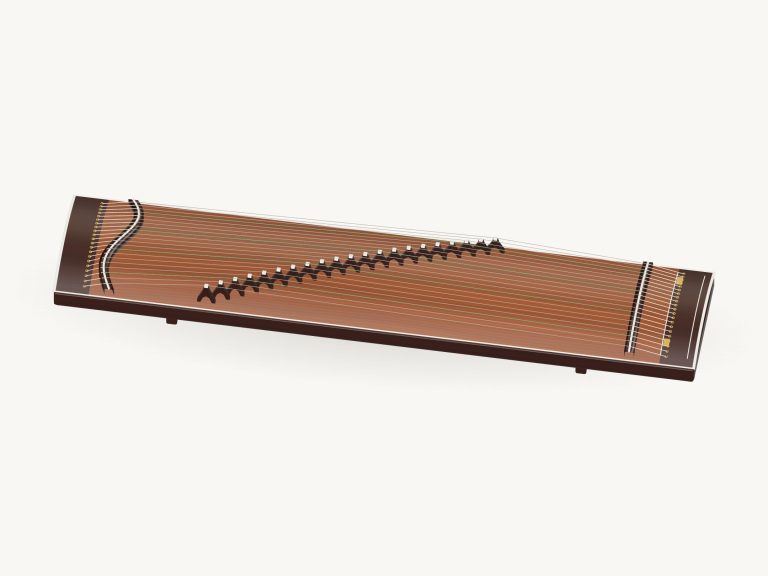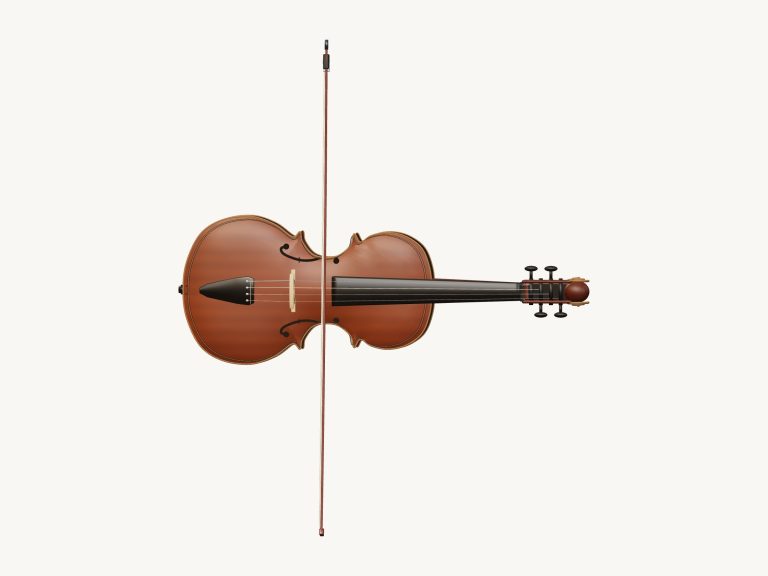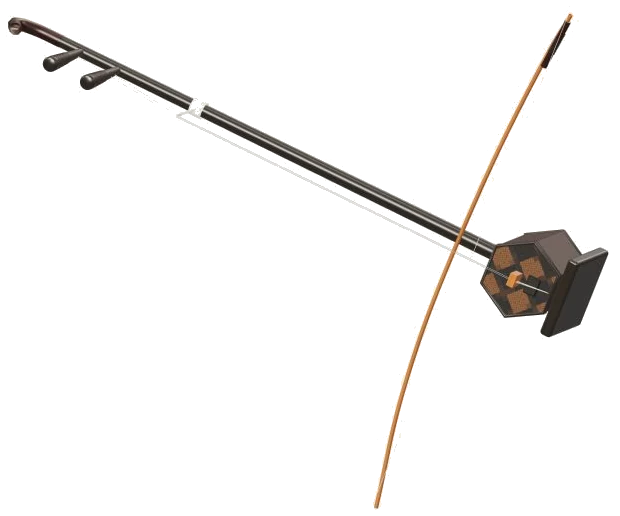
Play a two-stringed bowed instrument right in your web browser thanks to this online virtual erhu. You have a 3D model of an erhu with a hexagonal body and a horsehair bow that passes between its two strings, and you can rotate it and zoom in. What’s more, all the notes is taken from actual recordings of an erhu, not a synthesizer; you get the sound of a real instrument with naturaly vibrato when it’s bowed.
There’s no need to sign up for anything or even to install anything: just use your computer keyboard, your fingers if you’re using a tablet or phone, or your mouse to play. The sound turns on automatically when you play your first note, there’s no dedicated sound button. As the recordings is loaded it says Preparing sounds… in the status line at the bottom of the screen, followed by Sound ready.
How to Use the Virtual Erhu
The Full screen button makes the erhu fill the screen (top) and the question mark takes you to sound credits and help. Press Esc or click Exit full screen to exit. The Volume slider is in the bottom bar.
Because it’s a bowed instrument, the notes will continue to sound as long as you hold them down. If you press and hold one of the note pads on the 3D stage the note will sustain until you release it. It’s got 25 pads, two full octaves from D4, D6, with each pad a semitone apart. If you slide your mouse or finger across the pads, the erhu will follow you from note to note. In the corner of the stage you can see the name of the note that you’re playing.
Each pad represents the key of the corresponding note on a computer keyboard. From left to right, the lowest note D4 is played by pressing A. The keys go up one semitone at a time until reaching A W S E D F T G Y H U J K, followed by O, L, P, and the semi-colon. Then, the keys goes down the final row from Z to the comma for the highest note D6. Holding a key holds the note. Pressing another while holding one key causes the erhu to move to the new note. Release and the original note returns. Playing the note is done with the Space bar. Click inside the erhu before playing from the keyboard as the erhu has its own frame on the page.
The two buttons marked A4 and D4 next to Auto bow play the two open strings of the erhu and you can jump directly to either of these notes. The auto bow button is the simplest option for playing long, flowing phrases. With auto bow enabled (one tap on any pad), the sound continues and the bow keeps moving. Tap another pad to change the pitch. A guide line indicates where you should tap to change notes. Tap again to stop. Switching off auto bow requires a further click of Auto bow.
The Bend slider adds slides as you play. Pull it up to increase the sounding note by up to two semitones, then release it to return to the normal pitch. If you switch on Auto bow first this works best, because it lets the note continue playing while you bend it. Alternatively, if you have a touchscreen, you can hold down a pad with one finger and bend it with your other finger. The lower slider marked Breath controls expression, making the tone more or less bright and loud.
The 3D version also lets you play the actual erhu itself. Tap on one of the two strings and it will sound the open note. The bow moves back and forth as the note plays. If you touch the body of the instrument then it will play the note that’s currently selected.
Select an online song from the menu at the top of the controls and you will be ready to learn a melody. Songs like Willow Path, Rising & Falling, and Quiet Evening are included in the online virtual erhu. Tap the ▶ Play song button to play it. Tap it again to pause or resume. Use the buttons on either side to stop all sound (■) or loop the song (↻). The tempo can be adjusted by tapping the Tempo slider which ranges from 50 to 150 and adjusts even when a song is being played. The number of beats that each note has is shown as well as what the next note will be in the strip underneath the menu.
To have a go yourself, click ◇ Game. The label turns into your turn. The note following the pad you require glows amber, and the pad itself glows green. Correct notes take you forward, even repeated ones, and show your progression on a counter. If you get a note wrong, the guide tells you which green note to try. At the end, you’ll see Complete! You will be able to start again or select a different song.
Click 3D · Rotate to view the erhu from all sides. On a touchscreen, pinch to zoom. Drag with two fingers to turn the model, or drag the background to rotate the model. The ↺ button resets the camera. While Rotate is on, touches on the instrument will still be played.
For beginners, switch Auto bow on, hit D4, then hit some of the pads and listen to how smoothly the erhu transitions from note to note. Once it sounds natural, play the Willow path in Game mode at a slower speed and follow the green pads one by one. You should of tried the different than modes too. It’s a moddern way to play. You can recieve more sound from theer strings. Use a armchair for more comfortabley. Just use the erhu.