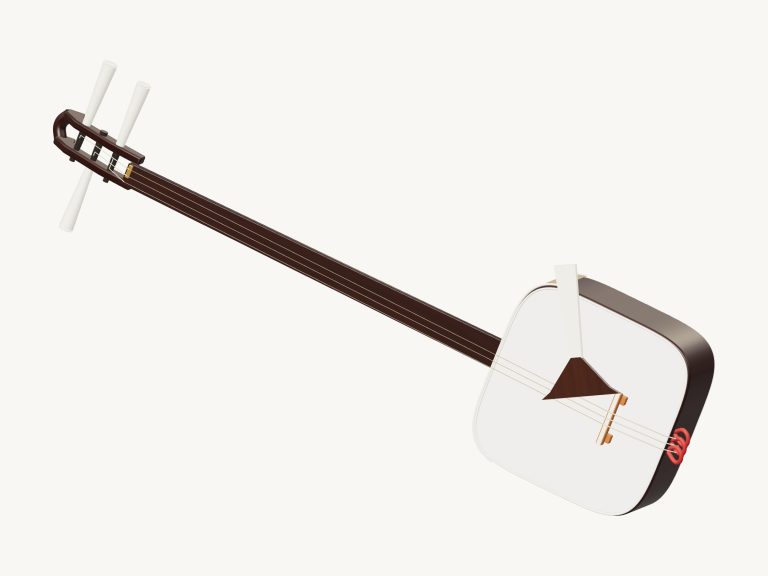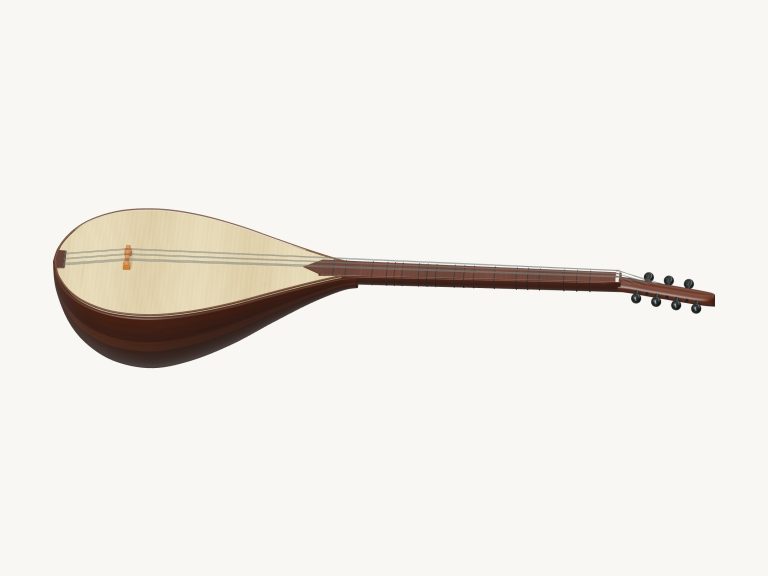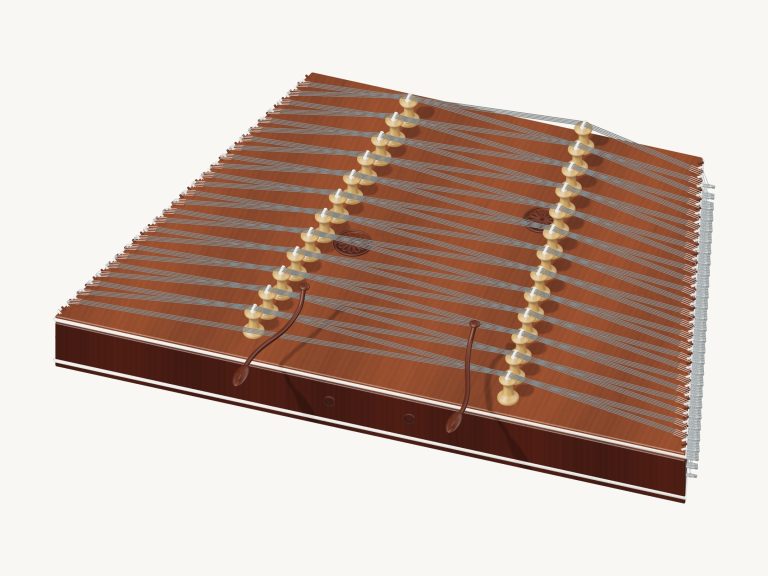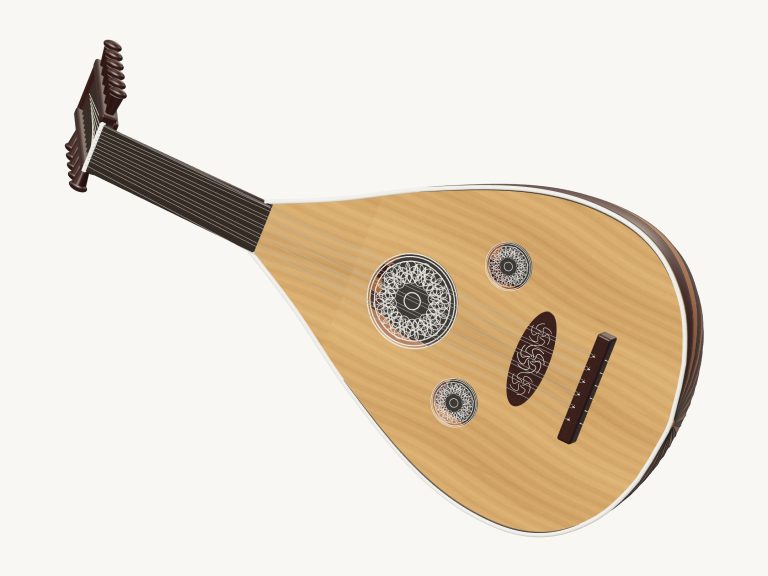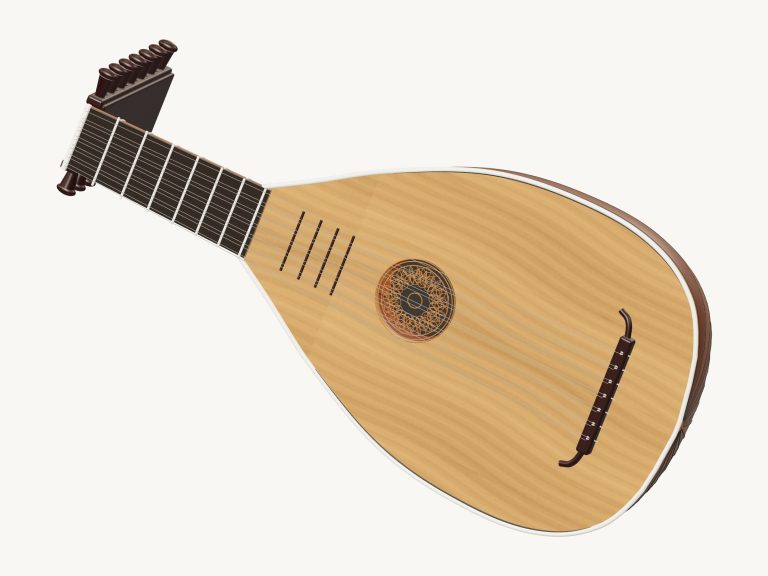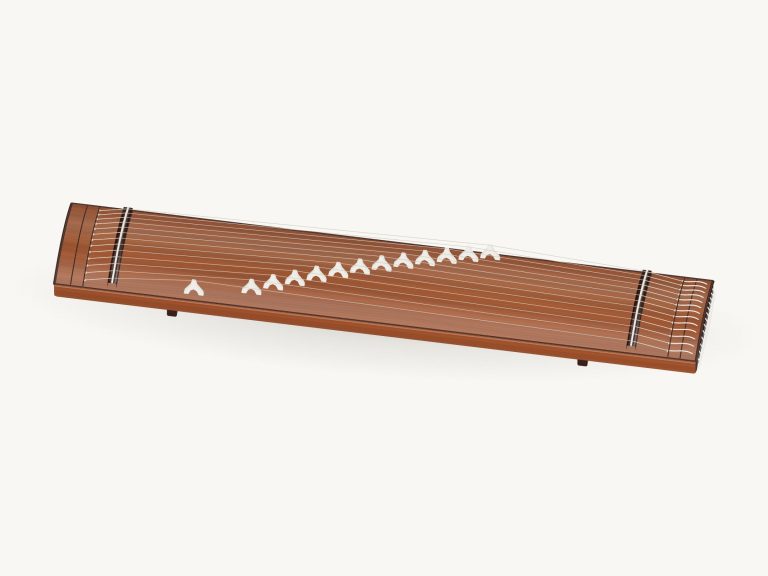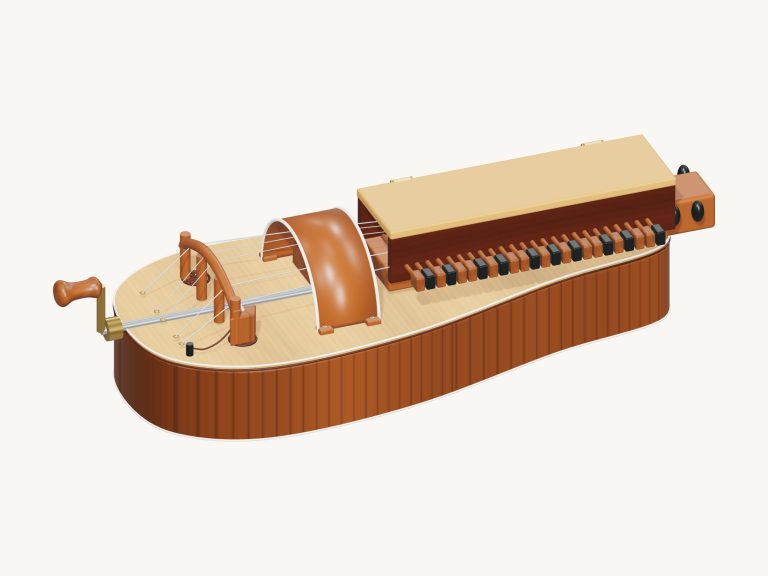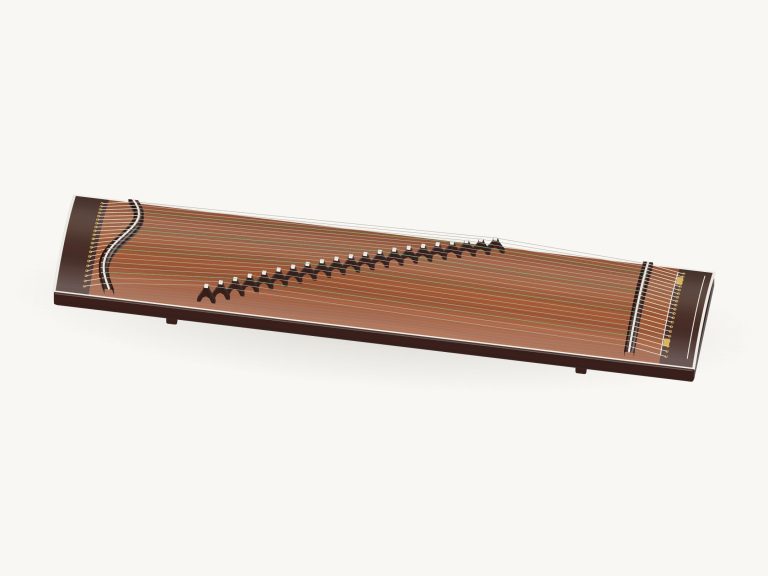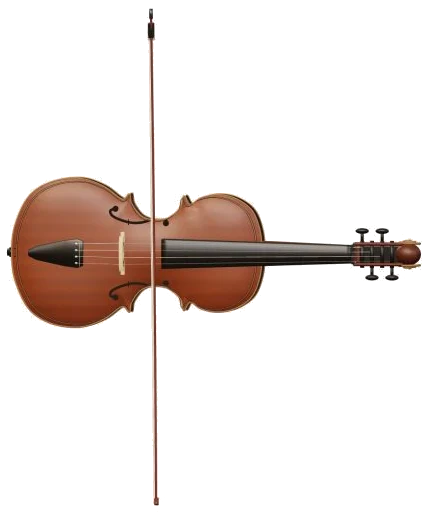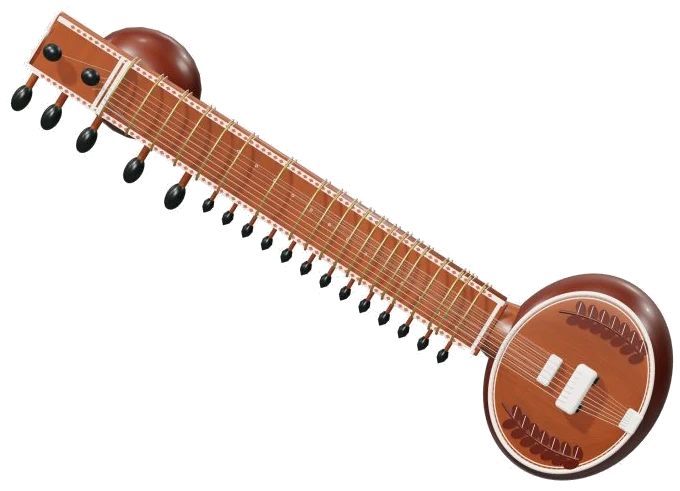
Play an actual-sounding sitar in your browser. It’s an online virtual sitar. According to the caption, there are seven main strings and thirteen sympathetic strings. It has a detailed 3D representation of the on-screen model which include a gourd resonator, main bridge, sympathetic bridge, and raised tied frets.
There is no need to download or install anything: just use a computer keyboard, mouse, or your fingers if you have a phone/tablet to play. The sound is a sampled sitar sound rather then simple electronic tones. You can zoom and rotate the model. There is no start button. Instead, hitting the first note turns the sound on. After the sample has loaded, the text at the bottom change to say Recorded instrument sound. The question mark up in the corner take you to the sound credits and a brief guide.
How to Use the Online Sitar
To play, there’s a set of main strings and note pads. On the 3D sitar, click one of the seven main strings and it will pluck itself, sounding as the string vibrate. Conveniently on a smaller screen, these strings also appears as buttons: G2, C2, G3, C3, F3, C4 and C5. These notes ring out for a few seconds and fade naturaly back down into silence, allowing them to sing their song.
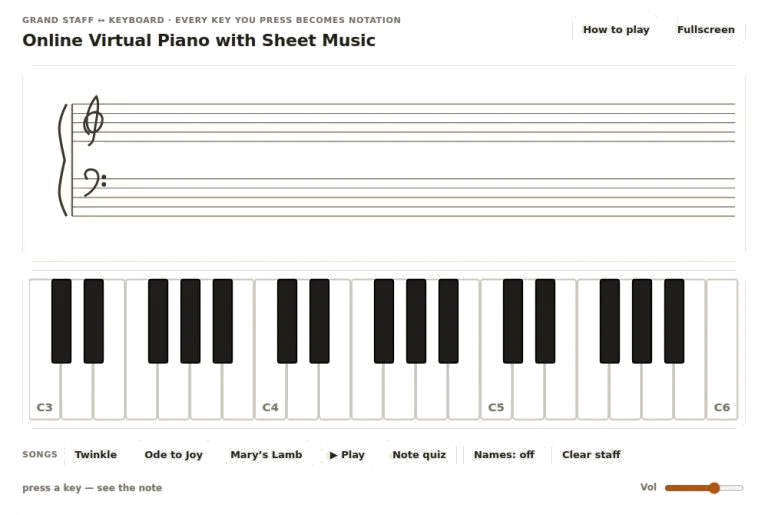
There’s a grid of 37 note pads below the string buttons that run from C3 up to C6 in semitones. Each pad has the note name written beside it. If you have a computer keyboard, the 25 notes from C4 up to C6 (one semitone higher for every letter), are played using the letters: A W S E D F T G Y H U J K O L P; Z X C V B N M and. These are shown on the pads. Touch the lower ones or use the mouse. Before you begin to play from the keyboard, click inside the sitar frame where it sits alone on the page.
The character of the instrument come from these two controls. The Meend slider can bend the pitch smoothly upwards by up to four semitones. Meend bends a sounding note as the guide describes it. Pluck a string and then move the control to make the note glide and sing. While Meend is set above 0, the next notes you play will be bent by the same amount. Slide it back down to 0 if you want them to return to normal tuning.
The Chikari button turn on a soft drone of C4 and C5 that repeats every couple of seconds or so underneath your melody. Click again to turn it off.
The bar under the model show the note or chord you played last under the word PLAYING. The bar under the model shows the note or chord you played last under the word PLAYING. Pressing the Pluck button or tapping the Space bar will repeat the selection. Holding the Space bar down will cause the selection to repeat as long as the Space bar is held down. Auto pluck will do the same thing automatically. Tap once and it will keep repeating. While it is active, tapping any other chord, note, or string will switch to that. Tapping the ■ Stop button, or pressing the Esc key will silence everything immediately and also turn off the Chikari drone.
The Pick speed slider controls how fast Auto pluck repeats the selection. It repeats from 2 to 16 times a second. It begins at four. The Pick slider controls how hard each string is plucked. It goes from 10 to 100. It begins at 65.
CHORDS row contains six buttons. There is one for each of the chords C, Dm, Em, F, G and Am. These are numbered 1 to 6 respectively and can be played from the keyboard. They all pluck a complete three-note chord at once.
The overall character is set by three presets: Natural (the default), Warm (darker, softer with a little more room) and Concert (adds the biggest echo). The Room slider moves as well for each preset. The Room slider goes from 0 to 50, adding a room echo around the sitar. Overall level is controlled by the Volume slider on the bottom right.
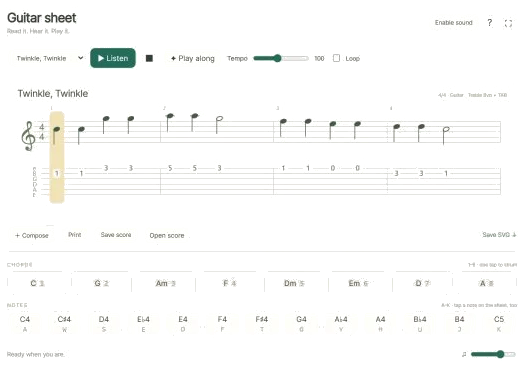
Open PLAY A LITTLE, then select one of the tunes: Morning steps, Twinkle or Ode to Joy. Tap ▶ Listen to hear it played by the sitar. Tap it again to stop. Slide the Tempo slider up to 180 or down to 40 to adjust pace.
Now tap ◇ Game mode. You’ll see a panel labelled play the green note appear. The next note will glow green on the pads. Boxes labelled NEXT and play now indicate what’s approaching and the keyboard letter. As soon as you play the correct note, game mode waits for you. When you do, it moves on, and a counter indicates how far you’ve got. Once you’re done, the message Lovely. Play it again? It appears. Play it again? appears. Tap Game mode once more to exit.
The ● Record button lets you capture your performance direct from the instrument (no need for a microphone). Tap it when it says ■ Finish take and you’ll be able to download your recording via a Save take link.
The online virtual sitar is available here: Click ↻ Rotate 3D to explore more closely. Scroll or pinch to zoom in and out. To rotate, drag in the empty area surrounding the model. The ⌂ button will return you to the original view. You can also switch off Rotate 3D for the same effect.
For beginners, use the Natural preset, then try plucking each of the seven string buttons individually. Next hit the C4 pad and as it rings, slowly slide up using your Meend and listen to that note bend. Turn on Chikari, play some pads on top of the drone and once you’re feeling confident, see if you can handle playing Twinkle in Game mode at a slow tempo.
You should of tried it earlier. It is very relaxng.