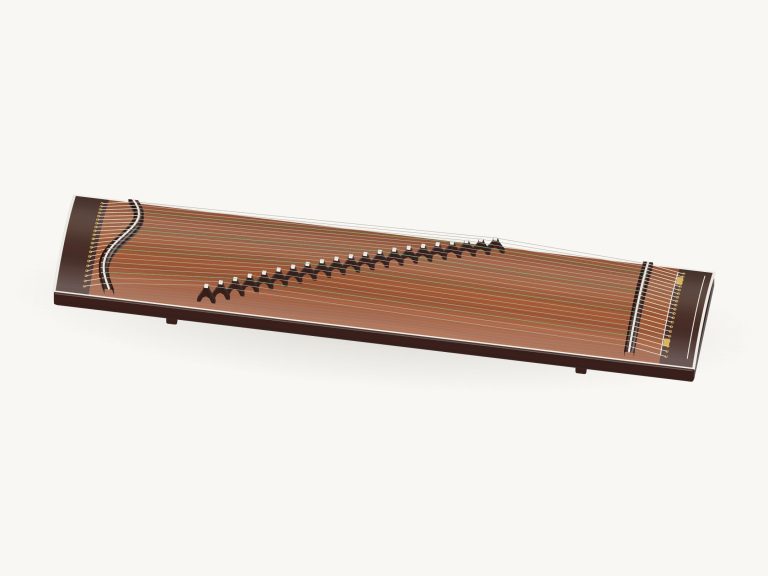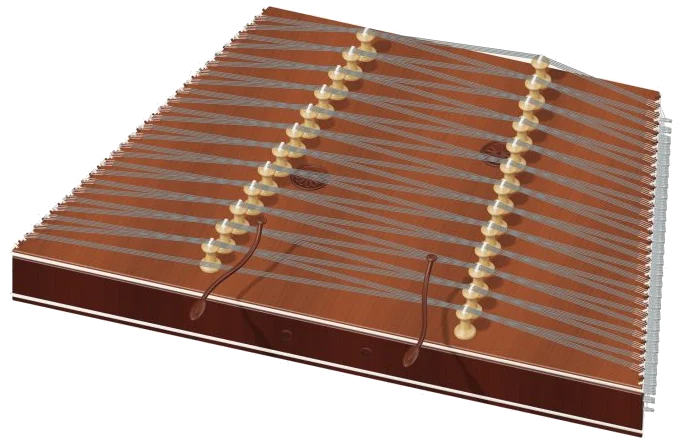
Play an Indian walnut santoor online with this virtual santoor, which you can play direct in your browser. It’s not a synthesizer; all notes is taken from recordings of real santoor instruments. You have two little mallets to hit the strings with. There is a 25 four-string course stretched over walnut soundbox. All of this are shown in a detailed 3D model of the instrument on your screen. Zoom and rotate the instrument at will.
Use your computer keyboard, or if you’re using a phone or tablet, use your fingers instead. You don’t need to install or download nothing. No start button here either. Just play a note and the sound is switched on. Once the recordings is ready, the text at the bottom of the widget changes to Recorded instrument sound.
How to Play the Virtual Santoor
All the controls is just below the instrument. You can access a brief guide and the sound credits by tapping the question mark in the top corner. It’s summed up nicely in the caption beneath the model: “Tap the instrument to play.” Tap any of the courses of strings on the 3D santoor and one of the mallets will swing down onto that course, striking it and causing the strings to shimmer.
Beneath the model there is a grid of 25 note pads. Each pad correspond to a course, and they are arranged in semitones from B♭3 upwards to B♭5. The note name appears on each pad and these can be more easy used on a smaller screen. When you strike a note it rings on by itself as if it were a struck string. The notes is written on a computer keyboard. These are all 25 notes from B♭3 to B♭5, a semitone up for each letter, plus the letters themselves: A W S E D F T G Y H U J K O L P; Z X C V B N M. Every pad indicates which letter sounds that note.
The santoor is framed on the page so when you begin to play, click first within the frame then play from the keyboard. The bar under the model shows the note you played last under the word PLAYING. If you press the Play button it will play that note back for you too as will the Space bar.
If you hold down the Space bar then the note repeat over and over again like a quick roll on the santoor until you release the key. This is done by itself with the Keep rolling button. Press it once and the note continues to repeat forever on the chosen pad or course. While it is on, a single tap of any other pad or course changes the roll to that note. To stop click Keep rolling again. Everything can be stopped together with the ■ Stop button or the Esc key.
A slider labeled Repeat speed determines the speed of the roll: 1-12 times a second. Initial setting is 5. You can adjust during playback. Another slider called Expression, set between 10-100 controls the strength of each note played. Initial setting is 70.
Four buttons are labelled Open, Fifth, Bright, and Soft, and these is on the row marked Play Together. From the keyboard, they are played by the number keys 1 to 4. Each one sounds out a small selection of notes together. The name of the group is displayed in the PLAYING display. They also work with Keep rolling to play a whole group of notes rather than just one note.
It has three presets that determine the overall character. The default is Natural which is the brightest, then there’s Soft which has a darker tone and a little more room, and finally Resonant which adds the biggest echo. It also moves the Room slider for you in each preset. Room goes from 0 to 50 and adds an echo like a room around the santoor. Finally, the Volume slider at the bottom right controls the overall level.
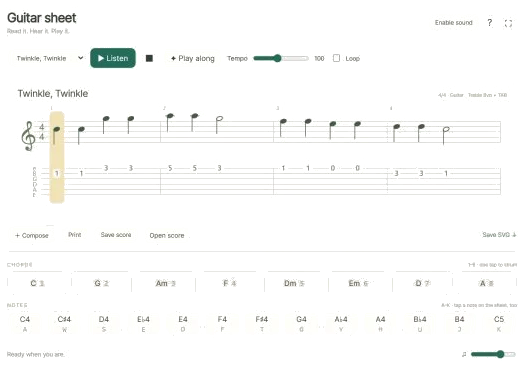
In PLAY A LITTLE tap on one of the three brief patterns, First steps, Call & answer or A little journey. Tap ▶ Listen to hear the santoor play it, then tap it again to stop. You can adjust the tempo using the Tempo slider (from 40 to 180).
Tap the ◇ Game mode icon. The next note is highlighted in green on the pads. A green ring indicates the corresponding course on the 3D santoor, and a panel labelled play the green note appears. Next time you play the correct note, game mode continues. A counter shows how well you are doing. Afterwards, you can choose to continue playing freely or select another pattern. Tap Game mode once more to exit.
The ● Record button records what you’re playing direct from the instrument, no need for a microphone. When it displays ■ Finish take, tap it again and you’ll have a chance to save your take and download it.
To have a better look at the virtual santoor online, click ↻ Rotate 3D. You can then use your mouse to move and rotate the model by dragging in the empty space around the model, or pinch and scroll to zoom in and out. While doing so, you can continue playing the instrument. Clicking on ⌂ takes you back to the initial view. Rotating 3D off has the same effect.
For those unfamiliar with the santoor, begin with the Natural preset, and then slowly pick out some of the lower-end pads, a note at a time. Once this is comfortable, select a note, enable Keep rolling with Repeat speed set to approximately 5, and tap additional pads to change the location of the roll. Try First steps in Game mode when comfortable playing at a slow tempo.
You should of tried the other modes too. The instrument’s sound is naturaly very beautiful. It is much more luxurius than a synthesizer. The modern sound is great. I think you will recieve a lot of joy from it. It is different than what you expect.
You can play it on the computer or phone. I love how it feels. It’s a great tool for learning. Just be careful not to hit the strings to hard.
Making music is fun. I love the way it sounds. You can play for hours. It is very easy to use. Just follow the instructions. Happy playing!