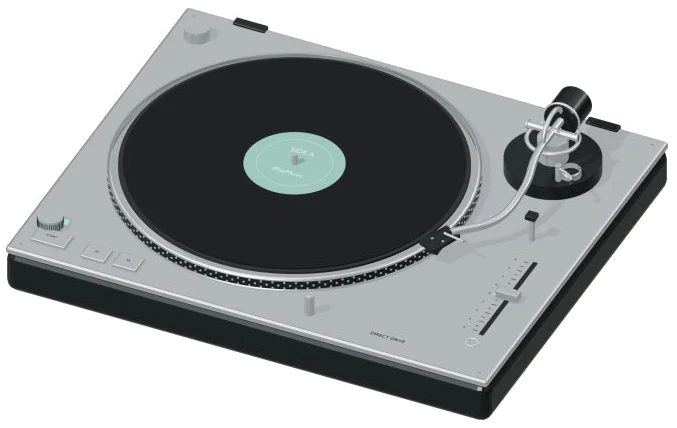
This is a virtual turntable you can use online to spin records, scratch them, and be a DJ right in your browser. There’s nothing to download or install; just go to the site, and you’ll find a detailed 3D model of a direct-drive turntable onscreen (which you can zoom and rotate), a spinning platter as the music plays, and even some original demo loops created using synth parts and drum sounds.
Load up an audio file of your choosing from your device or use one of the included demos, then play away… Either with your mouse, your computer keyboard, or your fingers on a tablet or phone.
How to Use the Online DJ Turntable
No need to search for the start button. When you select a loop (or hit Play), the sound turns on, and the message at the bottom of the widget changes from Three original loops · your files stay here to the name of the currently playing loop. All the controls is just below the turntable, and the question mark in the upper corner brings up a brief guide.
Play or Space: The platter begins spinning and the tonearm moves into position. The button changes to Ⅱ Pause. Press that same key again to pause or unpause the music. Stop stops the record and returns it to its starting point. ↶ Cue: Jumps to the start of the loop and plays from there. Esc: Stops the record and returns it to the beginning.
Scratching, that’s where the fun comes in. Drag the record (around in a circle) on the 3D model, or across the strip marked ← Drag to scratch →, left and right, and the music will follow your hand, fast or slow, forward or backward. Letting go of the record just makes it carry on playing if it was doing so beforehand. To scratch from the keyboard, hold down the right arrow key to scratch forward or the left arrow key to scratch backward. Click inside the widget first before using the keyboard shortcuts as the turntable sits in its own frame on the page. It also includes a Reverse button (the R key) that reverses playback direction (running it backwards).
Number keys 1 to 4, as well as the four Cue 1 to Cue 4 pads, jump to four equally spaced points throughout the loop and begin playing from there. For example, tapping them in various sequences makes it easy to remix the loop on the fly, with Cue 1 being the very beginning of the loop.
The guide explains: “The pitch and RPM controls alter both pitch and speed simultaneously. The pitch slider is a small step from -8% to +8%. Its value appears alongside. On the 3D deck, the pitch slider moves to match this. Clicking the 33 and 45 buttons toggles between these two record speeds, with 45 playing noticeably higher and faster. You can also click the START, 33, and 45 buttons directly on the 3D model.
The three demo loops are available to play: House cut, Dub space and Pocket groove. Click on one and it immediately loads on the deck and begins playing.
Click Load audio then select an audio file. It will appear as soon as it’s on the deck and its name will be shown at the bottom of the widget. Then press Play to begin it. If there’s a problem reading the file, the widget informs you that This file could not be decoded. You can see the entire track as a waveform below the deck, and a line indicates the position of the record.
Next comes the Tone slider. This is a filter of sorts that you can slide left for a muffled, darker sound, and right to return it to its full, bright state. Finally there’s the Volume slider at the lower-right corner, which begins at 72 and adjusts the overall level.
Click ◇ Game mode if you don’t know where to start. It will walk you through six moves.
Start the record.
Jump to cue 2.
Scratch the record
Play it backwards.
Try playing at 45 RPM.
Stop the record
Each move has a box showing which step you’re on (e.g., 1 / 6) and what’s coming up, and the control that you’ll need is highlighted in green. As soon as you do the right thing, game mode moves on. When you’ve finished, it says Nice cut. You’re ready to play. Click Game mode again to turn it off.
The ● Record button captures everything you play, including scratches, straight from the turntable without a microphone. When it says ■ Finish take, click it again to see the Save take link and download your mix.
To explore the virtual turntable in 3D online, click ↻ Rotate 3D. To rotate the turntable, drag the background; use your mouse wheel to zoom in/out or pinch with two fingers on a touchscreen. Click the ⌂ button to return to the initial view. You can also switch Rotate 3D off to do so.
No commercial tracks were used, the guide says. Instead, it’s all about original synthesized demo loops. The 3D deck is a separate turntable model that uses direct-drive construction.
Beginners should of start by playing the House cut loop, then press the left and right arrow keys one at a time to play a basic scratch. Next, use the keys 1 to 4 to jump from one cue pad to another. Then go back to 33RPM/45 RPM to listen for the difference it makes to the sound.
The pitch slider is naturaly a small step from -8% to +8%. Its value appears alongside. On the 3D deck, the pitch slider move to match this. Clicking the 33 and 45 buttons toggles between these two record speeds, with 45 playing noticeably higher and faster. You can also click the START, 33, and 45 buttons directly on the 3D moddel.