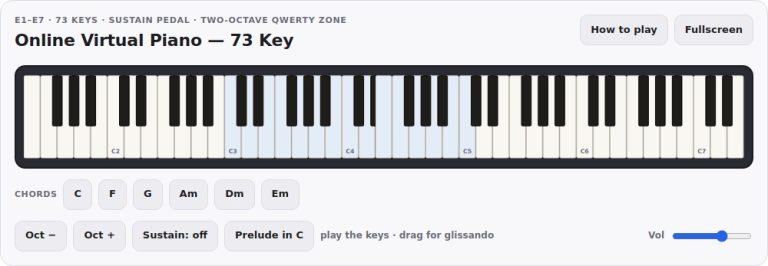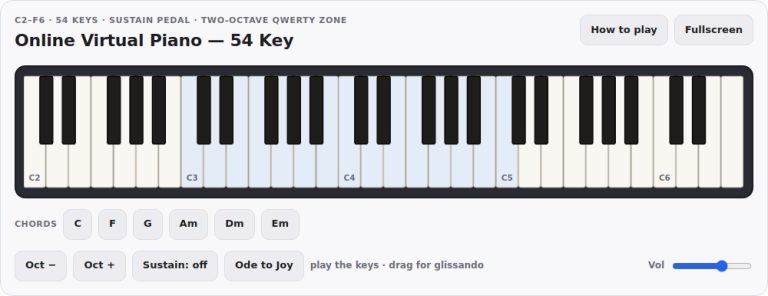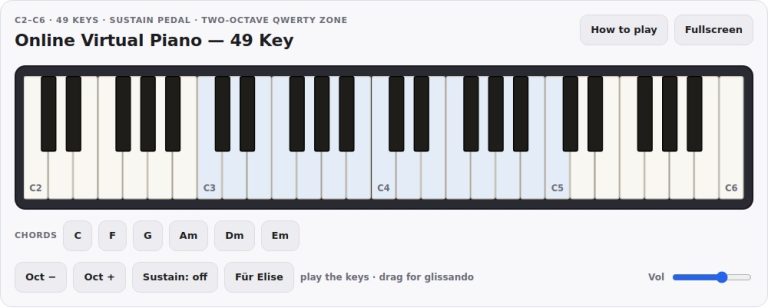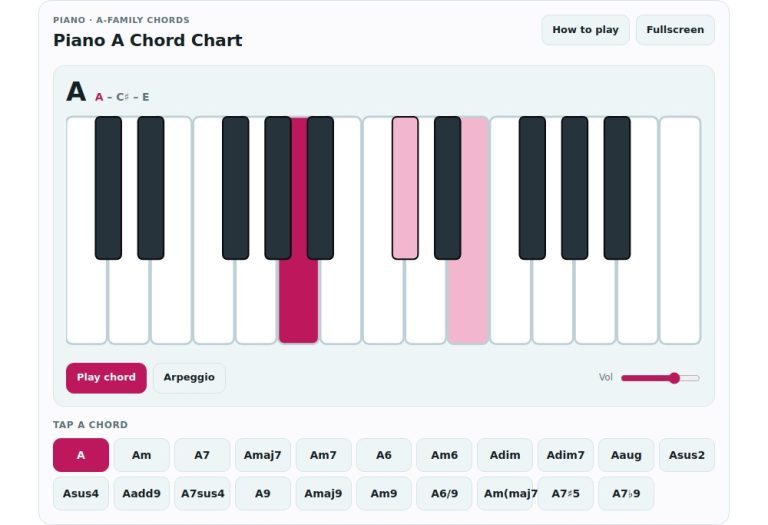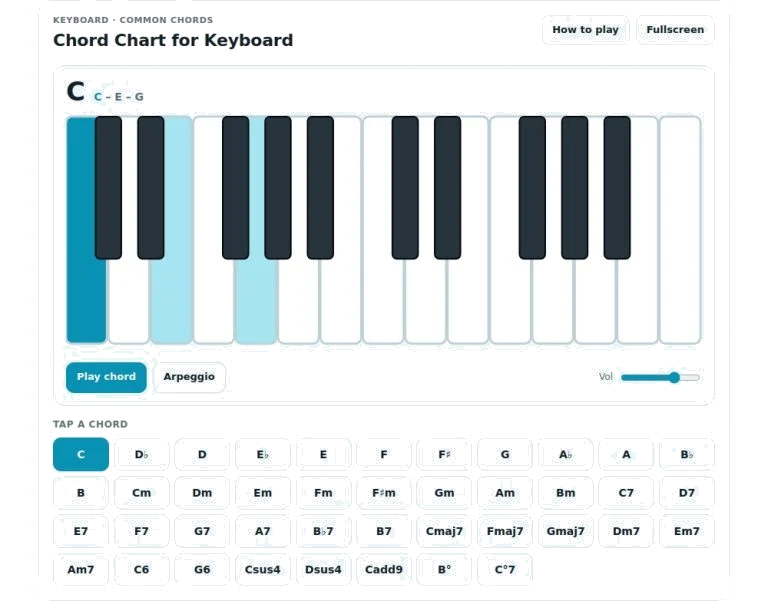
This is an interactive chord chart. Below I have created a dynamic version of this kind of chord chart. You will be able to see and hear how the different chords sound and look live without needing any other pieces of kit than your computer keyboard (or even mouse).
There are two methods of interacting with the chart below. One is via your mouse; simply click on one of the parts of the chart itself. The second way is via your computer’s own keyboard. You’ll find that using your computer keyboard provide a more responsive experience. It uses the colour scheme of your operating system, which means whether you are working in a light room or a darkened studio, it should be relatively easy on the eyes.
How to Use This Interactive Chord Chart
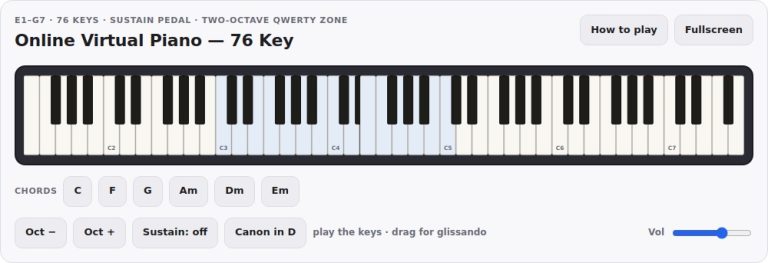
The visual keyboard is what this widget is built around; it’s laid out like a real piano keyboard with white and black keys. As you choose a chord from the grid below, the keys you need to play the chosen harmony will light up on the visual keyboard. The main note or root note of the chord will be picked out clearly in another colour to highlight it as well. Each individual note has been added so when you click on a key on the visual keyboard, it plays the note for you. This reinforces where the notes of chords is on the keyboard and what the notes of each chord sound like in your head.
Underneath the keyboard is a grid of chord buttons. Tapping a button plays various chords which highlights matching keys and plays their sounds too. There’s a choice of major chords, minor version, sevenths, added notes etc such as add nine and sus four. It’s all clearly labeled with the quality of each chord so there’s no memorizing standard notations to locate your desired chord. Just tap around the buttons in the sequence you wish to play.
Just below the keyboard are the transport controls which let you play the chosen chord in various ways. The main one will play the complete chord together so you get full sound of hearing each note played at the same time. If you want to do this but also hear the intervals that make up the harmony, there is another button labelled arpeggio. This button sounds the notes out one after another, starting on the lowest note first. This has a kind of rolling quality and it can be useful for understanding the individual intervals of any given chord.
To the right of these is a volume control to set the level based off what works best for you and the space you’re in. There are also some handy shortcut buttons that let you skip around more easily in your selection without having to remove your fingers from the keyboard. Left- and right-arrow keys moves back and forth through each chord in the list. Tapping on the spacebar will play whatever chord is highlighted again with the default block voicing. This is great for those times when you hear something you like and wish to learn how it sounds by playing it over a few times. For even easier viewing, tap the F key to go full-screen, expanding the widget to take up your whole monitor.
There’s a really handy help panel that appears when you click the help button (top right). It shows full details about all the controls, including keyboard mapping. If you forget how it operates then this is where to go. The widget is also standalone. No need to download anything more or navigate away from the page. You can keep the help panel open and refer back to the options as you play around with sound.
One thing that can be very helpful is to try playing the same root note in both its major and minor version. Listen how the third interval alters the emotional feel of the harmony by switching from C major to C minor. If you find yourself hearing a muddiness/messiness in the chord on first listen, use the arpeggio function. This breaks it down into single notes. This makes it easier to understand the voice leading. It can also help you learn the chord. Listening for a smooth transition from one chord to another can also help you practice transitions as you navigate through chords using the arrow keys.
Now spend some time investigating various chord qualities on offer in the grid. Each provides a distinct colour that composers use to either resolve tension or create a mood within their music. The interface was made to respond and accommodate you as you click around. Don’t worry about breaking it! It’s not complicated and there are no confusing settings to fiddle with before you can play. Select a chord and hear how it sounds on your terms. If you’re new to harmony, then start with the simple major chords. If you’ve had a little background knowledge then jump right into seventh and extended chords.
As a learning tool, this widget is best used as an active tool for studying rather than a passive display. Pairing audio feedback from the playback engine with visual recognition of the highlighted keys reinforces your mental model of how piano harmony works. Whenever you have a new idea about a theory concept or simply need to refresh your memory on a specific voicing, you can come back and give it a try in real-time. It’s simple enough in design to keep the entire focus on the music itself. Follow the lighted keys and play right along, or grab a pen if something catches your ear and jot down what you hear. With one click, it’s time to explore.