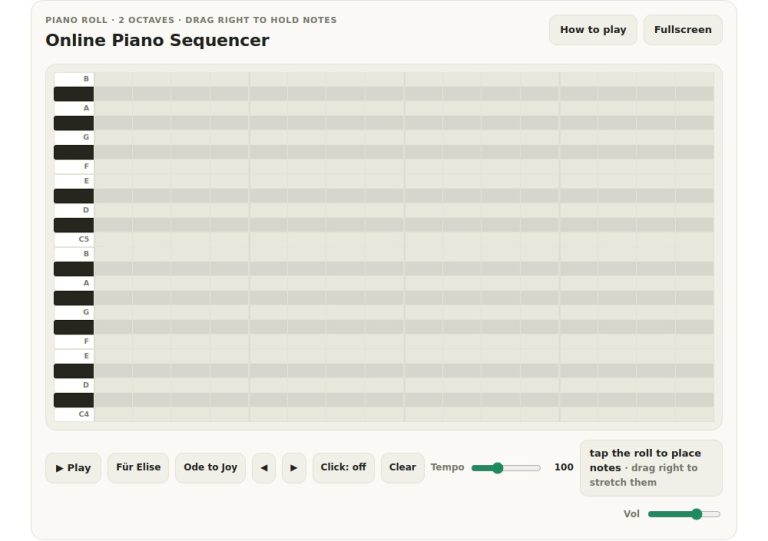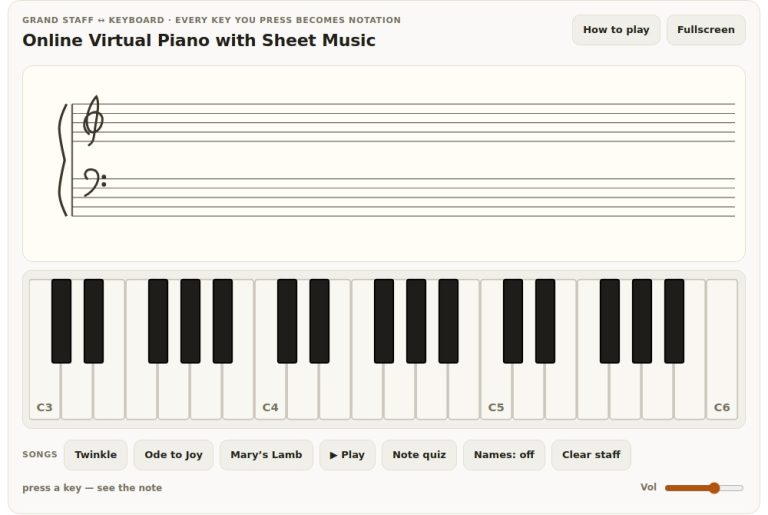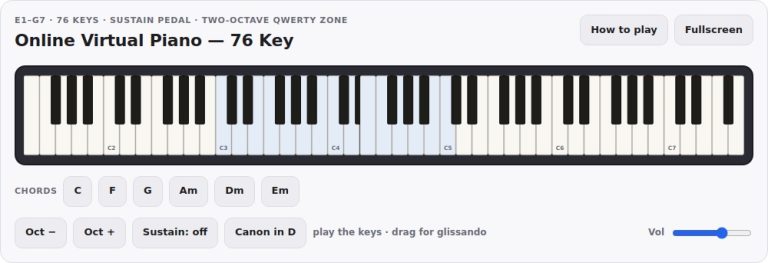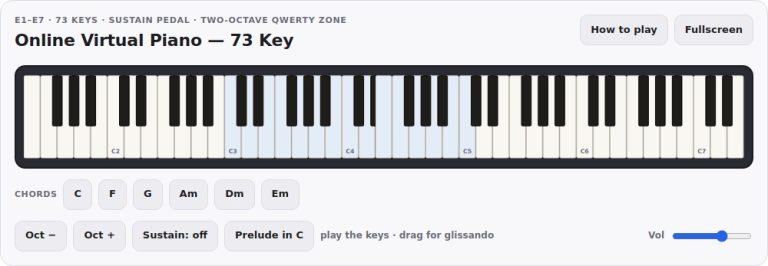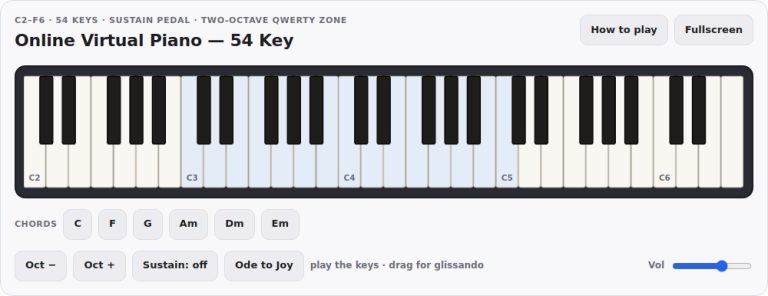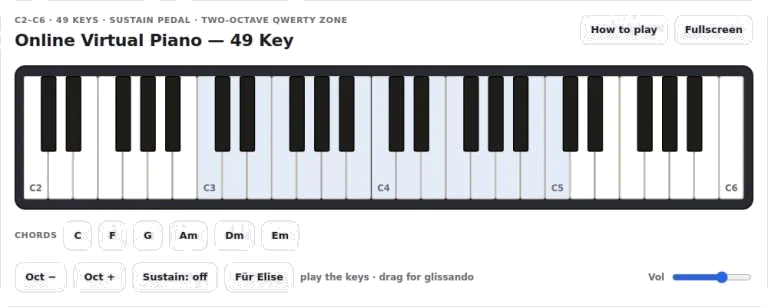
In the browser, this virtual instrument include a piano-style 49-key piano range from C2 to C6. Click/tap on the keys or use your computer keyboard (traditional) and start playing. There are no downloads or setup required everything is responsive so you can make music.
The keyboard act as a genuine acoustic piano. Velocity is captured so pressing near the top of any white key will produce a soft note and close to the bottom, a loud one. It add more dimension to your performance. You can even slide your mouse across the keys to create a gliding sound. Multi-touch chords are seamless on touch devices allowing you to hold down multiple keys simultaneous.
How to Use This Virtual Piano
The keyboard remains the same. However, on narrower screens, the keyboard divide into two rows to ensure all the keys remain viewable.
There’s also a way to play on your computer keyboard: Every letter correspond to a note. The first octave contains the letters Z, S, X, D, and C (on the lower row). The second octave is contained in the top row with letters Q, W, E, R, and T. Flats and sharps is included within these rows too, meaning that no Shift key need to be pressed to access them. Your computer keyboard range is shown visually with a tinted band. You can click the Oct minus and Oct plus buttons to slide it up and down, or press the left and right arrow keys to change the range of available notes. That means you’re able to map your hands anywhere on the piano without having to learn where each hand should of been placed again.
For sound shaping there are tools in the control panel. There are chord buttons for Em, Dm, G, F, Am, and C. These offer quick chord backing. Pressing one of these play a full voicing that continues for several seconds. It’s great if you want to try out melodies over a backing track.
Then there’s the sustain button which functions similar to a piano pedal. Click this to engage latching sustain where notes ring out even when you remove your fingers. Or hold down the space bar for a momentary sustain effect, then release to instantly dampen the sound again.
Finally, there’s the master volume slider which allow you to set the overall loudness to suit your comfort level.
Press the Für Elise button to demonstrate. It will play a brief extract of the well-known piece, with the keys lighting up as they sound. To follow along, try pressing an octave higher or lower (using the octave shift) so that you are in the same range. This not only allows you to hear the response of the keys but also provides a simple target to aim for when practicing.
To get the most out of this widget combine it with the keyboard that you are playing. Press down the sustain pedal and play a bass note then a chord. You’ll hear the notes blur into each other forming a rich texture like you would expect in a romantic piece for piano. Try changing the octave shift to something that is comfortabley playable using your hands. Perhaps a melody note is too high or too low? Adjust the mapped zone so that the keys works for you without having to stretch your fingers naturaly. The fullscreen button will come in handy here to enlarge the interface if you have a large screen. This provides plenty of space so that you can see the keys well.
You will also find that there’s a help panel where you can get a handy reminder of controls and key mappings whilst playing. That way you don’t get too bogged down in remembering what the sustain latch does or how to access sharps and flats.
When you’re confident with the basic functions give a little improvised tune a go. Because the instrument is forgiving and responsive, you won’t have any technical hang-ups, allowing you to let your imagination run free.
Begin by locating the ‘middle C‘ on the visual keyboard and press that key on your computer. Experiment with pressing lightly then pushing more firmly, observe how the note changes in both brightness and volume. Next, attempt to play an easy-scale either up or down and use the arrow keys if necessary to adjust the range. It’s about getting used to the feel and sound of this instrument in a relaxed manner. You can’t do it wrong, just be creative and have fun making music from your browser.