It’s a virtual piano that links your hands to the notes on the page. You can click the piano keys on the screen and play that way (with your mouse) or you can use your computer keyboard which is more naturaly if you prefer. When you do this, every note you strike is immediately displayed on the grand staff above, turning your playing into written music. It’s great as a learning aid because it allow you to see exactly what you’re doing.
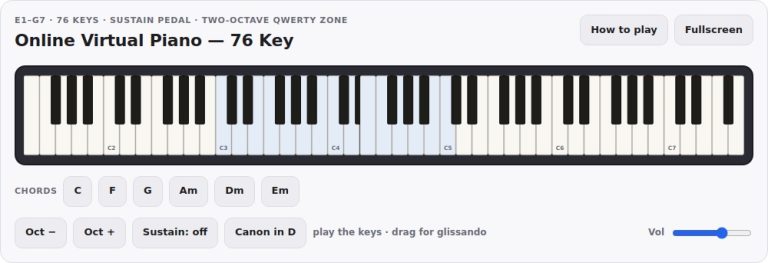
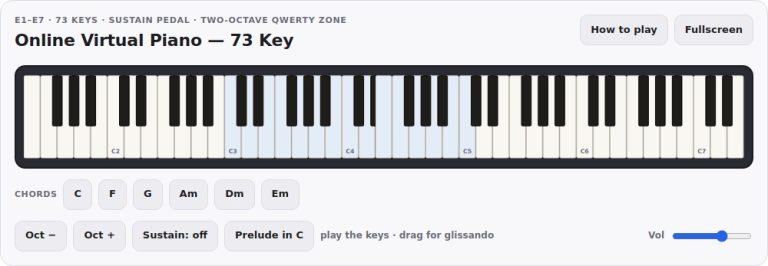
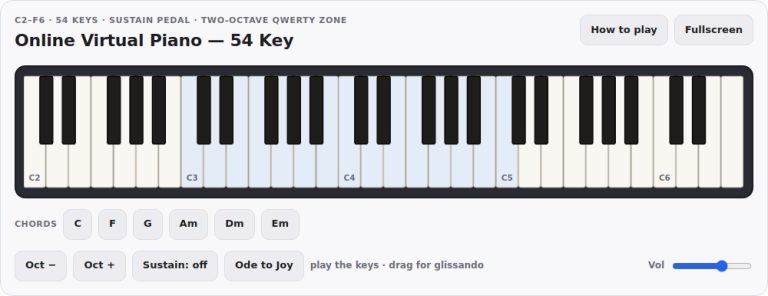
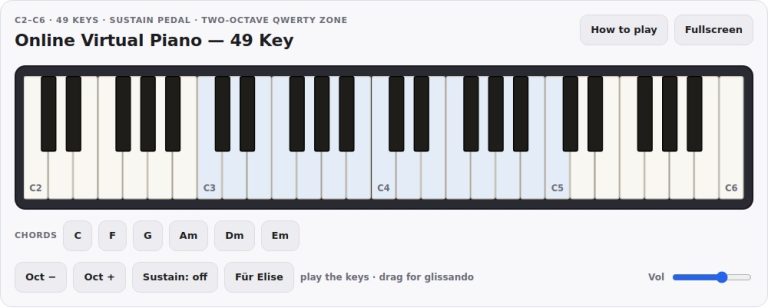
The keyboard is laid out in three octaves (C3, C6). The black and white keys is clickable to be played individually. Alternatively, you could use your computer keyboard. It is set up to match the actual placement of keys on a piano. The first row of letters (Z to M) is for the lower octave, with S, D, G, H, and J acting as the sharp keys. The second row of letters (Q to I) is for the middle octave, with the number keys 2, 3, 5, 6, and 7 acting as the sharps. To play chords, just hold down any number of keys simultaneously. To perform a glissando, move your mouse along the keys.
How to Use the Virtual Piano
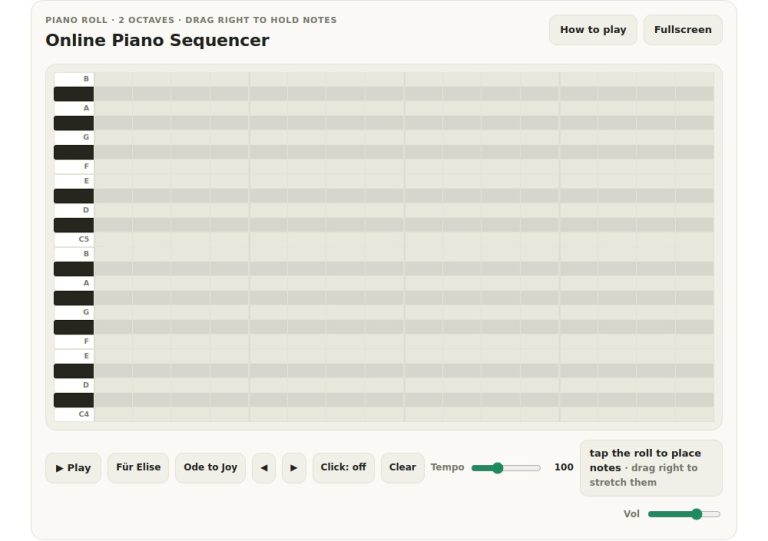
To use and learn from them there are a few tools. Some buttons loads in songs with easy tunes. These include songs like Ode to Joy or Twinkle, Twinkle, Little Star. You can then hit the play button which plays through the song while highlighting the notes and keys that they should sound on. It’s a neat feature for learning to read along without playing yet.
If you use the note quiz mode the widget becomes a sight-reading training tool. A single mystery note appear on the staff and you have to locate where it is on the keyboard. Every time you get it correct it adds to your streak. But if not it will tell you what note it was so you can adjust to match.
If you’re unfamiliar with how to read music, there are some visual aids. With the Names toggle, it will print out the letter name below each notehead on the staff. So it’s kind of like training wheels where you learn to associate the visual position of a note with its name. And it automatically turns off when taking the quiz (you don’t want anyone cheating!).
The Clear staff button clears away any notes that you’ve entered recently and you can just start again from scratch. And finally, you can control the master volume from the slider in the bottom right corner.
The source doesn’t mention an option to hide the keyboard or show only the staff. Also, because it’s a widget, it matches your preference and screen size. There’s even a fullscreen option that will expand the piano to fill your screen. This leaves more space for the staff and focuses on the keyboard itself.
If you forget which buttons do what there is a help panel available for quick reference. As you play everything appear on the staff in real-time. It will scroll as you continue playing but will keep the previous sixteen notes displayed. This gives you the ability to see what you’ve just played and how it looks on the staff.
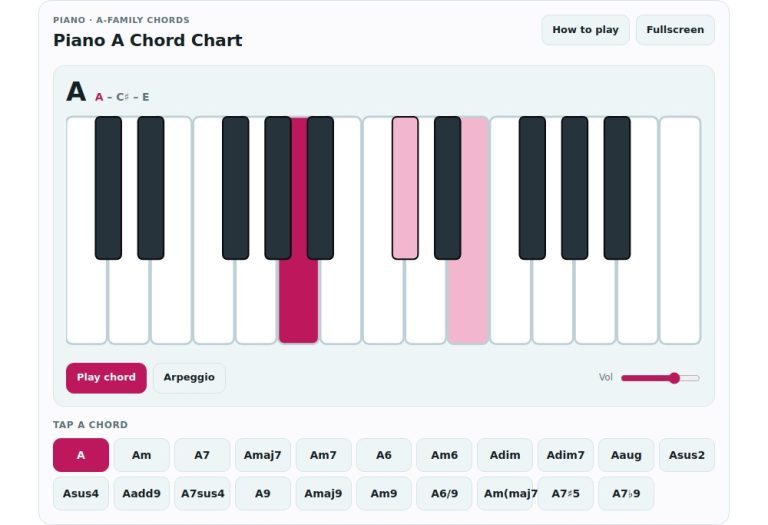
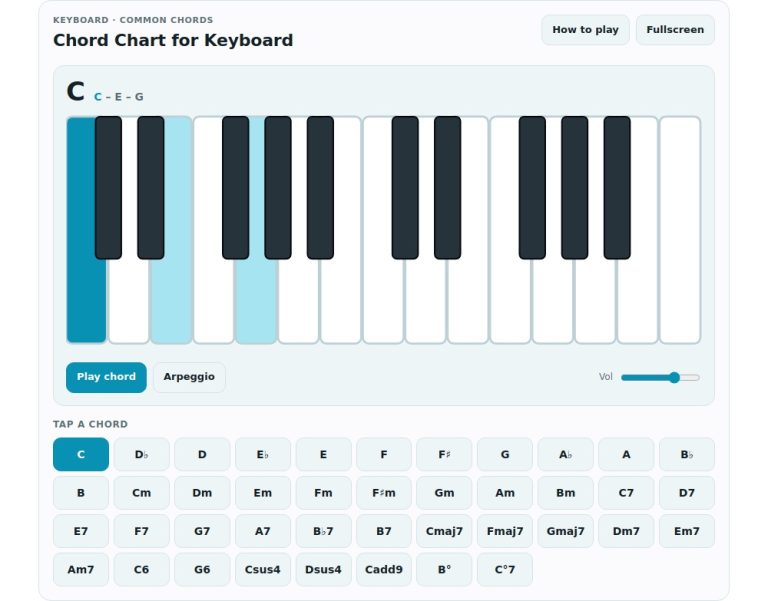
I have found a couple of useful tips that really help in getting the most out of the lesson. Play through a chord that uses three keys together. Listen to the way it blends and notice where the notes sits on the staff. When practicing a piece, switch off the note names after a run or two. That will make your brain work at reading the spaces and lines rather than relying on the letter.
The Note quiz helps develop reflexes nicely too. Just a few minutes of practice each day can massively increase your sight-reading speed. You could combine the notes from one of the loaded songs and see what melody you create. It’s instant and it works.
No downloads, no set up, nothing. Open the page and play. Whether you want to learn how to read music, compose a quick little tune, or simply love hearing what the piano can do, this interface is ready for you. You don’t require a textbook; the way the note matches the key reinforces your grasp on music theory.
Play around with the other modes for a bit. Try the quiz and go back and forth with that and free play. Load up a song you know well. Clear away the staff, and try to re-create it from memory. The feedback is instantaneous, and allows you to adjust accordingly while you’re in the middle of doing something wrong.
The beauty of this is that you play and then you see. It’s a unique instant learning loop. Press a note, watch it appear on the screen, repeat.