The web-based virtual guitar sheet is a friendly music reader. Its motto is: read it, hear it, play it. Each tune appear on screen both in six-line tablature and standard notation simultaneously. Music playback features real recordings of classical guitars. A game awaits your input too, where you have to provide the notes yourself. Write your own tunes if you like. No need to download or install anything.
The interface respond to a keyboard, a touchscreen or a mouse. First click: In the top corner, click Enable sound. The recordings is loading, the button is counting up. Then it says Sound on. Click the question mark for a brief help panel; click the four-corners icon for full screen. To return to the page, either click that icon again or hit Esc.
How to Use the Virtual Guitar Sheet
From the menu bar choose one of the scores. In this case I have chosen Blues walk, Sunny Steps, Ode to Joy, Twinkle, Twinkle. Below that is the title and then the words 4/4 · Guitar · Treble 8vb + TAB. What does all this mean? Well, the first part is the time signature (crotchets in a bar). This means there are four crotchets in each bar. Then we have guitar followed by treble 8vb + TAB. The treble means the upper staff use a treble clef, and the little 8 indicates it should of be played an octave lower than it is written. So, the notes play one octave lower than they appear on the stave.
Below is the tablature with six lines labelled e, B, G, D, A, and E. These represent the notes on those strings. The highest note is on the top line, the high E string. The bar numbers allows you to follow along.
Click Listen and the guitar plays the score while the current note is highlighted on the sheet. As it’s playing the button becomes Pause and when you hit the square Stop button it returns to the start. From the keyboard, the Space bar begins and stops play, while Esc stops it. The Tempo slider ranges between 40 and 180 with each tune beginning at its respective speed, allowing you to slow down a passage as you are learning it. Click Tick Loop to listen to the tune repeatedly. You can also click on any note in the sheet to hear it, and Listen will continue from that point.
Click on Play along when you are ready. It highlights the next note in green on the sheet and on the notepad. On the side is a little panel. It shows the note to play, what’s coming up next, and a counter. There is no rush because the game waits for the highlighted note, but it skips ahead if you play it. If you reach the end you will see Lovely. You have just played the entire tune. The button changes to Play again. End game pauses a round at any time.
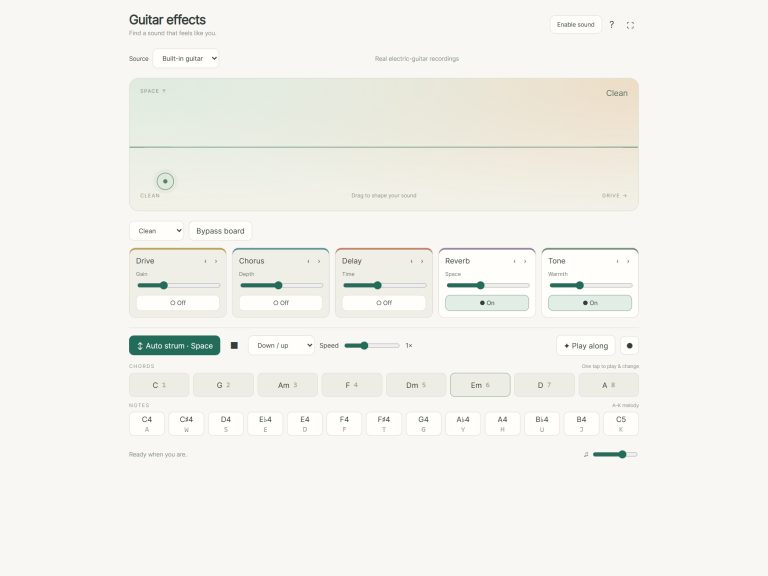
Two lines of pads appear below the sheet, with a row for Chords, which are strummed by a single tap: C, G, Am, F, Dm, Em, D and A; and a row for Notes (A W S E D F T G Y H U J K), including 13 notes ranging from C4 through to C5. You can see the letters for each pad. Before using the keyboard, click within the widget itself. It has its own frame on the page.
Tap Compose to create your own tune. You are taken to an empty new score titled My little tune, which you can change in the title box. Select a note length from the options of Whole, Half, Quarter, or Eighth, then tap on the note pads (or push their keys) to enter the melody. The notes neatly fill out the 4/4 bars. The status line indicates if there are not enough beats remaining in the bar for the length of note you’ve chosen. Tap Undo to remove the previous note. Clear clears the score. You can have up to 128 notes in a score. Your tune will appear in the menu under Your composition where you can listen back to it or play-along with it just like the built-in songs.
The buttons under the sheet help you keep your work. Below the sheet are two rows of pads. Print prints just the sheet music; Save SVG downloads a picture of the notation; and Save score downloads your music as a file that Open score can load again later, so you can carry on editing. The Volume slider in the footer sets the overall level.
Roberto has recorded a set of recordings called FreePats: Spanish Classical Guitar recordings in which the guitar sound originate. These are free (CC0 1.0), and there are 31 recordings in all. All use local playback with no uploads as the help panel explains. Other exercises has been written specifically for playing on this virtual online guitar sheet. Public-domain melodies include both Twinkle, Twinkle and Ode to Joy.
For beginners, select Twinkle Twinkle, slow it down, click Listen and count through the tab as you see the fret numbers. After that, change to Play along and play each note when you’re ready. When you’ve got this one figured out, use the online virtual guitar sheet to compose your own brief piece of music.