Learn how to play eight popular chords and play them immediately in your browser with this online virtual guitar with chords. As they describe it on the stage, it’s “One tap. It is a whole new song.
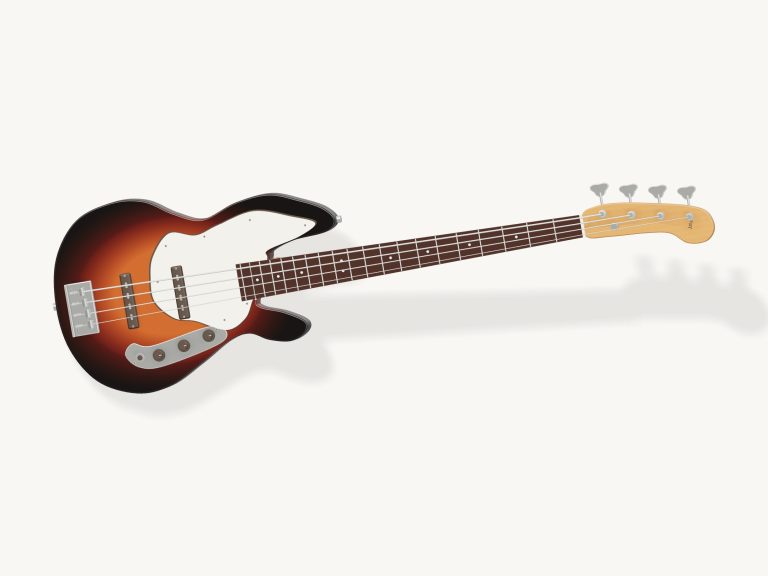
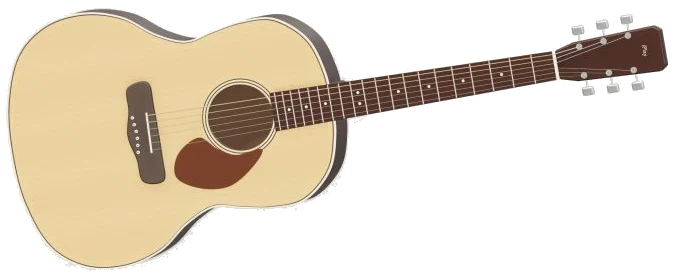
It features a detailed 3D model of a steel-string acoustic guitar which you can zoom in on and turn around. Each note is played back using real guitar recordings. It shows you the chord diagram so you know exactly where to put your fingers. There’s nothing to install and you can play on your computer keyboard, mouse or even a touchscreen.
How to Use the Online Guitar
On the stage, you’ll see Preparing your instrument… while the guitar loads. When it’s done, click Enable sound up in the widget. It’ll turn to Sound on and you’re good to go. Click it again to mute the guitar. Press Unmute when you want it back. Clicking the question mark takes you to a brief help page (with the credits) and the Focus button puts the guitar into full-screen mode. Press Esc or click Exit to exit fullscreen.
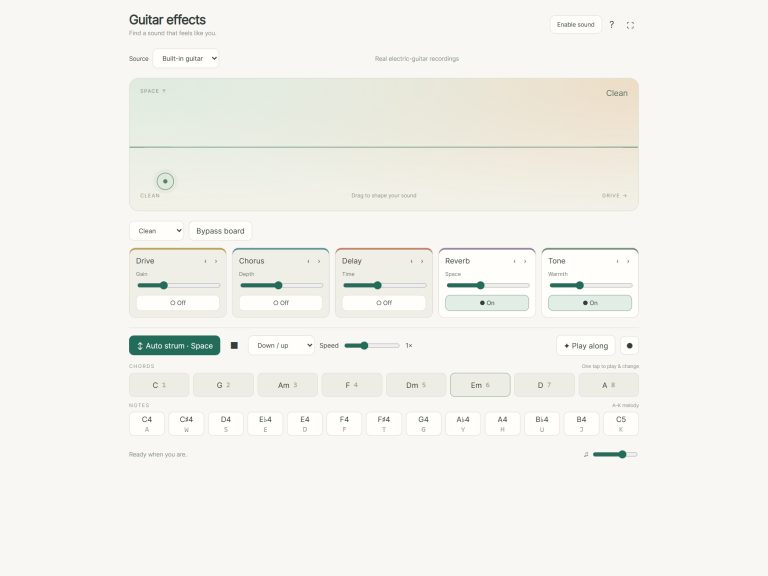
This app centers around a row of eight chord pads, C, G, Am, F, Dm, Em, A and D. Tap on one of these and it chooses the chord for you and also strums it automatically. From your keyboard, hit the number key 1-8 to get the same effect. The guitar is contained within its own window, so make sure to click inside the widget first then play from the keyboard.
On stage when you choose a chord, not only does it appear in big letters but there’s a chord diagram too that displays the six strings (labeled from left to right: E A D G B E) plus a number for each finger. Your left-hand fingers is numbered: 1 = index; 2 = middle; 3 = ring; 4 = little. If you’re playing an open string then there’s an open circle, if it’s muted, it has a ×. You can see that F has a barre across the first fret of all six strings, which is represented by the first-fret barre. On a chord like C that’s written as a line, such as × 3 2 0 1 0… You’ll notice that it spells out the same shape string by string.
Below the pads is a fretboard grid showing the neck mapped out in standard tuning (EADGBE) from the 0 fret up to the 12th. You can see the number of each finger displayed on the frets and the note name shown for every cell. Click on a cell and it will play that note with that string held at that fret, or you can click on the string name to the left and it will pluck that string. When the shape doesn’t match any of the eight chords, the chord name becomes Explore and the diagram displays as Custom fingering. The Open strings button brings back all six strings ringing open.
Drag across the strings on the 3D guitar to strum in both directions, and the faster you drag the louder and brighter it will sound. Tap the neck to fret a single note, or tap a string to pluck it. Strumming: Hit the big ↓ Strum/hold button (or Space bar) to start the rhythm. Quickly tap once for a single down strum. Or, hold it down and the guitar will continue strumming in time as you tap out new chords with your other hand. The ↑ Up button is for an up strum and Auto continues the rhythm without hands. There are three patterns from the pattern menu. Downbeats strums on each beat. Folk strum plays down, down-up, up-down-up. Fingerpick picks through the strings one by one. Tap the Stop button or hit the Esc key to silence everything. Use the VOL slider to set the volume.
The row for melodies is played on the keys Q W E R T Y U I, which give you a C major scale (C4-C5). Then, it moves over to the keys A S D F G H, which sound each of the six strings in turn from low E to high E.
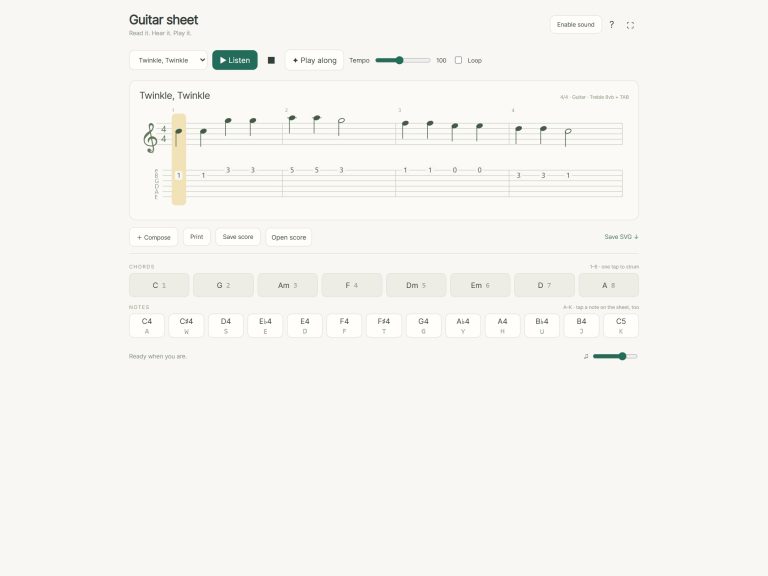
Open the play along menu for practice time. You can choose from Ode to Joy, Twinkle, Twinkle, Midnight folk (Em, G, D, Am), or a four-chord story that goes: C, Am, F, G. Click Listen to hear the selected piece on a loop, and click it again to stop. Use the tempo box to set the speed of the music between 40, 180 beats per minute, beginning with 92. This will also control how fast the strumming is.
Learn a piece step by step; click Game. On the fretboard and pads, and as coloured rings on the 3D guitar, green shows the note or chord to play now, while amber shows what’s coming next. You’ll see your progress as a line like PLAY Am · 3/13. The game waits for you and each right tap takes you straight on. If it was wrong, you get a friendly hint. You can restart with ↺ or pause with the Game button. At the end, you see Well played! It shows how many times you got it wrong.
Click Rotate 3D to view the guitar from all sides. While rotating (by dragging on the body or in the surrounding empty space), you can also zoom in/out (scroll/pinch) and keep playing the strings. You can reset the view by clicking on the little house button and return to normal view by clicking on Rotate 3D.
This is an online virtual guitar that uses the MuseScore General 0.2.1 / FluidR3 sound library, which contains recordings of real steel-string guitars, for its sound. These recordings are by Frank Wen (MIT license) and shared as part of the FluidR3. There’s a Full licenses button on the help page that links to all the notices. Ode to Joy and the Twinkle, Twinkle melodies are in the public domain; the 3D model plus arrangements were created for iPlayMusic. It’s tuned to standard (A = 440 Hz), confirmed by the status line. Notes is matched to the pitch of the closest recording in the collection.
For beginners, start with Em (finger 2 & 3), followed by C and Am. If you own a real guitar, copy these diagrams onto it and play in Game mode: Four-chord story, slow tempo. F is the final chord because the barre takes the longest to learn on this virtual guitar.