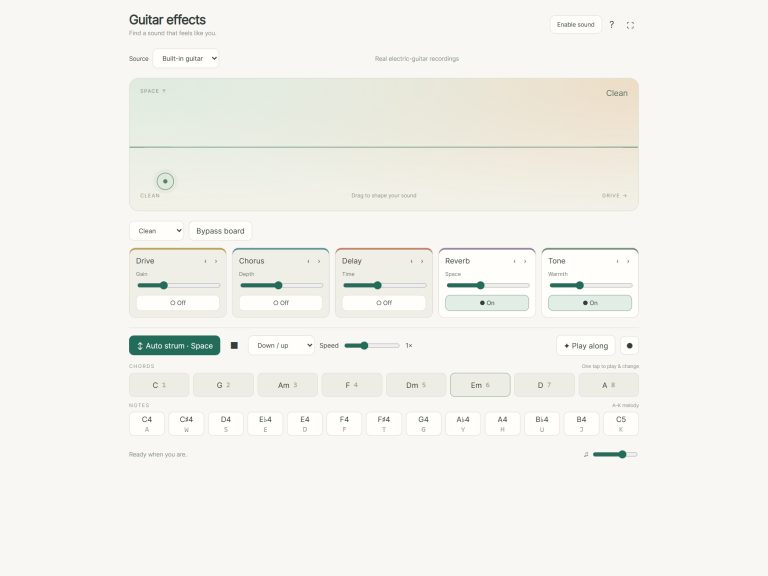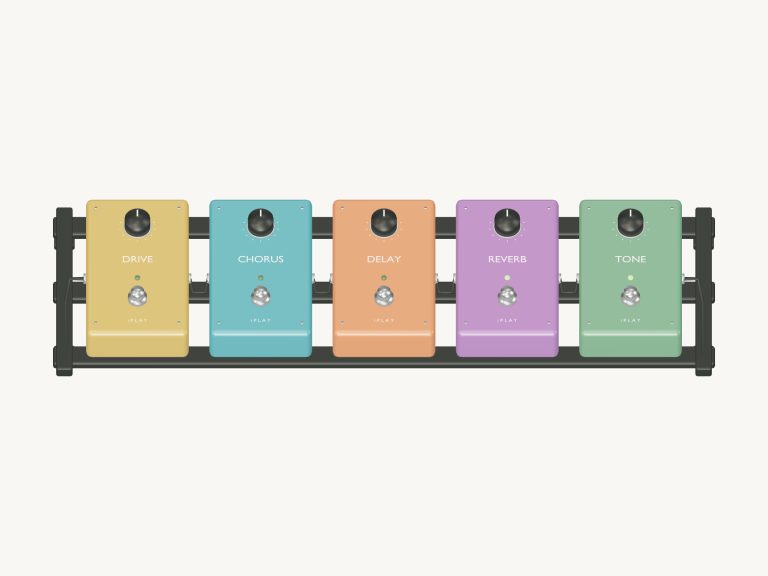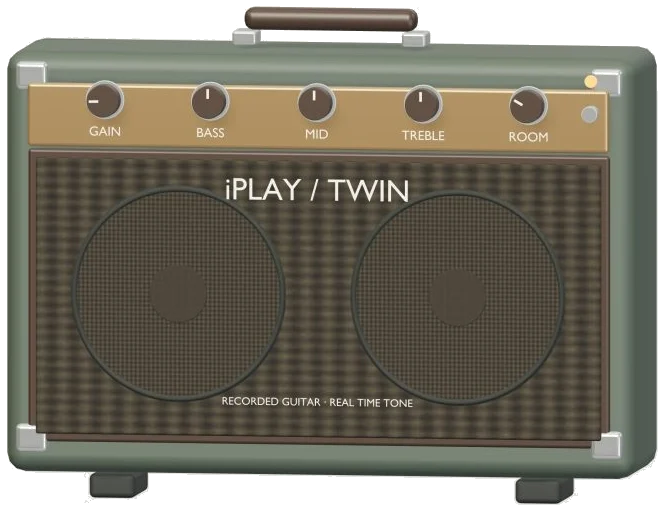
Play an electric guitar through an amplifier right in your browser with this online virtual guitar amp. It’s got a detailed 3D model of the amp on screen, knobs that really turn, and you can zoom and rotate it. What you’re hearing is a real recording of an electric guitar being played through the amp settings in real time. There’s nothing to install, and you can play with your computer keyboard, mouse, or even a touchscreen. Time to dial in your sound as the stage says.
On the stage, while the amp is loading, you’ll see Preparing your instrument… Click Enable sound in the widget to turn it on. After that, when it says Sound on, then you’re good to go. You can mute everything by clicking it again, and unmute by clicking it again. If you want to exit full-screen mode, hit Esc or just click Exit. The question mark brings up a brief help page (with credits), and the Focus button put the amp into full-screen mode.
How to Use the Online Guitar Amp
The stage hint tells you to play by tapping the cabinet. Turn knobs by dragging them or tapping them.” There are five knobs on the 3D amp. They are: Room, Treble, Mid, Bass and Gain. To turn a knob up or down smoothly, just drag it. Or tap it to turn it one step at a time. If you keep tapping after you get to the top, the knob will wrap around and go back to the lowest setting again. Tap the cabinet or the speaker to strum the chord that you’ve chosen. And tap the power switch to bring the amp in or out of bypass.
The amplifier panel has the same five controls as sliders, with a readout. Gain goes from 0-100%, setting how hard the guitar drives the amp from clean at lower levels to a heavily distorted tone towards the top. Bass and Mid and Treble goes from −12 dB to +12 dB; you can boost or cut the bottom, middle and top of your sound. The Room control goes from 0-60%, adding room reverb to change the sound from totally dry to roomy.
The preset menu provides three starting points beside the sliders. Clean has a bit of treble and keeps the gain down. Crunch has a touch more mid and bass but pushes the gain up to 50%. Lead boosts the mids and brings the gain up to 87%. Once you make one of the knobs your own by changing it, the menu indicates Custom. The Amp on button will switch to Bypassed and then you can hear what the plain recording sounds like to compare.
The guitar uses the following eight chord pads, C, G, Am, F, Dm, Em, A, D. Press a number key (1-8) or tap with one finger to choose a chord to strum. Pressing a single key on the keyboard does the same for each chord. The stage displays the chord’s name and its shape, starting on Em. The Melody row plays a C major scale from C4 to C5 using the keys Q W E R T Y U I. The bottom row of keys (A S D F G H) pluck through the six strings individually, lowest string first to highest. Click within the widget before playing from the keyboard as it has its own frame.
It shows the guitar neck in standard tuning (EADGBE) as a grid from fret 0 to fret 12 with the note name of each cell. Click on a cell to hold it down as a string at that fret and listen, or click on the string name to pluck it. A × marks a muted string and orange dots indicate the chord you are holding. The Open strings button allows all six strings to ring open.
The guitar will keep strumming as you switch chords if you hold down either the Space bar or the big ↓ Strum / hold button for a steady rhythm. You can play an up strum with the ↑ Up button and go hands-free by using Auto to keep the rhythm. The Stop button (or Esc key) turns it all off.
The volume slider controls the overall volume. The pattern menu includes Fingerpick, Folk strum, and Downbeats. Turn the knobs to hear how they sound then leave the guitar playing while you do this to get used to the controls.
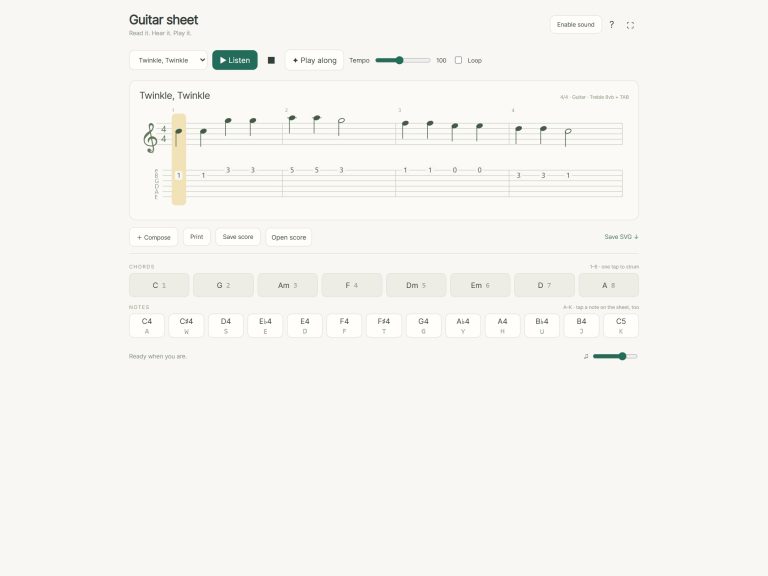
From the play along menu, pick one of these pieces: the Clean-room session, which strums G, F, Am, and C. Or choose from Midnight folk, Ode to Joy or Twinkle, Twinkle. Click on Listen and it will loop through the piece until you click on Listen again. Then you can listen to Clean, Crunch, and Lead one after another. The tempo box sets the speed from 40 to 180 beats per minute, with 96 set as default.
Tap the Click Game tab to follow a piece step by step. What to play is highlighted in green; what’s coming up on the fretboard and on the pads is highlighted in amber. You can see how far along you are with a line like this: PLAY Am · 3/13. The game will wait for you, and when you tap correctly it’ll move you on. If you get it wrong, there’s a friendly hint, and at the end you’ll see how many times you got it right along with a “Well played!” message.
Click Rotate 3D and then drag the casing of the amp to turn it around to look at it from all sides. While you’re rotating, pinch and scroll to zoom in and out. You’ll notice that the knobs is still interactive during rotation. Clicking Rotate 3D again will return to the normal view. The little house button resets your view.
This online virtual guitar amp uses real world recordings from the MuseScore General 0.2.1 / FluidR3 sound library. Pitch-mapping matches the notes to the closest available recordings. Frank Wen created the FluidR3 recordings, which are licensed under MIT. Complete notices available via the Full licenses button on the help page. The arrangements and 3D model were created for iPlayMusic.
For beginners who hasn’t experimented with amps before, select the Clean preset, hit Listen and gradually turn up the Gain as the track plays. Next, experiment with each slider: Bass, Mid, Treble then add a touch of Room. To get familiar with this virtual online guitar amp, it’s best to adjust each knob separately.