This online virtual violin tuner lets you tune a real one directly from your browser to standard violin tuning (E-A-D-G). Simply plug your violin into your device’s microphone and it will tell you if you should be tightening or loosening the strings, string by string. If you want, you can even listen to each of the open strings played back to you as they sound on an actual violin.
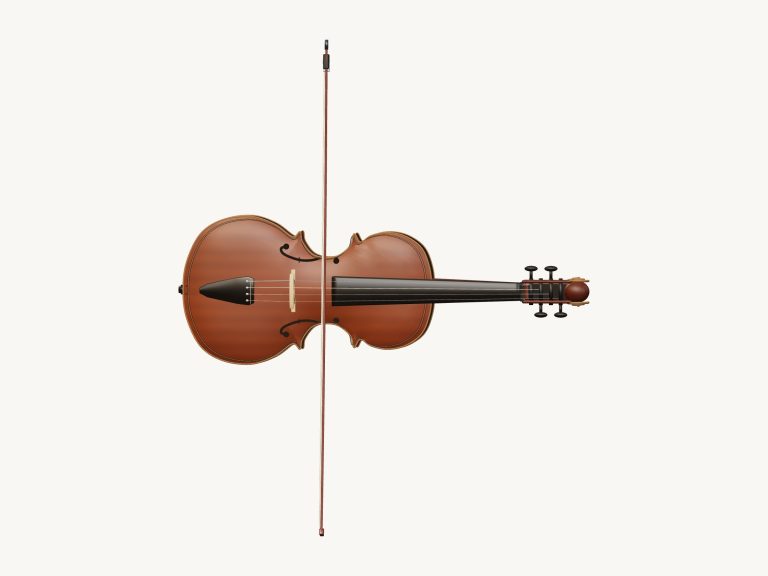
At the top is a 3D violin with its bow and you can rotate it around and even play it. Nothing to install; just use your computer keyboard, your fingers on your tablet or phone or a mouse. The bottom has a status line that initially says Ready · tap to enable sound.
How to Use the Online Violin Tuner
The help in the tuner describes the concept: tap a string to hear a real violin, or start the mic and play one open string on your violin. Tap Start microphone and then your browser prompts you for permission; you say Allow. While it’s waiting, the button says Cancel microphone and when it starts listening, it says Stop microphone. A question mark at the top of the window opens the credits and help. Clicking Full screen ⛶ makes the tuner bigger, and clicking Exit full screen ✕ (or pressing Esc) returns to normal size.
After turning on the microphone you simply pluck an open string and allow it to ring. You’ll notice that there’s a large note name indicating which string should be tuned, and to its right you can see the frequency being detected by the tuner. The meter is labeled in tune in the center, with; 50 (FLAT) at one end and +50 (SHARP) on the other. So if your string is flat, for example, you know it’s time to tighten because the reading will say something like: -12 cents · tighten. If it’s sharp, the reading will say something like: +8 cents · loosen. Once you’re within 5 cents of the correct pitch, the needle will go green and the reading will say In tune ✓
The four string pads indicates your tuning targets: E5 (at 659.3 Hz), A4 (440.0 Hz), D4 (293.7 Hz) and G3 (196.0 Hz). Auto string is on by default. The tuner will select the open string nearest to what you pluck and tune to match. You can tune in whatever order you like. Tap Auto string to turn it off if you wish to lock onto a single target, and then tap the string you want to tune. Tapping a string pad plays a three-second recorded violin reference for that string and the reading changes to Reference tone. The tuner will display Listening to reference… while you play along with the reference instead of trying to measure itself against it. The microphone meter is used as a separate measure; the recordings include natural vibrato.
Auto bow, If you prefer to have a reference sound playing while turning the pegs then you use Auto bow. This begins in the state of Auto bow: off. To activate this, you turn it on. The bow continues moving on the chosen string, and tapping G, D, A or E changes the string. To halt the action you tap Auto bow again, press the ■ button or press Space. Activating Auto bow also turns off the microphone.
From the A4 menu you set the concert pitch from 438 to 444 Hz (with 440 being the default). Changing this will result in the reference recordings and the target frequencies on the string pads updating to match. It’s simple enough that a keyboard can get to grips with it quickly. Keys one through four is played as G, D, A, E respectively and the Space bar is used to stop the sound. There is also a frame for the tuner that you click into before using the keys.
A demo menu at the top of the tuner includes the G · D · A · E reference cycle (playing the four open strings one after another for three seconds apiece), as well as Twinkle, Twinkle and Ode to Joy. Click ▶ Play song to listen, then again to pause/resume, or tap ↻ Repeat to repeat it. The hint displays the progress through the demo and the upcoming note. When you start the microphone, the song will stop playing, and when you start a song, the microphone turns off.
You can play the 3D violin too. Drag your finger over the violin’s body to ‘bow’ the selected string. Or simply touch one of the strings to get its reference sound. The violin keeps playing while you touch it. You can also use two fingers to look around and drag the background, or just click 3D · Rotate to rotate. The reset button ↺ resets the view. The volume slider at the bottom controls the level.
This free online virtual violin tuner uses a combination of reference recordings. These include the 3D model and practice arrangements made for iPlayMusic, Sam Gossner/Versilian Studios (released under CC0), and Lily Lyons/Versilian Studios (VSCO 2 Community Edition). Your mic sound won’t be uploaded or saved anywhere. It will remain on your device.
The first time you use the online virtual violin tuner, you tap on the A pad and listen first, then begin tuning your A string with the microphone. Then repeat for D, G, and E. Slowly turn the pegs until the needle turns green.