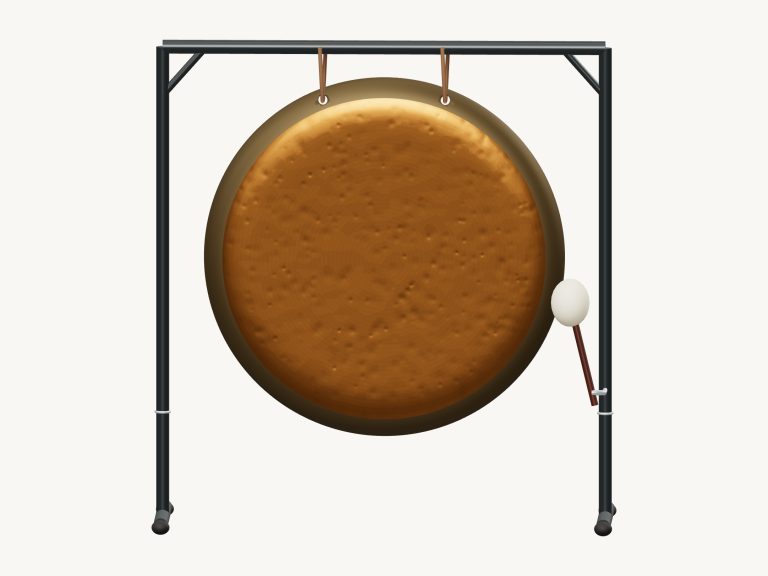
This online virtual gamelan allows you to play a large gong ageng and a pelog bonang. The instrument that appears on screen is a detailed 3D model of the bonang/gong set. It include a big gong that hangs behind it and fourteen hand-hammered bronze bonang gongs arranged in two rows. You can rotate and zoom the model to view all sides of the instrument.
All of the sounds are taken from real recordings. They retain their original tuning and as such the scale remain with its own set of unequal steps.
How to Play the Virtual Gamelan
You can choose to play using either your computer keyboard, your fingers if you have a phone or tablet, or just with your mouse. No installation or download required. No need to go looking for a start button. You simply hit the instrument and it’s on. When the recordings has been made, the lower part of the widget text changes to say: Recorded bonang & gong · original tuning. Clicking on the question mark in the top corner takes you to sound credits and a brief guide.
Everything else is located directly beneath the model. Below the model there are three sets of note buttons, labelled. The note buttons under the model is split into three labeled groups. BONANG includes Bonang 1 to Bonang 7. The upper octave covers High 1 to High 7. And GONG has just the one Gong button.
If you look at the 3D model then the bonang notes is played on the first row of bronzes in the front. The second row is the upper octave. The gong is the big one behind them. Tap or click on any of these and the one you hit will light up as it plays. It also continues to ring once you release the note. Give the gong some room and hear it bloom.
A, W, S, E, D, F and T play Bonang 1 to 7. High 1 to 7 are played by G, Y, H, U, J, K and O. The Gong is played by L. You will notice that every button displays its letter. This means no need for any memory.
Each of these instruments is placed in its own frame on the page. Click inside the widget before playing from the keyboard. PLAYING appears on the left-hand side of the model, underneath which is the bar that displays the last note you play. The PLAYING bar starts with Bonang 1. Pressing the Space bar or the Play button will sound that note again. Using the Esc key or the ■ Stop button mutes all notes immediately, which is useful following a large gong stroke.
In the same bar, there’s an Expression slider that begins at 70 and ranges from 10 to 100. This determines the strength with which each note sound. The Keep playing button plays the chosen note repeatedly when it is on. No need to keep clicking. As long as it’s on, tapping any other note changes what’s being played in repeat mode. It is ideal for creating a solid, pulsating rhythmic pattern.
Holding down the Space bar plays the note in repeat mode, just like the Keep playing button. The repeat speed slider starts at 5 and goes up to 12. The higher the number, the faster it repeats.
The sound is shaped by three presets, which are Natural (default), Soft, which takes some of the brightness out of the bronze and puts a little more into the room. Resonant puts the gamelan in a much bigger room. This moves the Room slider. That begins at 12 and goes up to 50. You can alter this later. At the bottom right is the Volume slider, which sets the overall level and starts at 80.
There are three patterns in the PLAY A LITTLE menu for practice, called Steady hands, Cross rhythm and Little celebration. These aren’t traditional compositions but practice phrases according to the help guide. They all conclude on the gong. Tap ▶ Listen to have a pattern played for you. Adjust the Tempo slider between 40 and 180 to speed it up or down. Then tap ◇ Game mode to play it yourself. A green note guide will appear to show you what to play. The button you should press lights up green. The corresponding bronze glows on the 3D model. There are boxes marked PLAY NOW and NEXT showing what’s next. Each has the keyboard letter for the note. As you go along your progress is tracked by a counter. Once you’ve played the correct note, game mode continue. It says Complete at the end. Play freely or choose another pattern. Tap it again to exit game mode.
The ● Record button records your performance directly from the instrument. You don’t need a microphone. When finished, tap the button again when it says ■ Finish take. A Save take link will appear where you can download your recording.
To turn it on, click ↻ Rotate 3D and explore the virtual gamelan from every angle in your browser. Pinch to zoom, scroll, or drag an unoccupied portion of the image to rotate the model. You can keep playing as you explore. To return to the starting position, click the ⌂ button. Turning Rotate 3D off does the same thing.
Beginners: You might like to play through Bonang 1, 7 (keys A, T) slowly. Listen for how the notes are spaced out in an odd way. Set the Repeat speed to “slow” for the “Keep playing” setting, move around a few notes, and end the phrase on the Gong on L.