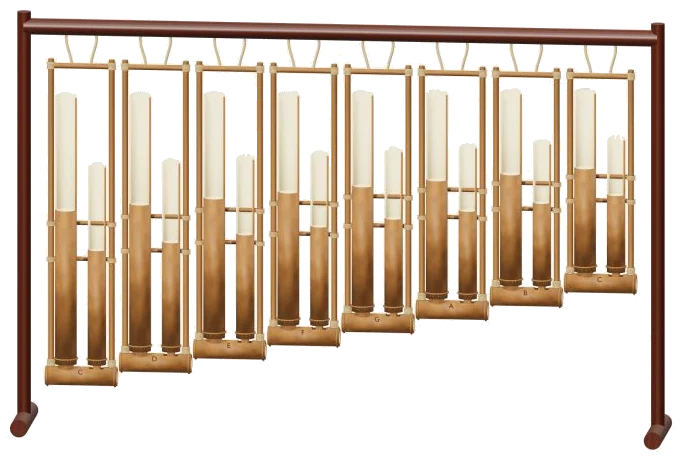
This is an online virtual angklung. Shake eight bamboo frames in your browser. Each one make a different note. This is a detailed 3D model of the instrument which you can zoom and rotate on screen. It uses actual recordings of a real bamboo angklung for each note, no synthesizers here!
Play it using a keyboard on your computer, with your fingers if you have a tablet or phone, or even just use your mouse. You do not need to install or download anything. No start button here. Just hit your first note, and it’s on.
How to Play the Online Angklung
Once the recordings are ready, a message appears at the bottom of the widget that says Recorded instrument sound. Tapping the question mark in the upper corner brings up some sound credits and a brief guide. Everything else is below the instrument.
What you get is the eight frames that each play a simple scale from C4 to C5. These are the notes: C4; D4; E4; F4; G4; A4; B4; C5. Tap the note buttons below or click one of the frames on the 3D model. It will light up and make the sound of the note and rattle back and forth.
The notes together is a plain C major scale. You can easily create your own tune or pick out some simple ones. The eight notes from C4 to C5 are played using the letters: A, W, S, E, D, F, T, and G on a computer keyboard. Each note button shows its relevant letter.
The angklung is positioned on the page in its frame. Before you begin to play around with the keyboard click within the widget. Below the word PLAYING you see a bar. This contains the final note, or notes, you’ve played. In this case it begins on C4.
To play that selection again, press the Play button, or hit the Space bar. To stop everything, press the ■ Stop button or use the Esc key.
In the same bar is the Expression slider which ranges from 10, 100. This begins on 70 and determines how strongly each note will be played. As its title suggests, you are instructed to shake a note. And that’s precisely what the Keep shaking button does. Turn it on and the chosen note will repeat endlessly. That makes it a constant bamboo rattle. Tap another note (or group) while it’s running and it changes what you’re shaking. Single taps let you play an entire melody. Same goes if you hold down the Space bar. As long as you do, so will it.
The Repeat speed slider starts at 5 and goes from 1 to 12. The higher the number, the faster the shaking.
The Play together row sounds multiple frames at the same time. There are four buttons: Open, Fifth, Bright and Soft. Play them using the number keys from 1-4. Open is C4, E4 and G4. Fifth is C4 and G4. Bright is E4, G4 and B4. Soft is D4, F4 and A4. If you turn on Keep shaking and try them out, you’ll hear a shimmering full chord.
The overall sound is shaped by three presets. The default is Natural. Soft makes the bamboo a bit less bright and adds a small amount of room. Resonant puts the angklung into a much bigger room. These presets move the Room slider for you. The Room slider begins on 12 and goes up to 50. After that, you can adjust it if you wish.
The bottom right Volume slider controls the overall level and begins on 80.
A short melody to practise is available in the PLAY A LITTLE menu. These include Call & answer, First steps and A little journey. Hit the ▶ Listen button to have one played back to you. The tempo slider goes from 40-180, so you can speed it up or slow it down.
Next hit the ◇ Game mode button and try playing it. Here you will see a guide that tells you to play the green notes. This is the note you need to press. The button lights up green, and the matching frame in the 3D model does too. Boxes say play now and NEXT to show the next notes coming up. Under each note it shows its keyboard letter. A counter counts how many you’ve got right. If you get the note right then game mode moves on. At the end it says Complete. You can then choose to play free time or select another pattern. To exit game mode click on Game mode again.
Using the ● Record button allows you to record your performance straight from the instrument. There’s no need for a mic. When it says ■ Finish, click it again. You can save your recording by clicking the Save take link.
Turn on Rotate 3D and click ↻ to see the virtual online angklung in 3D from all angles. Turn the model by dragging a blank area of the scene. Zoom with scroll, pinch. You can play the frames while rotating. Click ⌂ to return to the starting view. It is the same when you switch off Rotate 3D.
To help you locate where the notes sit, play the eight notes from A to G and back down again. Now turn on Keep shaking and set it to Repeat at a low speed. Shake out a slow melody using just one note at a time.