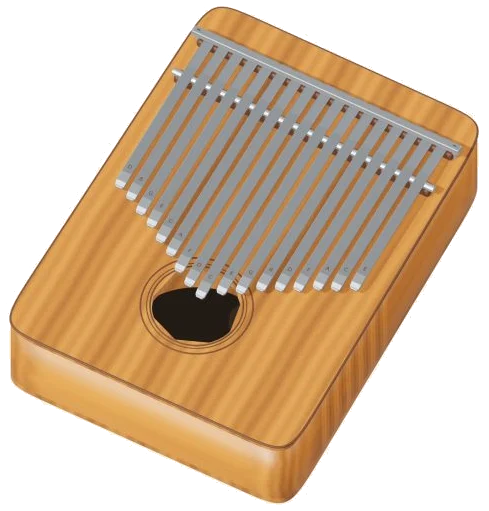
This is a virtual kalimba. You have a complete 17 key kalimba right here in your browser! This online virtual kalimba feature a 3D model of a detailed 17 tine instrument, shown below. The label above the model reads 17 keys · C major. Its notes span from C4 through to E6. All sounds are recorded directly from an acoustic kalimba.
To play the instrument, use either your computer keyboard, your finger(s) on a touch screen, or even your mouse. You do not need to install or download anything, just start playing. To begin, click the Enable sound button at the top of the widget. It will turn into Sound on and the kalimba can be played.
How to Play the Virtual Kalimba
You can also tap each note to play it. The ? icon opens the help page (which contains credits) and the ⛶ button turns the widget on and off in full-screen mode. Tap that button again to return to normal view.
Underneath the model, there’s a hint telling you to “sweep your finger over the tines or tap them“. Drag across multiple tines to play their notes in a quick sequence. Or, click on any tine to pluck that note on the 3D kalimba. From the middle, the long tine is the lowest note (C4). Left and right alternate as you go up the scale, and the highest notes is on the short tines on the outside edge. Each note rings out with its natural decay and you can play more than one tine together. When you do, the tine you’ve plucked lights up and quivers, and its note name show in the corner of the stage.
A row of pads called THE NOTES runs across the bottom under the model; there is one pad per tine. They are labelled C4, E6. This is because the kalimba is tuned to C major, so each pad is a natural note (no flats or sharps). On a small screen, you can use this to play each pad just as you would play its corresponding tine. Next to each pad is shown the computer key that will play it.
The notes of the Kalimba’s range are played by the following keys on a computer keyboard: From C4, D5, the home row keys A, S, D, F, G, H, J, K, and L. The next row of keys, Q, W, E, R, T, Y, U, and I, covers the notes from E5 up to the highest note of E6. Click into the frame containing the kalimba first and then away you go!
Main playing controls is located at the top of the pad. The Space bar (or clicking the Pluck button) plays whatever note was chosen most recently. Holding down the Space bar will continue to play that note as a plucked sound. Clicking the Repeat button activates this hands-free; repeats continue until clicked again. If Repeat is active, tapping a different tine selects a new note to repeat. The Speed slider adjusts the speed of repeating notes from very slow (3 times a second) to very fast (14 times a second). Default is 7. Everything is silenced with the Esc key or the ■ Stop button.
The touch slider begins at 64, goes up to 100, and then goes down to 20 percent. Lower numbers makes for quieter notes. This sets how hard you want it to be plucked.
There are three presets here under your sound. Natural is the default preset. Soft is set to have a slightly darker tone, a lighter touch, and a bit more room. Room plucks firmly but has a much bigger echo. Use the Room slider next to these to add or remove this echo by hand. Overall level is set on the Volume slider at the bottom right.
When you want to try playing something, go into the PLAY A LITTLE menu and select either River stones, Twinkle, Twinkle, Little lanterns, or Ode to Joy. Each of these songs is all played using just the eight notes between C4 and C5. In other words, each song fits entirely onto the home row from A to K. If you want to listen to the kalimba play the tune with the notes lighting up, click on ▷ Listen. To stop it before it finishes, click it again once it says ■ Stop. You can adjust the tempo using the Tempo slider from 45 to 180. The starting point is 100. This lets you learn a tune slowly.
Click Play along when you’re ready. On the 3D tines and pads, the next note will glow green. You can read the panel: Play the green target · at your pace. Then there’s a list of boxes showing the upcoming notes and their keys, marked play now, THEN, and AFTER. There’s also a progress bar and counter that tracks where you’ve got to. When you play a wrong note, the panel reminds you to follow the green one. When you play the right one, the next note is ready immediately. After you’ve finished, the panel tells you that you played it and invites you to press the Again button.
To capture what you played directly from the instrument, press the ● Record button. It doesn’t need a microphone. When it says ■ Finish take, press it again and you’ll get a Save take link that lets you download your recording.
Click ↻ 3D view to explore the virtual kalimba online. You can rotate it by dragging the background, pinch to zoom in/out and scroll to zoom. As you do so, the tines continue playing. Click on the ↺ button to return to the initial view.
According to the help page, the sounds are recordings from the FreePats Kalimba library by Gonzalo, Roberto and Xavimart (2019). These are shared with a CC0-1.0 license. Each recorded pitch has three natural takes that are pitch-mapped across the entire instrument, retaining their natural attack and decay. Because there are only three natural takes per pitch, the app takes turns playing through them to prevent repeated notes sounding the same.
For beginning players of the online virtual kalimba, select the Natural preset. Starting at A and moving up to K, play along the home row to sound out a complete C major scale. Next, try playing along to Twinkle, Twinkle. Slow down the tempo so that you can get comfortable with each note. Lastly, sweep your fingers across the tines to make all the notes ring together.