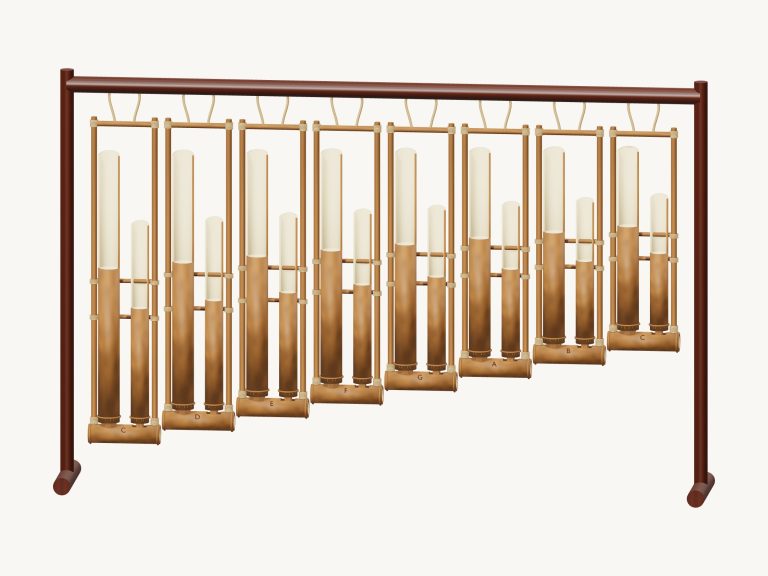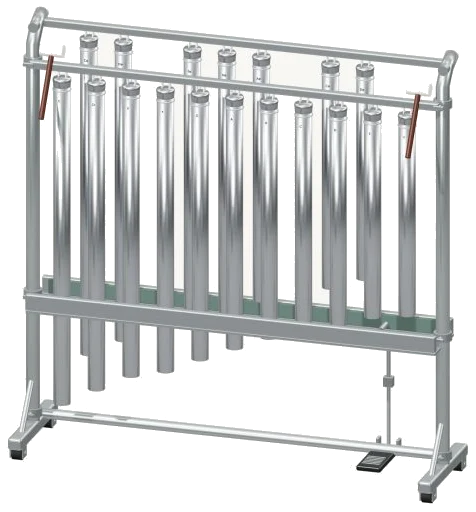
You can play a complete set of 18 suspended chimes (C4… F5) directly within your browser. These are not just some synthesized version but the real thing as each bell’s sound originate from a actual recording of a tubular bell. There is no installation or downloading required. You can use your computer keyboard, your finger(s) on a tablet or phone, or even a mouse to play these virtual bells. They appear on-screen as a detailed 3D model that you can zoom in on and rotate.
There is no start button to find. Tap one of the bells and the sound come on. Once your recordings are ready, the widget’s message at the bottom will change to Recorded instrument sound. All the controls is located directly beneath the bells. Tapping the question mark in the top corner pops up both the sound credits and a brief guide.
How to Use the Virtual Bells
It’s set out along the lines of a piano keyboard with all the notes between C4-F5 (including sharps and flats), represented by 18 tubes. The natural notes is positioned in the front row, with the sharps and flats sitting back a bit further in a row behind. Tap one of the note buttons below or click on the 3D model and that tube will light up, sway, and sound. Letting go of the tube doesn’t stop the bell ringing; instead, the notes merge together as if played on real chimes.
A computer keyboard is actualy a miniature piano. From left to right, it plays the following natural notes from C4-C5: A, S, D, F, G, H, J and K. In between are the sharps and flats played by these keys: W, E, T, Y and U. Above C5, O plays C♯5 and L plays D5. P plays E♭5, the semicolon plays E5, and Z plays F5. You’ll know what each note button is as they’re all labelled above the keys.
To play, click within the widget and use your keyboard. The bar under the model shows the last note or group you played under the word PLAYING, starting with C4. Press the Space bar or the Play button to hit that choice again. The Esc key or ■ Stop button cuts off all bells simultaneously, as each will ring for a few seconds after being struck.
A bar further along has an Expression slider running from 10-100, initially set at 70, that determines the force of striking each bell. Next to Play is the Let ring button. Tap this to hit the bell beneath PLAYING. While it is on, every bell you tap rings out fully over the others, and switching it off leaves the bells ringing.
Play together is a row that strikes several bells at once. It has four buttons labelled as Open, Fifth, Bright and Soft. These can be played on the keyboard by pressing the number keys 1 to 4. They each sound two or three bells in unison from the lower end of the range.
The overall sound is shaped by three presets: Natural (which is the default), Soft that softens the brilliance of the metal a bit and adds a touch more room, and Resonant that puts the bells into a much larger room. You can adjust the Room slider after that too which begins at 12 on the scale of 0-50. Each preset moves the Room slider for you, but you can also adjust it yourself. The overall level is controlled by the Volume slider at the bottom right; this also begins at 80.
The PLAY A LITTLE menu provides three brief patterns. First steps, Call & answer and A little journey. Click ▶ Listen to hear one played for you. Adjust the Tempo slider from 40 to 180 to speed it up or slow it down. Then click ◇ Game mode to play it yourself. You see a guide marked play the green note. The button you must press lights up green. The corresponding tube illuminates on the 3D model. Boxes marked play now and NEXT display the upcoming notes, showing their keyboard letter too, and a counter indicates how far along you are. As soon as you play the correct note, game mode continues onward, and at the end it displays Complete. Play freely or select another pattern. To exit game mode, click it again.
The ● Record button lets you capture what you’re playing directly from the instrument… There’s no need for a microphone. When it says Finish take, click it again and you will be able to save your recording by clicking the Save take link.
↻Rotate 3D: Rotate the model by dragging on an empty section of the screen, and scroll or pinch to zoom in/out. You can continue playing the bells during this process. Pressing the ⌂ button will return you back to the original view, as will toggling Rotate 3D off.
The natural notes run from A through to K; try playing them slowly, letting each note ring out fully as you go along. Next, select the Resonant preset and play a couple of notes, then hit Esc or Stop to stop the sound when you want. You should of tried the Soft preset too. It feels more comfortabley than the others.