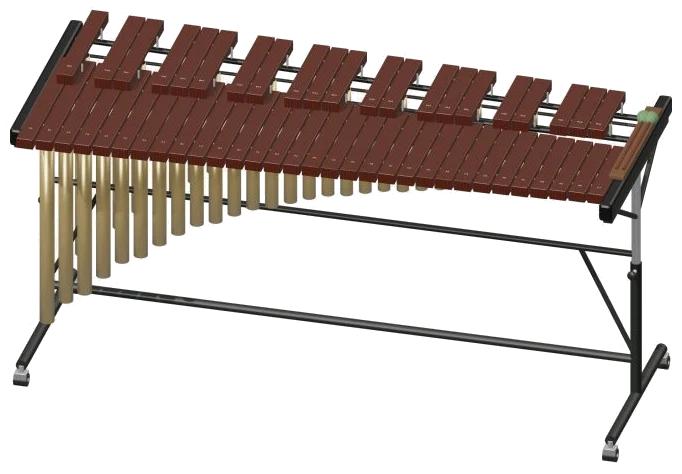
You can play a virtual marimba right in your browser. It’s an online version of the instrument. It features a high-quality 3D model of the instrument. It has 52 bars that span from A2 to C7 on the screen. Each note are played back using real recordings made by Versilian Studios. This means you will hear the marimba as it would be played on actual wooden bars.
It can be played with your computer keyboard, a touch device like a tablet or phone, or even with a mouse. You do not need to install or download anything. To begin, click the Enable sound button at the top of the widget. The button will change to Sound on when it’s working, so you can click that to start playing the marimba.
How to Play the Online Marimba
The ? button is next to that. Which opens a brief help page containing the credits, and the ⛶ button that toggles the marimba into full screen mode. Exit full screen mode by clicking the same button again.
Tapping or sweeping your finger over the bars is the clue underneath the model. Tap one of the bars on the 3D marimba to bang it, or swipe your finger over some bars to make a rapid sequence of notes. Each bar you strike will ring out naturaly and allow you to play more than one bar at once. As you hit the bar, it lights up and bounces slightly with the note name appearing in the corner of the stage.
The notes consist of a line of note pads underneath the model, one for each of the 52 bars. The names of the notes are written on each pad and the sharps and flats is indicated to distinguish them from the natural notes. Each pad sounds just like the bar it represents, which is helpful if your screen is small and the bars are close together.
Play the two octaves of notes from C4. C6 on a computer keyboard: A W S E D F T G Y H U J K O L P; Z X C V B N M. Each letter represents a single semitone higher than the one before it, and the pads show which letter corresponds to each note. Other notes outside this range can be played by touch or with the mouse.
Click inside the marimba itself first then begin playing from the keyboard. Above the pads are all of the playing control buttons. The ● Strike button plays whichever note you just selected. If you hold down the Space bar then that note will keep being struck as a roll. There’s also a Roll button which does exactly the same but doesn’t require you to hold down a key whilst rolling. You can change the note being rolled by clicking another bar whilst rolling.
The Speed slider determines how quickly the roll repeats: between 3-14 times a second, beginning with 7 strikes/sec. The ■ Stop button (or the Esc key) mutes everything immediately. Touch controls how hard you hit the bars. It begins at 64 and goes up to 100 percent. The Touch slider runs from 20-100 percent. There are three level of strength used in the recording and this picks between harder and softer ones.
At the bottom of the screen under your sound there are three presets. Natural is the default. The second one, Soft, sounds more spacious and slightly darker with a lighter feel. The third one, Room, plays it firmly but with a much bigger echo. The slider next to these adds or takes away that echo by hand. And the one below on the right adjusts the overall level.
Twinkle, Twinkle, Little lanterns; Ode to Joy or River stones are available in the PLAY A LITTLE menu for practice. Tap on the tune you wish to learn and then ▷ Listen to hear the marimba perform it with the notes lighting up as they go. Tap again to stop early (it will say ■ Stop). While learning a new tune, use the Tempo slider which begins at 100 and goes from 45 to 180 so that you can slow a piece down right down.
Click Play along when you’re ready. On the panel, you’ll see Play the green target · at your pace, and the next note to be played will light up green on the pads and on the 3D model. A progress bar and counter show how far you’ve got. The boxes labelled play now, THEN and AFTER display the upcoming notes. If you fail to hit the correct note, you get a reminder to follow the green note. Once you’ve played the correct one, you’re good to go for the next. At the end of the exercise, the panel informs you that you played it and provides an Again button.
The ● Record button allows you to capture what you’ve played directly from the instrument. There’s no need for a microphone. When it displays ■ Finish take, click it again and you will see a Save take link where you can download your recording.
Click the ↻ 3D view to explore the online virtual marimba. Scroll/pinch to zoom in/out and drag on the background to rotate the instrument. You can continue playing while doing so. Return to the start view using the ↺ button.
So what’s that sound? Where does it come from? The help page explains where the sound comes from and includes credits. Versilian Studios LLC have released their Versilian Community Sample Library under a CC0-1.0 license. These are recordings of the notes played on the entire instrument, with only the natural attack and decay mapped to the note.
If you are new to the online marimba, select the Natural preset and press some keys from the home row of your keyboard. Next, try Play along with Twinkle. Lower the Tempo so that each note is comfortabley. End by pressing Space on a long note to listen to a smooth roll.