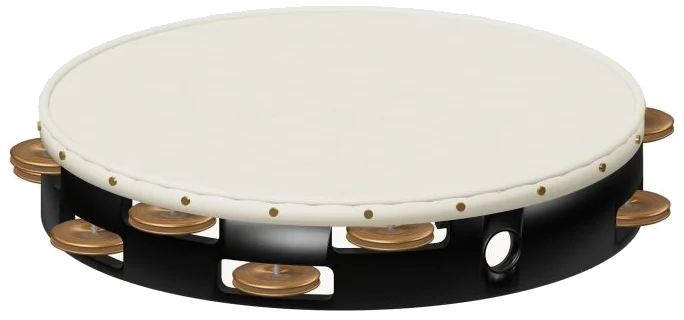
Roll the virtual tambourine, shake it, and tap it. That’s how you play this web-based percussion device. It features an accurrate 3d model of the instrument with its double row of jingles and natural skin head. Zoom in, out, and turn the model around to admire each angle of the version on the screen. And yes, all sounds is recorded from an actual instrument; no synthesizers here. Nothing to download or install, just play along using your computer keyboard (or mouse), or your finger if you’re using a tablet or phone.
No start button here. Just play around and the sound will switch on. The widget’s bottom line will change from “Let it ring” to “Recorded instrument sound” when the recordings is ready. Tapping the question mark in the corner brings up the sound credits and a brief guide.
How to Use the Virtual Tambourine
The controls are located directly beneath the tambourine. There are three pads underneath the model that are marked as Roll, Shake and Tap. So, you can either tap the skin, shake the frame, or roll your finger across the skin. They all use their own recorded sounds to make them sound different. All three have three ways to play the instrument. Clicking the skin taps it. Clicking the frame or jingles shakes it. Clicking close to the edge of the skin gives you a kind of roll.
When you tap it the skin flexes and each time you hit it the frame moves along with the jingles. Each pad displays its letter: A is for Tap; W is for Shake, and S is for Roll. There is also a tambourine with its own frame on the page. Click inside the widget first then begin to play from keyboard.
Beginning with Tap, the word PLAYING is followed by a bar showing what you last chose. That can be played again using the Strike button (or the Space bar). Everything can be silenced at the same time using the ■ Stop button (or the Esc key). The Strike slider in the same bar begins at 65 and ranges from 10 to 100. This determines how hard you play… It also selects which of several recordings of Tap and Roll are used, depending on their strength. Instead, Shake toggles between two recorded takes.
Keep: When activated, this button will repeat whatever sound you’ve chosen at an even rate of speed, allowing you to lay down a groove while listening. As long as Keep is engaged, one tap on any other pad will change what’s repeating. The same occurs if you hold down the Space bar. The Rhythm speed slider begins at 4 and goes up to 16 with the higher numbers playing faster.
The sound is shaped by three presets that are labelled as follows: Natural (the default), Gentle (which removes some of the brightness from the jingles and adds a touch more room) and Room (which puts the tambourine in a much bigger space). You can then adjust the Room slider yourself, this begins at 12 and runs up to 50. Below right is the Volume slider which begins at 72.
Three short rhythms are in the PLAY A LITTLE menu, Little fill, Offbeat, and Steady groove. Click ▶ Listen to hear one played. Then, adjust its speed with the Tempo slider from 40 to 180 to make it quicker or slower.
Next, click ◇ Game mode to play it yourself. A green note guide will appear, the pad you should play will turn green, and the corresponding section of the 3D tambourine will highlight. Your progress is shown by a counter and boxes marked play now and NEXT. These boxes display what is next and its keyboard letter. As long as you play the correct sound, game mode will wait for you before moving on and at the end it says “Lovely. It asks, “Play it again?” To exit, click Game mode again.
The ● Record button records your playing directly from the instrument, no microphone required. When it reads ■ Finish take click the button again and you get a link to save your recording called Save take.
Click ↻ Rotate 3D to look around the online virtual tambourine from any angle. Scroll/pinch to zoom, drag an empty part of the scene to turn the model, and it all remains playable throughout. ⌂ takes you back to the starting view, as does switching Rotate 3D off.
If you’re new to the tambourine: begin with steady groove in Game mode at a slow tempo. Switch on Keep rhythm with Tap selected. Change the groove by tapping Shake or Roll and back again. You should of used the different than settings.