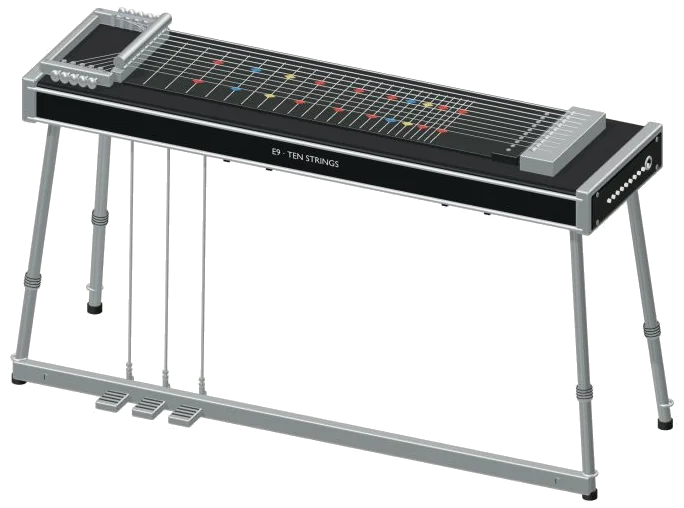
Play chords on this online virtual pedal steel guitar. This online virtual pedal steel guitar allow you to play chords directly in your browser. A detailed 3D model of the instrument appear on screen. It include three foot pedals labelled A, B and C; a steel slide bar; and ten string tuned to E9. Every component of the instrument can be seen as you zoom and rotate the model.
Real recordings is used for the sound. No synthesizers here. Play it with your fingers, a mouse, or even your computer keyboard. Nothing to install or download. There’s no start button. Playing the initial note switch on the sound. Once it has recorded, a message says, “Recorded instrument sound.” Clicking the question mark in the corner will open a guide and sound credits.
How to Use the Virtual Pedal Steel Guitar
There is ten strings on this 3D model. Pluck any one of them by clicking on the string. You’ll hear the string ring and vibrate. There are also ten buttons numbered from 1 (F♯4) to 10 (B2). These buttons shows the notes of the strings. Each button displays which note is played by the string. They all ring out and fade away individually.
“The ten string buttons and 3D strings follow the slide bar and A/B/C pedals,” the guide continues. The slide bar has a slider from 0 to 12. This increase the pitch of up to twelve semitones as it slides the steel bar across the strings. Alternatively, you can use your mouse to pull the steel bar around in the 3D model. Pulling it to the right will increase the pitch. If you want to ‘glide’ to the new pitch, pull the bar while a note is ringing.
Try clicking the A, B or C pedal buttons to turn them on/off. Alternatively, you can click on the 3D model’s foot pedals. When they’re on, they will depress. Pedal A is a tone up from strings 5 & 10; Pedal B is a semitone up from strings 3 & 6; Pedal C is a tone up from strings 4 & 5. Clicking a pedal while a string is ringing will cause it to bend into tune.
Below the string buttons is a grid of 37 note pads. These have a range of notes from B2, B5. They are played at the exact concert pitch. No need to alter using the bar or pedals. The 25 notes between B3, B5 can be played on a computer keyboard using the sequence A W S E D F T G Y H U J K O L P; Z X C V B N M and,. One semitone is raised for each letter upwards. There’s a pad showing you which letter to use for each note. Touch or use the mouse for the lower notes. To play with the keyboard, click within the instrument frame first.
The row marked CHORDS contains six three-note chords; C, Dm, Em, F, G, Am. These can also be played by number keys 1, 6. You can see the bar beneath the model which displays the last chord or note played. Pressing the Space bar or the Pluck button will play that selection again. Holding down the Space bar repeats it continuously until released. The Auto pick button perform a similar function. A single click of this button repeats your choice. Tapping on a different string or chord changes it to that. To stop all sound, tap the ■ Stop button or press the Esc key.
The Pick speed slider determine the number of times Auto pick will play per second. This ranges from 2 to 16 with an initial setting of 4. The Pick slider determines how hard each pick hits the strings. This varies between 10 and 100. You can set the character of the whole thing using three presets. Natural is the default and is the brightest tone. Warm is darker and softer but also has more room. Concert adds the largest echo. This shifts the Room slider, which ranges from 0 to 50. Overall volume is controlled by the Volume slider on the lower right.
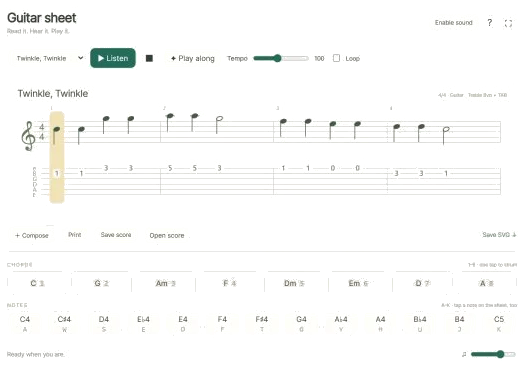
Open the PLAY A LITTLE menu to learn a tune. Tap one: maybe Morning steps, Twinkle, or Ode to Joy. Tap ▶ Listen. Tap the Tempo slider to set the speed between 40 and 180.
Tap the ◇ Game mode. A panel says play the green note. Each time there’s a new note, that note lights up on the pads in green. There are boxes saying NEXT and play now to tell you what’s next. When you press the correct note, game mode waits until you do, then keeps going.
Tap ● Record to record yourself playing. (It doesn’t use the mic.) Tap ■ Finish take when you’re finished. It’ll give you a Save take link to save the recorded version.
To rotate 3D, click ↻ and scroll/pinch on the model to zoom in/out. To pan around the model, drag on the surrounding empty space. Click the ⌂ button or toggle Rotate 3D off to go back to the original view.
If this is your first time, begin on Natural. Play through some strings, plucking each in turn. Now play string 5 but as it rings, gently move the bar along. Listen to the bend by pressing the A pedal. When you’re comfortabley with that, try playing Twinkle in Game mode at a slow pace.