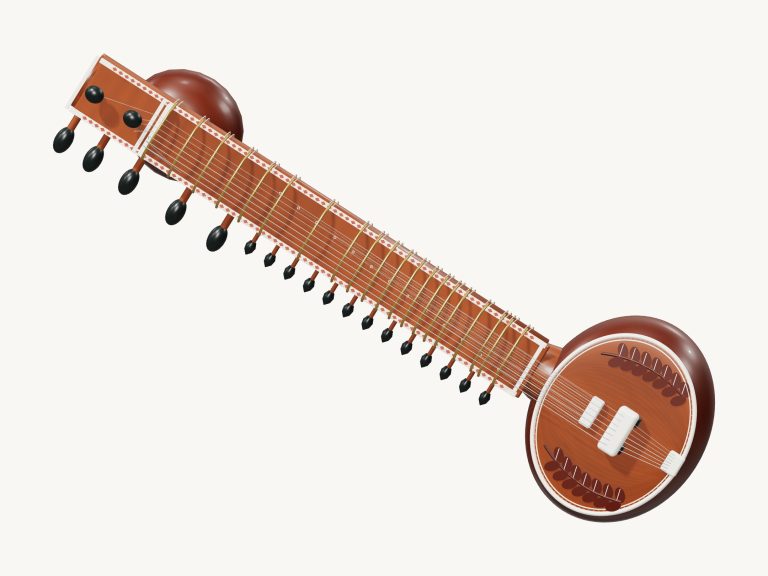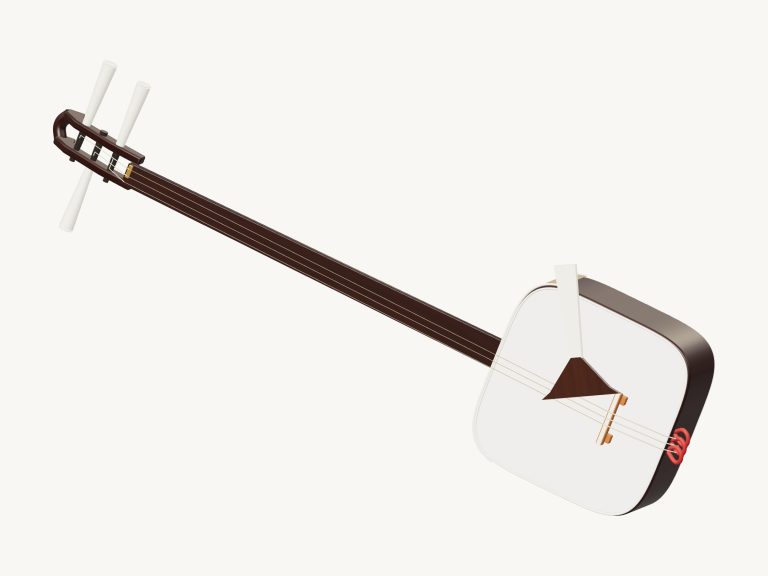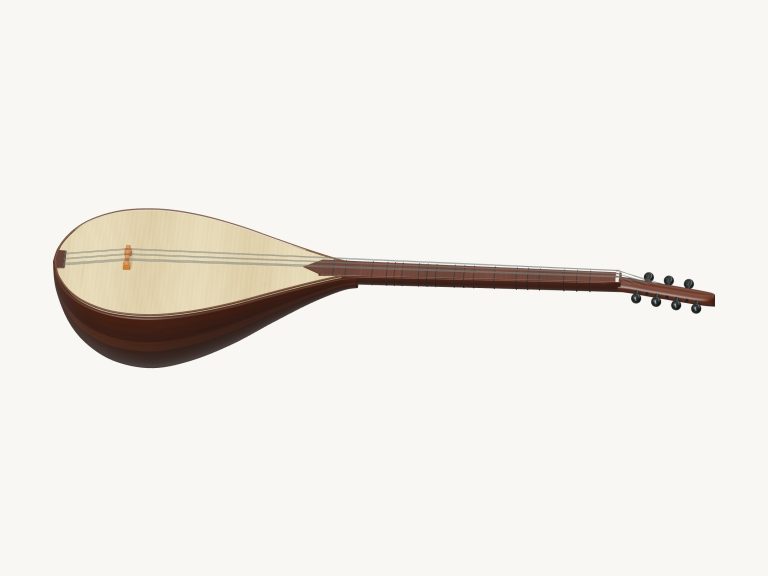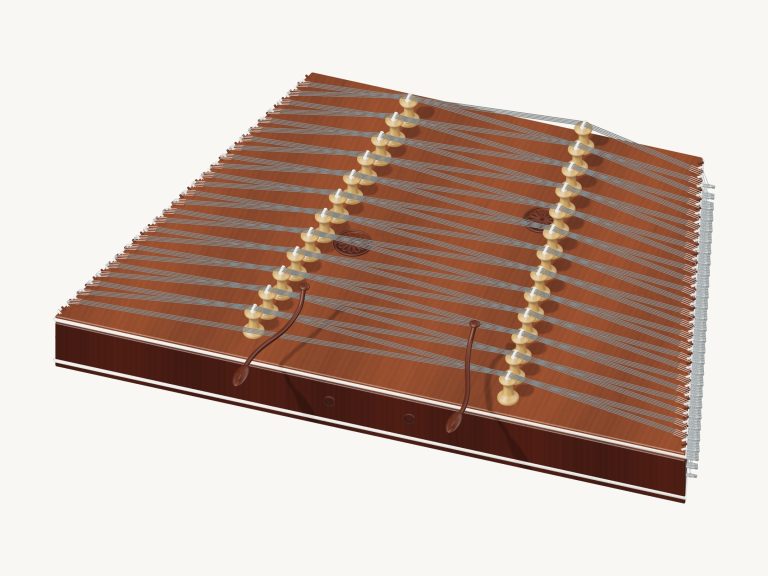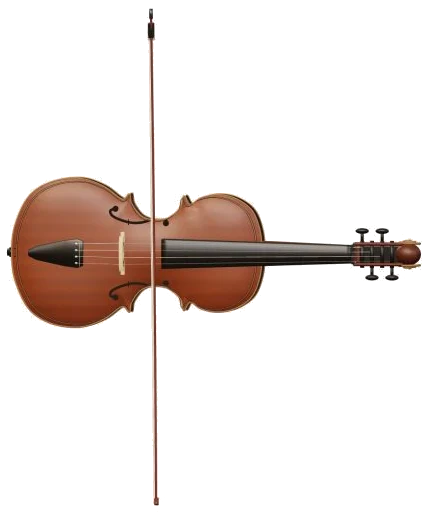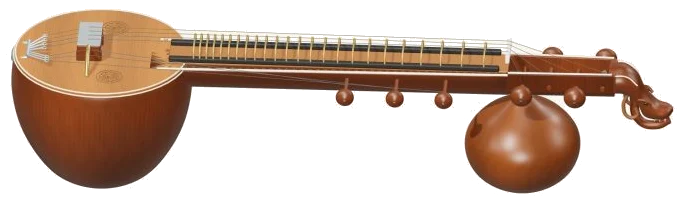
Here’s an online virtual veena that allows you to play a Saraswati veena directly in your web browser. It has a detailed 3D model of the instrument on screen, including a fretted neck, four strings for playing, three tālam strings, and a rounded support gourd. You are able to zoom and rotate the model to view all of its details. The notes are not computer-made but comes from a real recording of a veena.
You can choose to play it using your computer keyboard, with your fingers on a tablet or phone, or even just use a mouse. There is nothing to install or download. No need to search around for a start button. The sound turns on as soon as you play a note.
How to Play the Virtual Veena
When the recording is ready, the text at the base of the widget updates to say “Recorded instrument sound.” A quick guide and some sound credits are available by clicking the question mark in the top-right corner. The controls is located directly beneath the instrument. It’s as simple as the guide says: “Tap the 3D instrument or a note to play.”
To play a note, you can either click the corresponding string out of the seven strings or click somewhere on the neck at any fret position. When you do so, that string will light up and vibrate.
There are also 25 note pads below the model, ranging from C3 up to C5 in semitones. Each note has its name written on each pad and when you pluck them they ring individually. There are also seven string buttons in a row between the note pads and the sliders. These display the open note of each string: Melody 1 · C3, Melody 2 · G3, Bass 1 · G2, Bass 2 · C2, Tālam 1 · C3, Tālam 2 · G3, Tālam 3 · C4. You can click on any of these to pluck just that string.
The letters represent the notes of a computer keyboard: A W S E D F T G Y H U J K O L P; Z X C V B N M All 25 notes from C3 to C5 is played with each note one semitone higher than the previous one. All the pads indicate the letter that plays them.
The veena is placed on the page within its own frame, so you have to click inside it before you start playing from the keyboard. In the bar below, the note you just played is located underneath the word PLAYING. Tap the Space bar and it will play again. Press and hold the Space bar and the note repeats as long as you hold it down. The Keep plucking button also works this way without any other input. Tap it once and it will continue playing the note you chose over and over again. As long as it is on, a single tap on any other fret, string or note will switch to that note. Tap it again to turn it off.
Everything can be silenced together with the Esc key or the ■ Stop button.
Repeat speed is how quickly the repeated plucks occur. It starts at 5 and ranges from 1 to 12 times per second.
Bend increases the pitch of the notes you are playing in a smooth way, up to three semitones. You can pluck a note then move the Bend slider and the note will glide upwards. Notes you play after this, as well as notes that are already ringing, will also bend as a result. Return it to 0 if you want your instrument to return to its normal tuning.
The expression shows how hard each string should be plucked. Starts at 70 and goes from 10 to 100.
Four buttons is found in the row labelled play together. These are Soft, Bright, Fifth and Open. From the keyboard these are played by pressing the number keys from 1-4. They each pluck a little cluster of notes together. The display shows ‘PLAYING’.
The overall character is controlled by three presets. The default is Natural, which is the brightest. There’s a darker version called Soft that has a little more room. And there’s a version called Resonant that adds the biggest echo. The Room slider also gets moved for you with each of these presets. Room goes up to 50 and adds an echo as if there was a room around the veena.
The Volume slider at the bottom right controls the overall level.
In the PLAY A LITTLE menu, select one of the three brief patterns (A little journey, Call & answer or First steps) for practicing. To listen to the veena play it, click ▶ Listen; to stop, click it again. Use the Tempo slider between 40-180 to slow down or speed up.
Next, click ◇ Game mode. This displays a panel called Play the Green Note, and the next note lights up in green on the pads. The boxes labelled NEXT and play now display the upcoming notes along with their keyboard letters. As soon as you play the correct note, game mode advances and a counter indicates how well you are doing. When done, a message asks if you want to play freely or pick another pattern. Leave game mode by clicking on it again.
● Record lets you record what you’ve played directly from the instrument. There’s no need for a microphone. After you see ■ Finish take, click it again to see the Save take link and save your recording.
To explore the virtual veena in more detail, click ↻ Rotate 3D. You can then drag on the blank area surrounding the model to rotate it, and pinch or use your mouse-wheel to zoom in/out. As you do so, the instrument remains playable. Clicking on the ⌂ button takes you back to the original view. Toggling the Rotate 3D option switches it off with the same effect.
Beginners should of start with the Natural preset. Use your finger to pluck the seven button strings individually. Next, gently bend the note that is still ringing. Then, play some of the pads slowly. Finally, play First steps in Game mode at a slow speed.