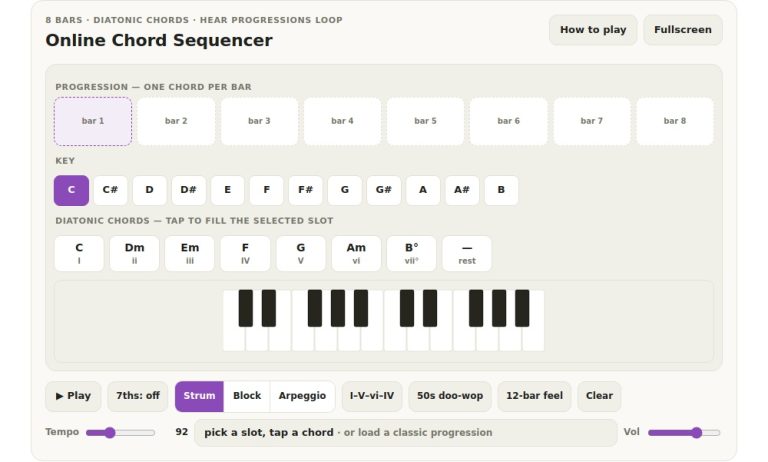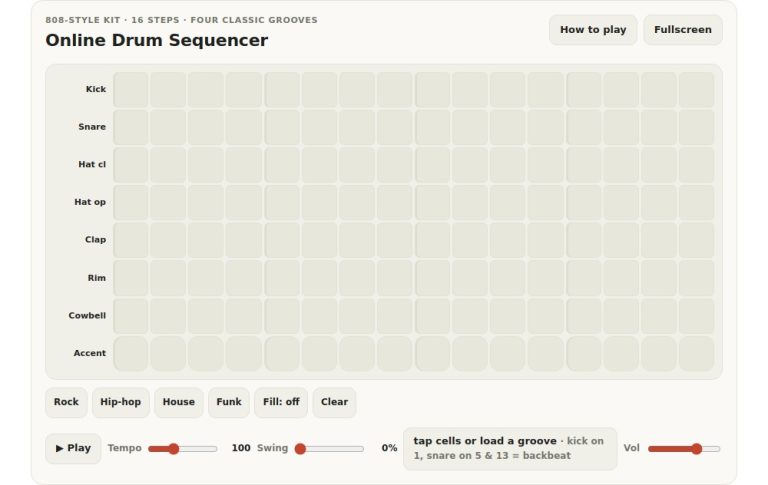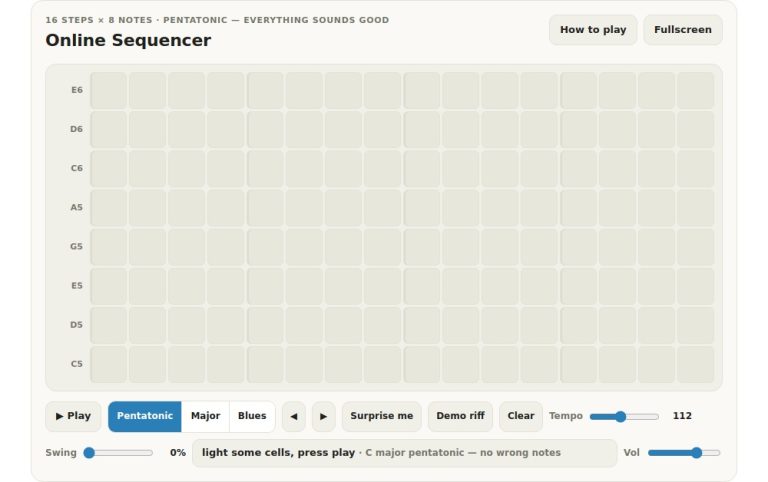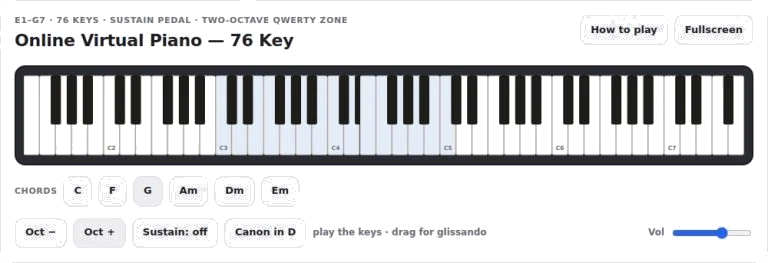
Create music right in your web browser, no software or physical keyboard required. Click on the grid cells with your mouse to create your arrangement. Use your computer keyboard too for quicker playback and to turn features on and off.
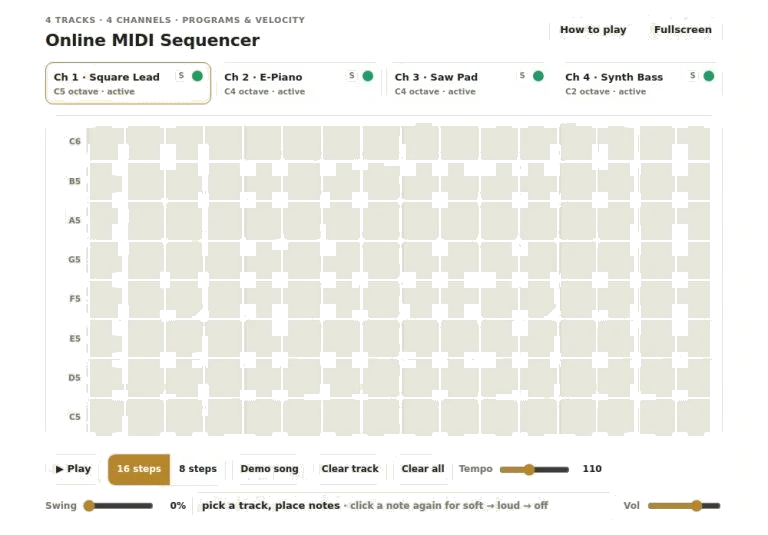
At the top of the screen are the track strips. In the center lies the step grid. And at the bottom are the transport controls. Each section serve various aspects of composing. These sections cover everything from instrument selection to rhythm and timing.
How to Use the Music Maker
First, select the instrument you wish to edit. Above are the four track strips. Each represent a separate channel. Channel one is a high-octave square wave lead. Channel two is an electric piano sound in the mid range. Channel three is a slow attack sawtooth pad. Channel four is a synth bass in the lower register.
Click any strip to select it. The note grid below will then update with those instruments’ notes. Tap on the green dot in each of these strips to mute that channel. It remains in place but is not heard. Next to the channel name, click the S button (for ‘solo’). This mutes everything else and let you concentrate on just the single part.
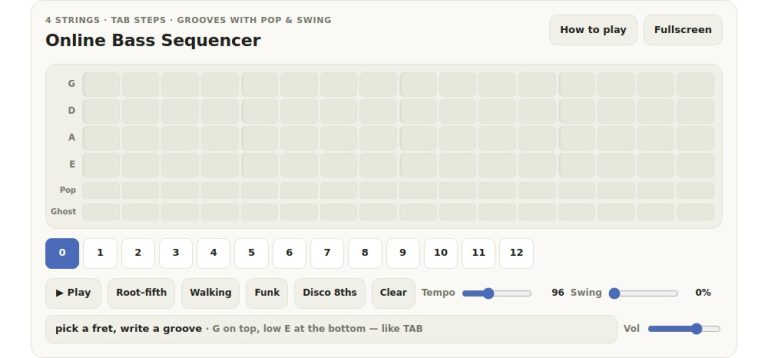
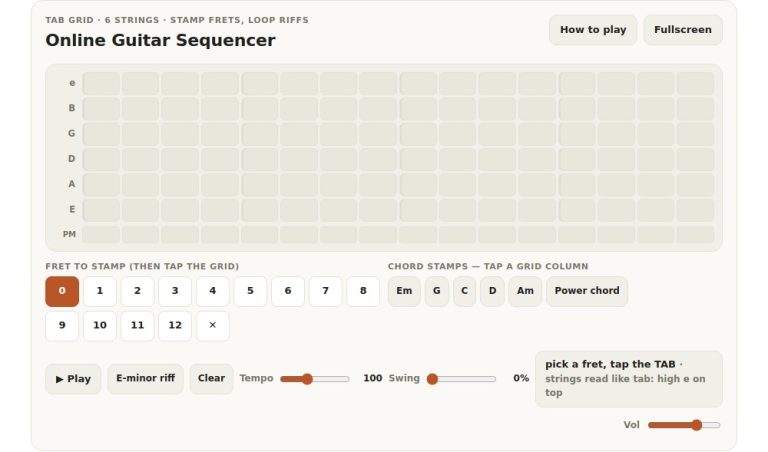
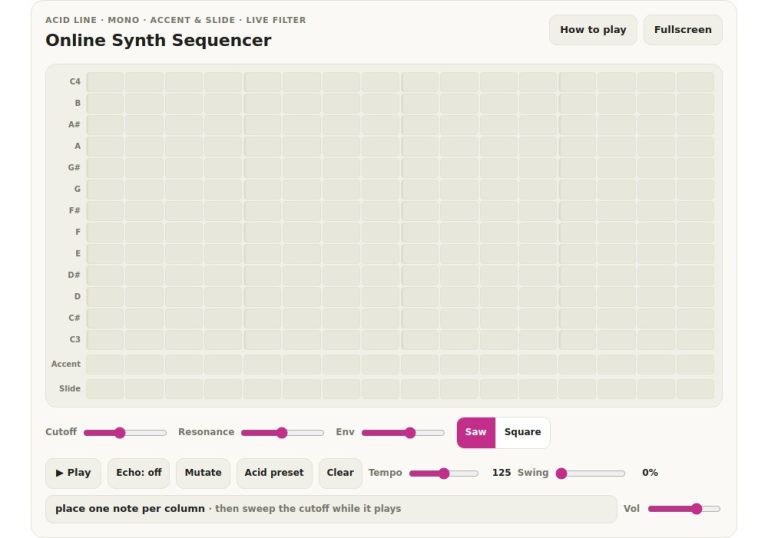
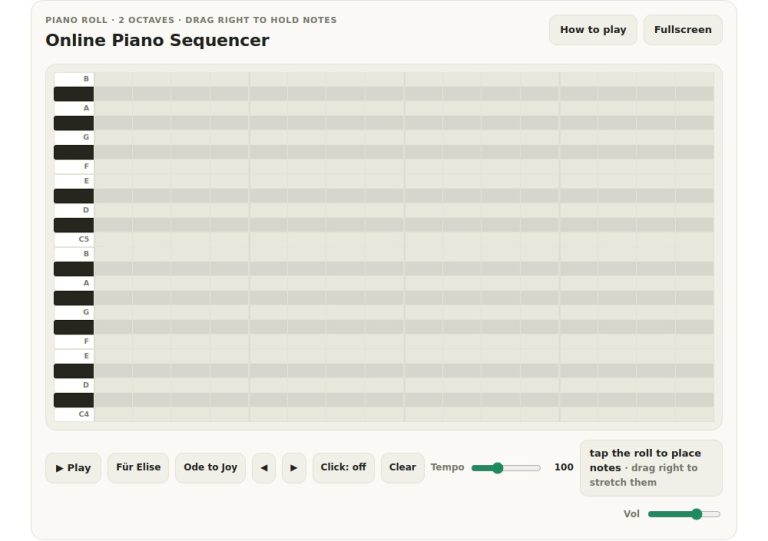
You place notes in the main grid. On the left-hand side, each row represent a note from the major scale. They’re labelled with this information. Columns represent the step in time. These come in sixteen steps. These make up the length of the loop.
To add a note, simply click a cell. To alter the volume (how loud it plays), click the same cell again. Loud = second click Soft = first click Gone = third click. The grid shows the difference in brightness for these two types of notes. That enables you to bring dynamic variation into your patterns without changing any of the notes themselves.
The transport controls are below the grid. To begin playback, press the play button. All four tracks plays simultaneously. They layer the sounds you have programmed. While the song plays, you can edit any of the tracks.
The tempo slider controls the speed of the loop. It covers a range from sixty to one hundred and eighty beats per minute. The swing slider add some groove to your rhythm. It delays the off-beat notes to give it a more funky or relaxed feel.
You can choose between eight and sixteen step loops. In the shorter option, it creates smaller phrases. The longer option gives you more room for complex melodies. The unused steps is greyed out in the shorter mode.
The demo song is easy to use. Just click on the demo song button and it loads a premade arrangement into all four of the tracks. This contains a bass line, pad texture, chord comping and lead melody. This shows you how the different instruments stack up against one another. In the demo, you can mute out the individual tracks so that you hear what each adds to the mix.
There’s a clear track button that clears the current instrument so there are no more notes present on that particular track. A clear all button will reset all the tracks to be empty. This comes in handy if you’ve removed a section you don’t like anymore or if you want to start again.
Here are some useful pointers about making the most of the sequencer. Start with the rhythm by placing the bass note on the main beat. Next, move the piano chord onto the off beat. This provides the movement. Use the velocity change to highlight specific notes within your melody. Finally, use the solo function to pick out a single track. This enables you to listen for errors when sequencing.
A helpful tip is the quick reference info in the help panel. This is found using the how to play button. Alternatively press the question mark key.
Playback is switched using the space bar. This means you do not have to click to start or stop the music.
On the right, you’ll find a master volume slider that controls the total output level. Before you press play, adjust it so that the sound is comfortabley for you through your headphones or speakers.
You can go into fullscreen mode too. To do that, click the fullscreen button. Doing this will make the sequencer use up more of your screen. That way, if you’re using a small device, it’s easier to see the grid. The interface has been designed to adjust to different screens. So it works well on both mobile and desktop screens.
To start, load the demo and listen to what the instruments sound like playing together. Clear the track then try building one of your own patterns from scratch. Start with a simple bass line. Add a melodic line above it. Experiment with changing the swing settings. This alters the rhythmic feel. Add some expression to your notes using the velocity steps.
It’s a sandbox for making ideas about electronic music. You don’t need to understand music theory to use it well. Simply click around, listen and tweak things till it sounds like you want it to. Enjoy playing with the patterns and sounds that are available on this digital instrument.