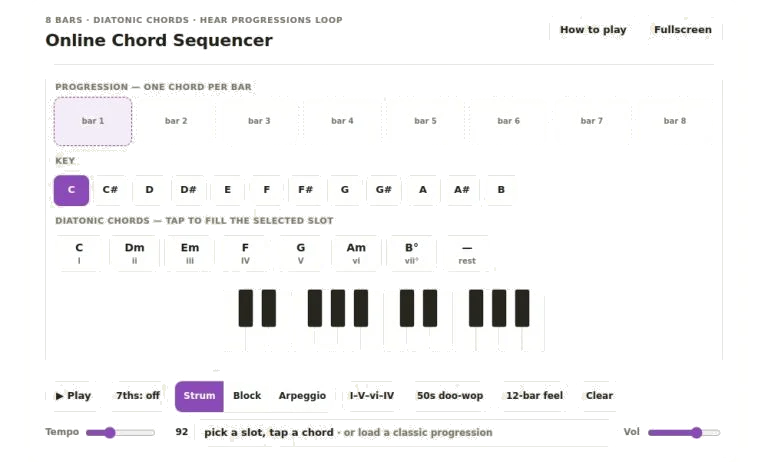
The site’s Chord Sequencer allows you to create and play looped sequences of harmonic progression inside your web browser. It’s interactive, responding to mouse clicks on the interface elements or to certain keys on your computer keyboard if you prefer to use those more quicklly. Its purpose is to show you how various chords pairs together in a continuous eight-bar sequence.
The main interface is divided into the chord palette, the key selector, and the progression grid. At the top of the screen are eight large slots, representing one bar each in the loop. Select an empty slot by clicking on it. This will highlight the selected slot, letting you know which slot you’re working on. Next click any of the chord buttons in the palette below to fill it with that chord. It’s immediately previewed for you to hear. Click on the filled slot again if you change your mind to clear it.
How to Use the Chord Sequencer
The option of changing key comes below the grid. You have a choice of all twelve, ranging from C to B. Changing this will transpose each chord in the palette as well as any existing chords in your progression. What it does is maintain the harmonic relationship but move the whole thing to a higher or lower pitch. If you need to place the loop within certain tuning ranges such as an instrument or singer’s voice then this works nicely.
What you see here is the set of seven diatonic chords available in any given key. These are numbered using the Roman numeral system that shows the function of each chord. Toggling on the seventh button includes an extra note (the 4th). This alters chords such as I into the maj7 and makes ii and V into their dominant and minor seventh forms respectively. This creates a more complex, richer sound changing the texture from basic pop harmony towards something approaching R and B or jazz.
A set of play style buttons that alter how the notes sound. Strum rakes the notes from low to high like a strummed acoustic guitar would. Block plays them all together to give a solid piano feel. Arpeggio splits the chord out into a flowing eighth note pattern. Each have a slightly different rhythmic feel but doesn’t alter the underlying harmony.
At the bottom of the page are transport controls. Pressing the Play button starts playback of the loop. Alternatively, you may begin and stop playback with the Space bar. Using the tempo slider, you can adjust the speed according to beats per minute, spanning anywhere from a slow sixty to a fast one hundred sixty. The volume slider is for adjusting the overall loudness. Lastly, there are three preset buttons that immediately load popular progressions into the browser sequencer. These consist of a four-chord standard pop loop, an eight-bar blues feel, and a fifties doo-wop progression. If you aren’t sure where to start, use these as a starting point.
As you play, the loop runs while a visual representation of the piano part updates in real time. This will highlight what note(s) are playing in that given bar. So you can see where the notes go from one chord to another and get an idea for the voice leading.
If you’re unsure about something like the meaning of the Roman numerals or anything else, there’s a detailed reference guide accessible via the help button.
When using the sequencer, experiment with where you finish each progression. Finishing on the V chord generates tension that naturaly draws us back to the I chord at the beginning of the next loop. It’s this pull that gives a progression its sense of coherence and resolution. Try playing around with different textures until you find one that fits the mood you’re trying to create. A strum suits bright and upbeat sequences nicely. An arpeggio can add motion to a slower more reflective sequence.
Use these together for quick sketches. Pick a preset and change the key to whatever sounds good to you. Replace a couple of chords from the palette. Then, listen to the difference that replacing just one minor chord with a major one makes to the emotional feel of the loop. As you edit, you’ll notice that it’s all very responsive and you get instant feedback based off what you’re doing.
You’ll want to keep your hands near the controls by using the keyboard shortcuts. Space is for playback control and pressing the question mark key opens the help panel. That way, you won’t need to be clicking around but can concentrate more on listening.
Because the sequencer will loop indefinitely, you can leave that playing in the background as you arrange other elements of a song. To begin with, load a basic progression, hit play and listen to the way the chords interact. Experiment with changing to seventh chords, changing the tempo. You’ll discover that relatively minor changes makes a big difference to the feeling of the piece. It’s flexible enough for you to do some thorough harmonic study but also quickly create demos. You should of get stuck in and begin creating your loops.