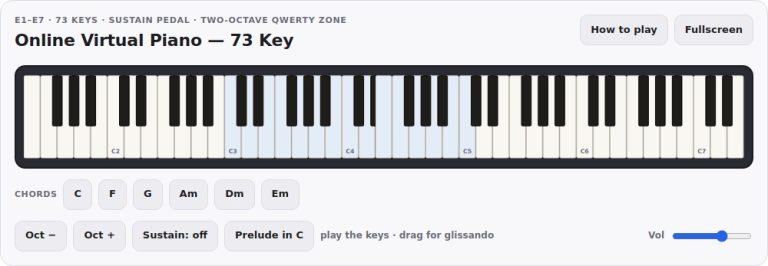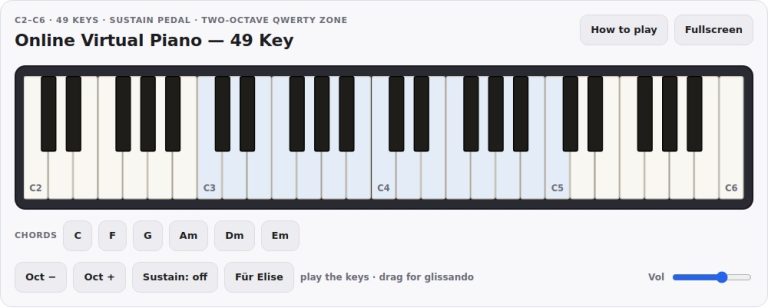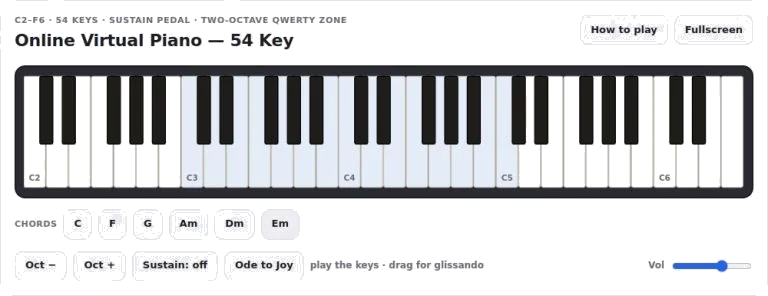
The piano offers a range of C2 to F6 (fifty-four keys). To play, simply click the keys with your mouse. Alternatively, use the letter keys on your computer keyboard.
The interface is simple and responsive. That’s all about the design to help you make music. There are no complex menus to navigate through.
How to Use the Virtual Piano
For the beginner who wants to learn some scales this is the tool. For the musician who wants to try out their next chord progression this will work too. Immediately you have a reliable way to create sound.
There are two primary ways of interacting with the keyboard. Single notes can be played by clicking individual keys with the mouse. Alternatively, you can click and drag across the keys for a glissando effect. That is a smooth sliding sound from one note to the other.
For those on compatible devices, multi-touch gestures is supported. Multiple keys may be pressed simultaniously to play a chord. It’s all velocity sensitive too. How hard the key is struck alters the volume and brightness of the sound. You get a softer sound if you hit the key close to the top, but hitting closer to the bottom make a louder tone. Faster then playing with a mouse.
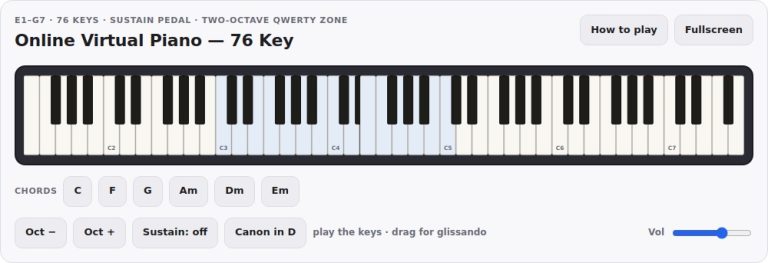
It can be used for both melody and accompaniment. Two octaves are mapped onto the QWERTY keyboard. The home row and bottom row covers the lower octave, starting with the keys Z, S, X, D, and C. The number and letter rows covers the upper octave starting from Q, W, E, and R.
There is a highlighted band that indicates where the physical keys corresponds to the active zone. This acts as a visual guide. To move this zone either up or down use the Oct minus and Oct plus buttons. This allows you to reach all of the range without having to memorize a long key map.
Your sound is shaped by several controls. A pedal-style button called Sustain allows you to make your note ring on after you have released it if you wish (latched), or add momentary sustain that joins phrases together/harmonically texturally (held down with the spacebar).
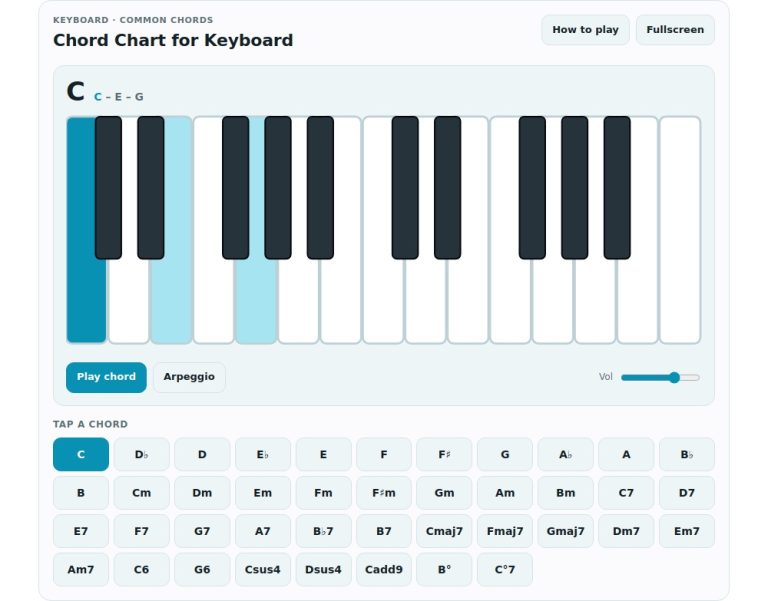
There’s a volume slider too that sets your overall output level to suit your environment. There is also a set of Chord buttons which, when pressed, will play pre-sets of C, F, G, Am voicings. This provides accompaniment whilst you create a melody.
The fullscreen button works as described. It makes the widget full size. This allows for a larger keyboard. It is useful if you have a small monitor. It reduces distraction too.
The Ode to Joy button plays a demo piece. So you get an idea of what it sounds like. It also allows you to play along with the piece. As it plays, the keys illuminate. This adds some visual clues regarding pitch and timing.
Add the chord buttons, and use them alongside the sustain pedal. Keep a chord held down while you play a melodic line on top of that. It’s a complete sound, and not much work at all.
Experiment with velocity sensitivity. How hard do you click? Do you press the key fast or slow? Variation in dynamics add colour to your performance.
If a song is beyond your reach then try using the octave shift buttons. This will shift the keyboard zone for you. Your hands stays in place but the pitch range changes.
That’s right, now you can begin playing. Discover how each control works. Find your favorite options. Don’t worry, there is no such thing as doing it ‘wrong’.
Try something new. Listen out for how each note sounds. Give various techniques a try. Use the piano to create something new. Use it to practice things you have played before. Make music on the virtual piano. Hit a key. Let the sound surround you. Have fun discovering more.