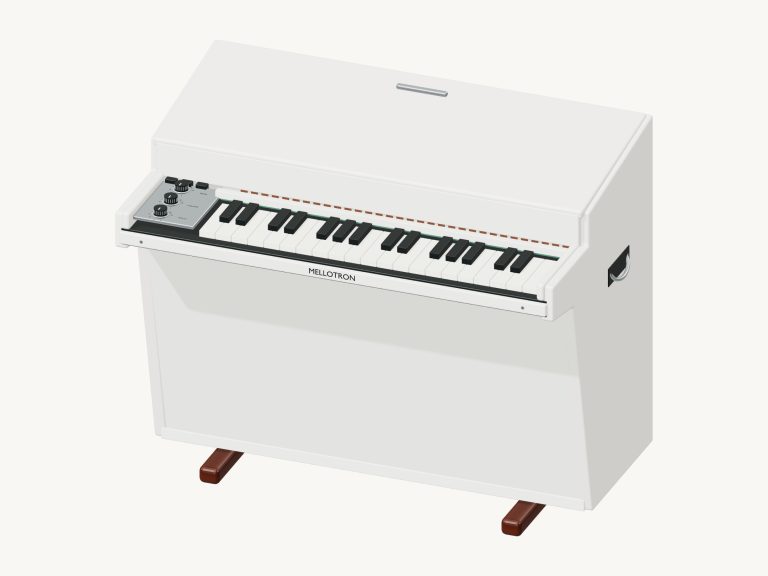
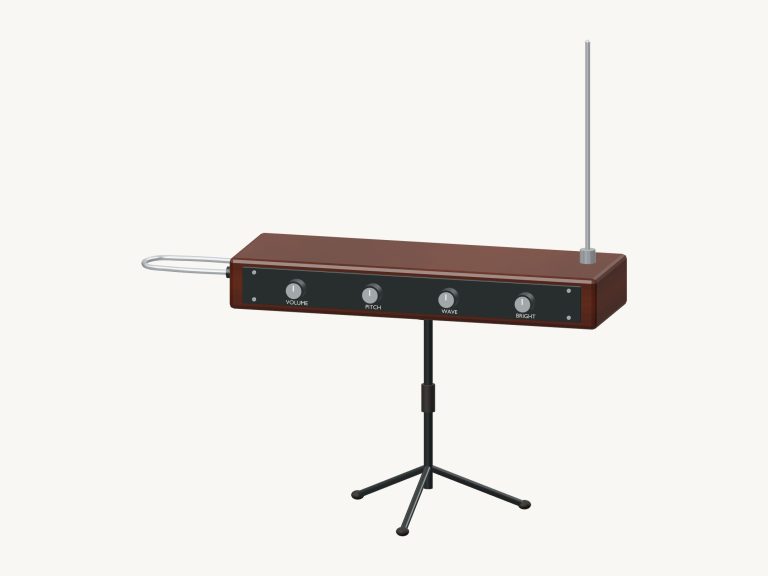
This online virtual synthesizer lets you create and play electronic sounds right in your browser. It’s a detailed 3D model of an on-screen synth with eight knobs and 37 keys. Two oscillators, an envelope and a resonant low-pass filter produce the sounds as you play them.
Turn a knob and discover your sound. You do not need to install or download anything. Just play with a computer keyboard, mouse or your finger on a tablet or phone screen. No need to hunt around for the start button. Just hit a note and the sound will switch on, with the message beneath the widget updating to say: “Live electronic sound”.
How to Use the Online Synthesizer
Clicking on the question mark in the top corner opens a short guide to the controls along with the credits. These all reside directly underneath the instrument, where you can tweak away as you play.
To play a note, simply click on one of the keys (either on the keyboard beneath it or on the 3D synthesiser). Tap the key to produce a short note, or hold it down to sustain the note. You can also drag your finger across the keys to ‘run’ through a series of notes.
The model’s keyboard has 37 keys that span from C3 to C6. Below is an on-screen keyboard spanning 25 notes from C3 to C5. When sounded, the keys light up and press down on the model. The note range is C3 to C5 with those 25 notes played on a computer keyboard by the letters A through M and the comma. Every letter sounds a semitone higher than the previous one and each key on your computer keyboard displays the letter that plays it. You need to click within the frame where the synthesiser is first before you begin to play from the keyboard.
Full three-note chords can be played using the chord buttons: C, Dm, Em, F, G and Am. The number keys 1 to 6 play them from the keyboard. It’s a handy shortcut for hearing how each preset sounds when played with more than one note.
Below the word PLAYING, the bar under the synth shows the last note or chord you played. To play what you’ve chosen, simply press the space bar or the Play button, and it will keep playing until you release it. If you want it to continue by itself then use the Hold sound. While it is switched on, a single click on another key or chord takes over from the old one. Use the Esc key or the ■ Stop button to silence all sounds.
The Expression slider can be set between 10 and 100. It determines the volume at which the notes play, including those that may already have been held down.
There are four presets that provide you with a start: Glass, Slow pad, Round bass, and Warm lead. These set all controls beneath them simultaneously. Round bass is a square wave with a low filter setting. Slow pad has a slow fade-in and hangs around after you release it. Glass has a very quick attack with a high filter setting using a triangle wave.
The Room slider next to these goes up to 50 and adds the echo of a room around the sound. The eight synth controls are below the presets. Oscillator Shape is the wave. Square, Sine, Triangle or Saw. Detune pulls the two oscillators slightly out of tune with each other. It goes from 0 to 25. Filter is the resonant low-pass filter set from 100 up to 8000. Higher sounds brighter, lower sounds darker. Resonance, from 0.1 to 8, is how strongly the filter resonates. Lastly, there are four sliders that shape each note over time. Attack is how quickly the note fades in. Decay is how quickly it falls back to the Sustain level. Release is how long it lingers after you let go of the key.
On the 3D model, the eight knobs are connected to the same controls. Dragging one up or down turns the knob. Clicking the Wave knob steps through the waveforms. The knobs also move as you change a slider.
PLAY A LITTLE: Choose one of the tunes (Ode to Joy, Twinkle, Twinkle, Little lanterns). Tap ▶ Listen to play it using whatever sound you’ve chosen. Move the Tempo slider between 40-180 to adjust how fast or slow.
Tap the ◇ Game mode icon. The model lights up showing where the next note should be played, as does the keyboard. There are boxes that say play now, NEXT and THEN which indicate what’s ahead. Game mode will wait for you to play the correct note before moving on. As you go, there’s a progress bar and a counter. When done, it says “Beautiful. It says “Beautiful. Play it again?” and provides an Again button.
The ● Record button records what you’re playing direct from the instrument, no need for a microphone. Tap it again after it says ■ Finish take. You’ll see a Save take link that allows you to download your performance.
To explore the on-line virtual synth, click ↻ Rotate 3D to rotate it around. To turn it, just drag the background. Pinch or scroll to zoom. While you’re doing all of this, the knobs and keys continue to function. Clicking ⌂ will return you to the front view. If you turn Rotate 3D off, it will have the same effect.
According to the credits, the sound is generated by original iPlayMusic Web Audio synthesis: nothing is sampled. It’s running live in your browser.
For those of you that have not yet discovered this online virtual synthesizer, begin by playing some notes from the home row with the preset called Warm lead. Next try each of the presets on the same note to experience their differences. Lastly, hold a note and slowly slide the Filter slider around to hear it close down and open up.