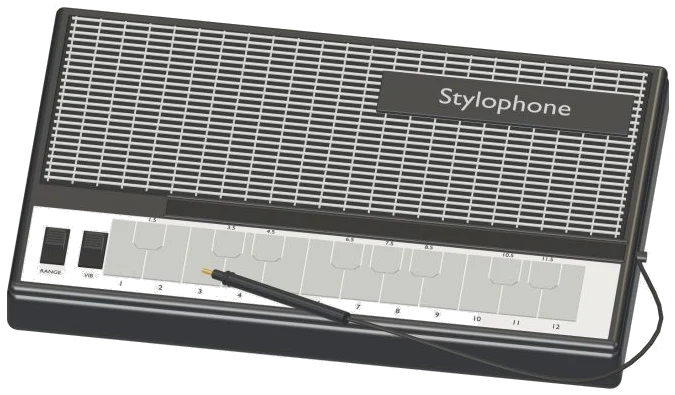
This online virtual stylophone lets you play a pocket stylus synth right in your browser. A detailed 3D model of the device appears onscreen, showing its 20 metal contacts and a wired stylus that travels to each note as you play it. As you play, you can zoom and rotate the model. The sounds is generated by an electronic synthesis in your browser, not recordings: a buzzy oscillator passing through a resonant filter.
Nothing to install or download; just use your computer keyboard, or your fingers if you’re on a tablet or phone, or even a mouse to play. There is no individual sound button. At the bottom of the screen, it says Tap a note to play. When you tap your first note, it activates the sound and displays Sound ready.
How to Use the Virtual Stylophone
The ? A button at the top of the page reveals brief instructions and sound credits. The Full screen button puts the stylophone in full-screen mode. Pressing Esc or tapping Exit full screen takes you back to the page. A Volume slider appears in the bottom bar.
To play, just touch any of the metal contacts on the 3D model. A tone will sound while you hold down on the contact, and the stylus will move to it, lighting it up in the process. Release your finger and the note shuts off. If you keep sliding along the contacts without releasing your finger, the stylophone will follow your stylus. It will jump to the next note as you slide along.
The stylophone only plays one note at a time; each subsequent note replaces the previous one. Below the model are 20 note pads. There is one for each contact. The pads span all the semitones from A3 through to E5. The note names are written on each pad. You hold the pad to sound the note or can slide over the pads to create a run just like the contacts do.
If the note pads were on a computer keyboard they would be: A W S E D F T G Y H U J K O L P; Z X C Each letter represent a note that rises a semitone with each letter. A = A3, C = E5. To sustain a note, hold down the key. There is also a Space bar which will sound the note you selected last time. All the keys show what note they represent. Before playing from the keyboard click inside the frame where the stylophone rests.
Above the pads are three controls. Hold tone lets the tone continue playing without your input. Tap out a single note then another, and the tone will move to the new pitch automatically. Click to stop.
The octave range menu toggles the entire stylophone up or down an octave at a time from middle (the default) to low and high.
The vibrato button provides a subtle wobbling pitch changer for the notes played. Click again to switch it off.
There are even switches for the 3d model. You can turn the vibrato on/off by clicking the VIB switch. You can step through the range settings (Low, Middle and High) one at a time by clicking the RANGE slide switch on the model. The button and menu on the page will do the same so you’ll always know what’s turned on.
Underneath the pads is the Touch slider that determines the strength of the sound. For a bright, loud sound, raise it; for a more muted, soft sound, lower it. As you play, short tips on what to do next will appear beside it.
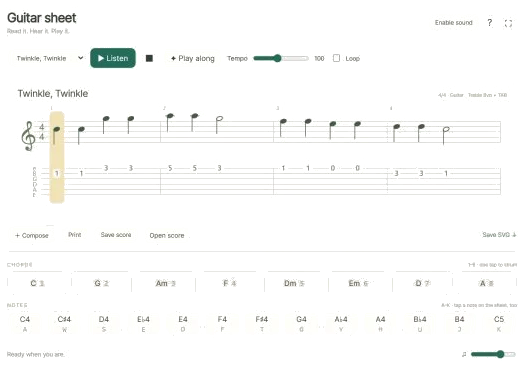
To play songs, open the song menu and select from Twinkle, Twinkle; Morning steps, or Ode to Joy. Tap ▶ Play song and the stylophone plays the tune. Tap Ⅱ Pause and ▶ Resume to pause or resume playing. Tap the ↻ button to repeat the song in a loop. Tap the ■ button to stop all sounds. The Tempo slider adjusts between 50 and 150, and selecting a song automatically sets that song’s chosen tempo. You can also tap on a note in the preview strip above the pads to hear what it will play.
Click ◇ to play the song yourself. Now it’s just a matter of pressing the correct next note on the strip (NOW) or the pad that lights up green (NOW). You can also play the notes on the keyboard, the 3D contacts or even the pads again: a new press is required every time you repeat the same note. A counter shows how far along the song you are. When you hit the wrong note, you get a hint reminding you to try the green one. At the end you’ll see Complete! Choose another song or play this one again. The game pauses until you play the correct note, and then continues if you do.
Click 3D to explore the virtual stylophone in your browser by rotating it. On a touchscreen, scroll to zoom and drag the background to turn it. While you’re looking around, the switches and contacts continues to function. To return to the starting view, click ↺, or switch Rotate off.
If you’re a beginner with the stylophone, start on the Middle range and slide gently along the contacts to listen to the pitch stepping up. Next turn on the Vibrato, select Twinkle, Twinkle in Game mode and then use Hold tone to play the song by tapping once for each note. You should of used the pads for better results. The stylophone can absorbs the vibrations more naturaly.
There are many different than the other models. I think the moddern design is more comfortabley to use. It’s better then the old one.
The furnitures in the room looks good too. I’ll recieve the package soon. I’m livig in a big house. The table sits in the middle. The music sounds more better. It is a armchair. The table should be two-thirds of sofa. I’m different than you. The heights matter. Between two adult-sized sofa.
The buttons is broken. It’s based off an old song. The note names is written. He has to shares. He should steers. You’ll find it. He said he would of gone.