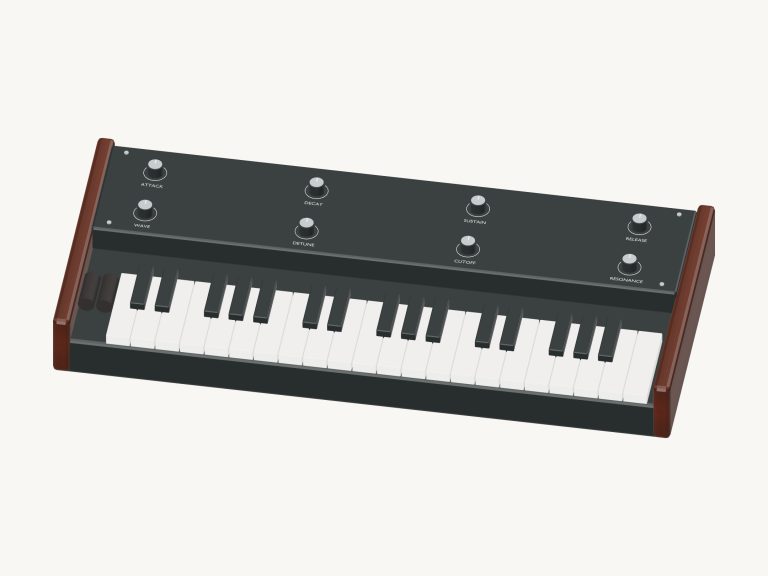
It’s an online virtual mellotron where you just press a key and let the tape roll right there in your browser. It’s a detailed 3D model of a real instrument with 35 keys (G2-F5) and a removable lid. It have three tape voice selectors. You can zoom and rotate the instrument on screen to view all sides.
It features three voices: Strings, Flute and Choir, which aren’t plain electronic tones but are created using recorded samples of instruments and choirs played back through tape. There’s no installation or download required and you can play it with your computer keyboard, with your fingers on your tablet or phone, or even a mouse. There is no start button to seek. The first keystroke sounds it on, and when the voices have loaded, the widget’s bottom line will change to Recorded voices: eight-second tape-style playback. Clicking the question mark in the top corner reveal a brief guide alongside the sound credits.
How to Use the Online Mellotron
You can click on any key on the 3D mellotron and it will make a sound, sink down, and light up. There’s also a complete on-screen keyboard below the model that has the same 35 black and white keys, labelled with their note names, which can be more convenient to play on a small screen. Hold a key down and the note keeps sounding, and it stops shortly after you let go. However, since each key sounds like a strip of tape for up to eight seconds, you have to press and release it again to make it sound again.
The melody uses the 18 notes between C4 and F5, with each letter representing one semitone higher, using the letters shown on the screen keyboard where they will be played. The bottom end of the keyboard is played either by touch or using the mouse, starting at G2 and finishing at B3. You have to click within the frame containing the mellotron before you begin playing from the keyboard.
At the heart of the instrument are the three voices. You can click the three tape voice selectors on the 3D model to switch between them or just press the buttons labeled Flute, Strings and Choir. Flute is the default and the brightest, Strings is a little darker with more room, and Choir is the darkest with the biggest echo. Each voice also moves the Room slider for you. Room runs from 0 to 50 and adds the echo of a room.
The Volume slider at the bottom right sets the overall level. The Tape flutter slider adds a subtle pitch wobble, like a tape playing back, from 0 to 100. Starting at 25, it alters existing sounds (so if you’ve got a chord going then you’ll hear the flutter increase as you move it up). You can set it to 0 for no flutter at all and a perfectly steady pitch.
Expression: From 10 to 100 this slider determine the strength with which the notes sound. It begins at 65. There are six buttons in the CHORDS row: C,Dm,Em,F,G,and Am. These are played from the keyboard using the number keys 1-6. A held chord sounds good played on the Choir or Strings voice with each one playing a full three-note chord.
Below the word PLAYING the note or chord you play appears in the bar beneath. You can make it sound by pressing the Space bar (or the Play button), and continue holding it down to keep playing. While doing this, pressing any other key or chord will take its place until you let go of the Space bar. The Hold keys button keeps it playing on its own for up to eight seconds. If you want to stop altogether press the Esc key (or the ■ Stop button).
To raise the cover of the 3D mellotron click Open lid and peek inside. It will change to the button saying Close lid so you can replace the cover. For example, in the PLAY A LITTLE section, choose Morning steps or Twinkle or Ode to Joy to learn that tune. Tap ▶ Listen to get the mellotron to play it out, then tap it again to turn it off. Use the Tempo slider (from 40 to 180) to adjust speed.
Next, tap ◇ Game mode. You’ll see a green note panel appear, the next note will glow green on the keys, and boxes labelled NEXT and play now with the keyboard letter will display what’s next. As you play the correct note, game mode waits for you and continues once you do, showing your progress on a counter. Once done, the message Lovely. Play it again? pops up.
Tap the ● Record button to record yourself playing directly from the instrument… No need for a mic. Tap it again once it says ■ Finish take and there’s a Save take link to download your recording.
The ↻ Rotate 3D button lets you get up close and personal with the online virtual mellotron. To rotate the model, simply drag in empty space. You can also pinch to zoom in/out or use your mouse scroll wheel. The ⌂ button brings you back to the initial view. Turning Rotate 3D off will do the same thing.
As the guide notes, these are not the original Mellotron tapes or the proprietery Mellotron tape library. To begin learning on this Mellotron if it’s your first time, choose the Strings voice and add the Tape flutter at 25. Play just the C chord, holding it down and gradually work up to F, G and back to C again, letting go of the chord as you play the next one. Once you’re comfortable with that, turn off the String sound and select the Flute instead. Then, have a go at playing Ode to Joy in Game mode set to a slow pace. You should of tried the other voices too.