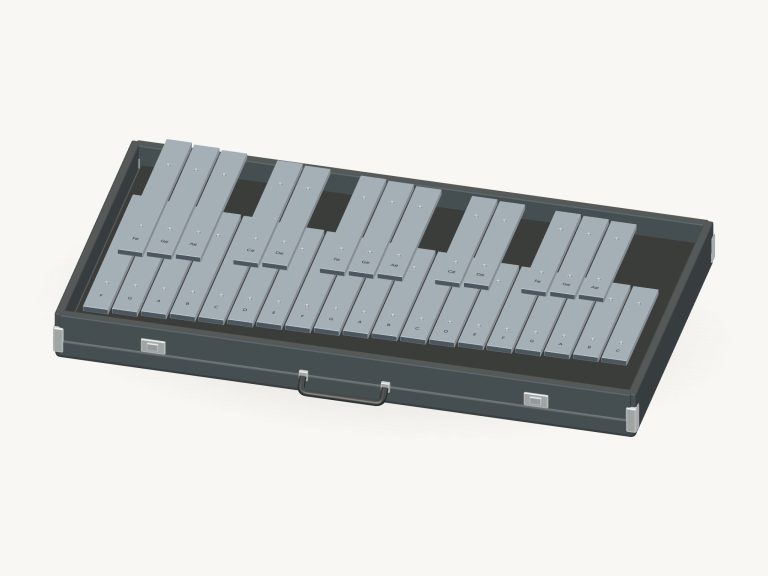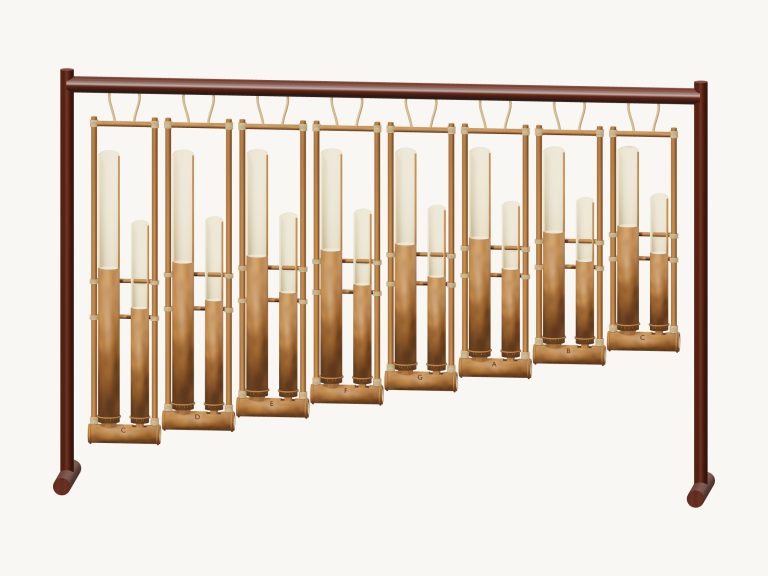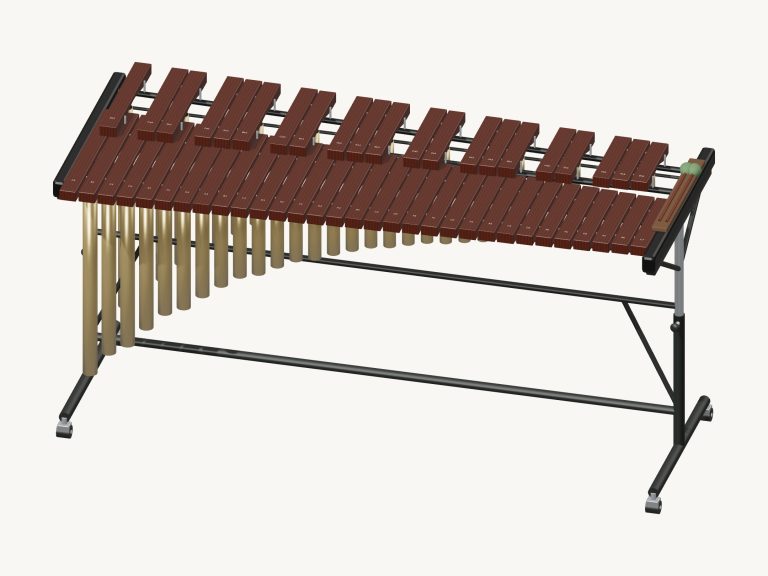
Play a concert xylophone right here in your browser. Play this virtual xylophone right in your browser. It’s a 3D model of a concert xylophone with two rows of rosewood bars held above graduated resonators. Zoom in to look at the detail and even turn it around. Every note uses recordings of an actual xylophone, so they don’t make a synthetic beep but rather ring out with a natural decay. Play with your computer keyboard, or if you’re using a tablet or phone then use your fingers, or just a mouse. There’s no need for a plugin, account or microphone.
There is no dedicated sound button. The bottom status line says Tap a note to play. When you do it prepares the recorded sounds. Then the line reads Sound ready. Clicking on the question mark at the top of the widget displays the sound credits/help. The Full screen button makes the xylophone take up your entire screen. Pressing Esc or clicking Exit full screen returns you to the page. The Volume slider is in the bottom bar.
How to Use This Virtual Xylophone
Underneath is a row of note pads that you can play too as well as straight onto the 3D model. There are 25 notes ranging from C4 through to C6 inclusive, each semitone. On the upper row are the sharps, and on the lower row the natural notes. When you hit them, one of two mallets hits the bar each time. One mallet alternates with the next each time. If you want to play a quick run you can sweep your mouse or finger across the pads or the bars. They will ring together in several notes.
Follow the note names as they appear in the written music. A concert xylophone sounds an octave higher than written. For instance, if you play a written C4 you will hear C5. The values for both the written note and the actual sound are shown below the model of the instrument, for example: Written C4 · sounds like C5. Beside that is the note name you have just played.
The notes travel across the keys of a computer keyboard as follows: A W S E D F T G Y H U J K. Then they go onto O L P;, followed by Z X C V B N M and finally the comma. Each note is played a semitone above the previous one; A is C4 and the comma is C6 at the top. The letters are printed on the pads of the notes. You can choose which note to play with the Space bar. The xylophone has its own frame on the page. Click inside this frame first before playing from the keyboard.
Use the Auto roll button for a hands-free roll. This rolls one bar of music three times each beat until stopped. It will follow the Tempo slider. To select another bar, press a different bar. The roll will continue from that point. You can also play along as it plays. The roll stops by tapping Auto roll again.
To play tunes, first go into the song menu and select one: Skipping mallets, Morning steps, Twinkle, Twinkle, or Ode to Joy. Tap on Play song to listen. The button changes to say Pause, which turns into Resume. To repeat the tune over and over, tap on the button that says ↻. To stop all sounds tap on the square button that says ■. The Tempo slider goes between 50 and 150. This controls not just the tempo of the songs but also Auto roll’s speed. Above the pads is a preview strip of the tune’s notes. Each note has its name displayed along with how long it will last for (in number of beats). You can tap on a note in the strip to play it.
To play the chosen song for yourself, click on Game. You’ll notice that the NEXT pad is now amber and the one you require is green. This way, you know immediately what’s coming up. The NOW/ NEXT strip displays where you’re at and how far along you’ve got. It will move on a single beat every time you make a correct key press (including repeat notes). There’s no clock so you can take as long as you like. If you miss a bar then the guide tells you which green note to go for. When you get to the end it says Complete! It asks if you want to Play Again or select a different song.
To adjust the firmness of your playing use the Touch slider. Higher settings are louder and brighter. Lower settings are softer and mellower. Use with the Volume slider to suit the volume of your headphones or speakers.
Click 3D to rotate and look around the instrument. You can rotate and zoom using two fingers on your screen. Drag the background to turn the xylophone, or scroll to zoom. In Rotate mode, touches on the bars will still play, allowing you to continue playing from whatever angle you like. The ↺ button resets the camera back to the front view.
This online virtual xylophone is based off MuseScore General 0.2.1 and the FluidR3 soundfont by Frank Wen and contributors. The sounds are shared under the MIT license. Each note has a recorded attack which is maintained and the xylophone plays with its own natural decay, fading out naturaly on its own. For more information see Recordings, sources & licenses in the help window.
For those who are unfamiliar with the online virtual xylophone, try this one first: Twinkle, Twinkle. Listen to the song by clicking Play song. Then have a go yourself by clicking Game. Once you’re familiar with the tune, switch Auto roll on. Roll it along the melody, bar-by-bar.