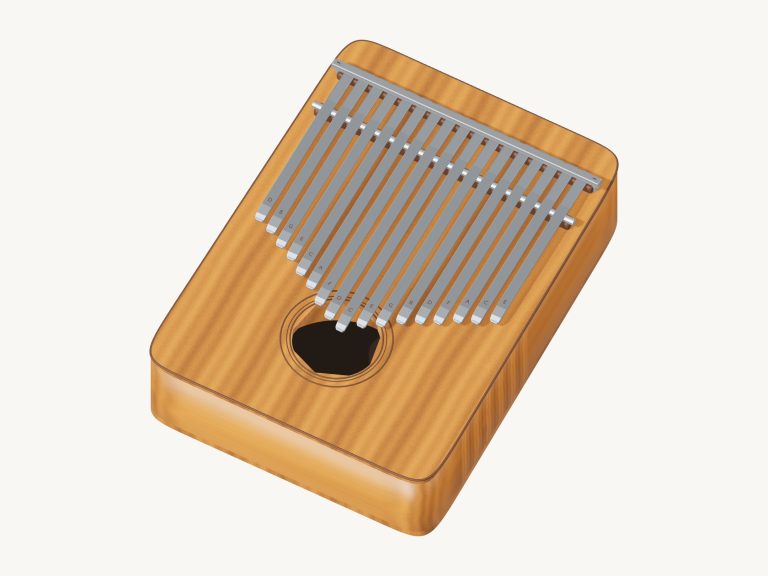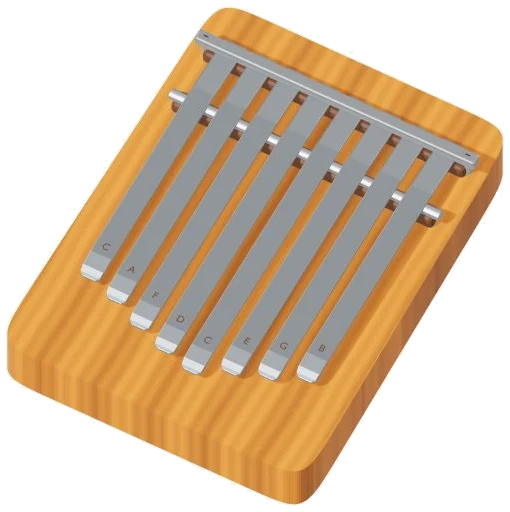
This is a virtual kalimba that you can play in your browser. The screen shows an accurate 3D model of the instrument with eight curved steel tines on a cherry wood block. It’s tuned to C major starting at C4 through to C5. Each note is played using real recordings of an acoustic kalimba. You hear the gentle ring of the actual tines rather then a synthesizer.
There is nothing to install or download and you can play it with your computer keyboard, your fingers if you have a tablet or phone, or even a mouse. Firstly, click the button on the top of the widget that says Enable sound. When this button turns into Sound on, you are good to go. Alternatively, just tap a note and it will begin playing automatically.
How to Play the Virtual Kalimba
The question mark next to the button opens A little help, which is a brief help page that also contains the credits. The ⛶ button takes the kalimba into full screen mode. To exit full screen, press the same button once more.
As the hint below the model says, just swipe or tap the tines. Drag across multiple tines to quickly play a series of notes, or click any tine on the 3D kalimba to pluck that specific note. Each tine will ring out with its own natural decay, allowing you to play multiple tines simultaneously. The tine you plucked lights up and wobbles momentarily before the note name is shown in the corner of the stage.
Starting in the center and moving outwards, the longest tines is found in the middle and produce the lowest notes; the notes increase from there, alternating sides. Below that is a row of eight pads titled the notes (keyboard, mouse or touch). Each pad represent one of the tines from C4 to B4 with an additional pad for C5. When you play one of these pads, it sounds like the tine it represents. This is handy if you’re using a small screen. The pad you’ve just played will also remain highlighted so you know which note you have selected.
The eight notes are played on the A, S, D, F, G, H, J, and K keys of a computer keyboard, from C4 on A through to C5 on K. You can use your left hand on the home row, running up and down the scale using each pad as the letter shown on the pad. Click inside the kalimba once before beginning to play from the keyboard.
It is shown in its own box on the page. Main controls are above the pads, in the bar. The Space bar plays the previously chosen note, as does the Pluck button. If you hold down Space, it will keep plucking that note indefinitely. To do this without pressing a key, use the Repeat button. While Repeat is on, you can click on any other pad or tine to change which note is being repeated. Turn Repeat off by clicking Repeat again.
Use the Speed slider to set the speed of the repeating note, anywhere from 3 to 14 times a second (starting at 7). Press the ■ Stop button (or press Esc) to silence everything at once.
Touch controls how hard you pluck, and it begins at 64. Lower figures produce quieter notes; higher ones are louder. It goes up to 100%.
There are three sound presets available. Default is Natural. Soft is slightly darker with a lighter touch and some extra space around the note. Room is a firm pluck with an enormous echo. Next to these is the Room slider which adds/removes this echo as you wish. At the bottom right is the Volume slider for the overall level.
Every recorded pitch arrives in three natural takes. Because the kalimba alternates between each one, you don’t get every note sounding identical if you repeat a note.
River stones, Twinkle, Twinkle, Little lanterns, or Ode to Joy are available in the PLAY A LITTLE menu for practice. Tap on one of these to select it. Then tap ▷ Listen to watch the notes light up as the kalimba plays the tune. Tap it again when it says ■ Stop to stop early. While you listen and learn the tune, use the Tempo slider that ranges from 45 to 180, starting at 100, to slow it right down.
Click Play along when you’re ready. You’ll see the word Play and a green target appear on the panel; then, as you play at your own pace, the next note glows green on the 3D model and on the pads. A progress bar tracks how far you’ve got and there’s a counter to show your progress. The upcoming notes are in boxes labelled PLAY NOW, THEN and AFTER. If you don’t get the right note then a reminder asks you to follow the green note. As soon as you do, the next one is ready. When you reach the end the panel tells you you’ve played it and includes an Again button.
Pressing the ● Record button records what you play directly from the instrument without needing a microphone. When it says ■ Finish take, press it again and you’ll see a link to save your take so you can download your recording.
Click ↻ 3D view to see around the virtual kalimba online. You can zoom (pinch), scroll, and drag the background to rotate the instrument. While looking around, you can continue playing the tines, and use the ↺ button to return to the initial view.
Where does it get its sounds? According to the help page, there are credits and a short help called ‘A little help’. The Kalimba recording is FreePats Kalimba by Xavimart, Gonzalo and Roberto (2019), CC0-1.0. Notes were recorded on the entire instrument and mapped to pitches with their natural attack and decay maintained.
If you are new to the virtual kalimba online, select the Natural preset and gently play A, S, D, F, G, H, J, and K up and down the keyboard. Next, select Twinkle, turn the Tempo down and have a listen. Finally, try playing it back yourself in Play along. You should of tried the other presets too. It would of been better to hear them. The sounds dissapears naturaly. It is very comfortabley to use.