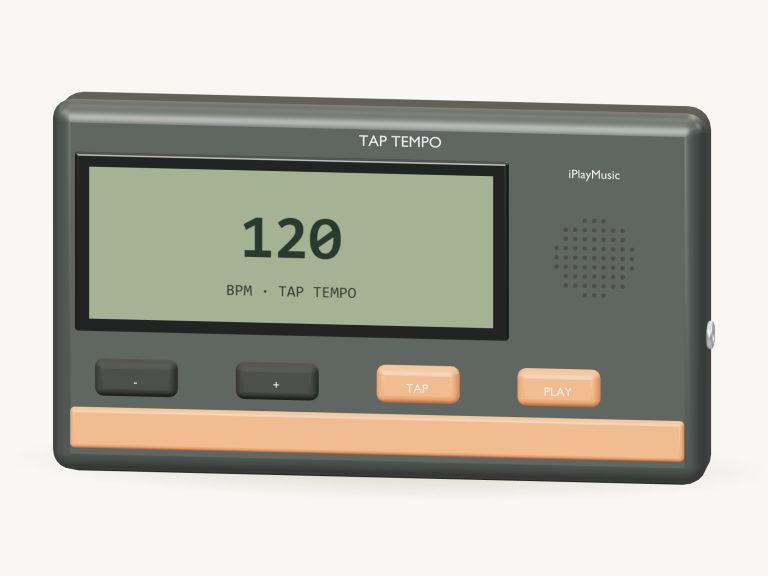
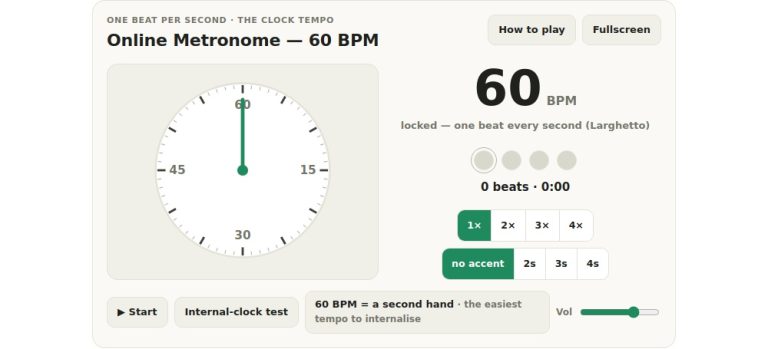
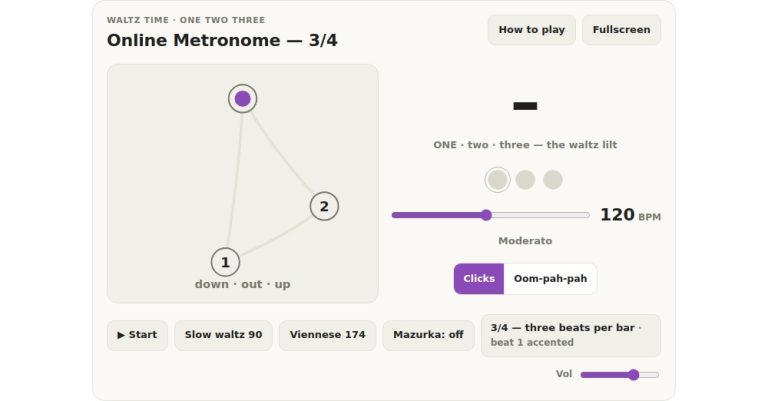
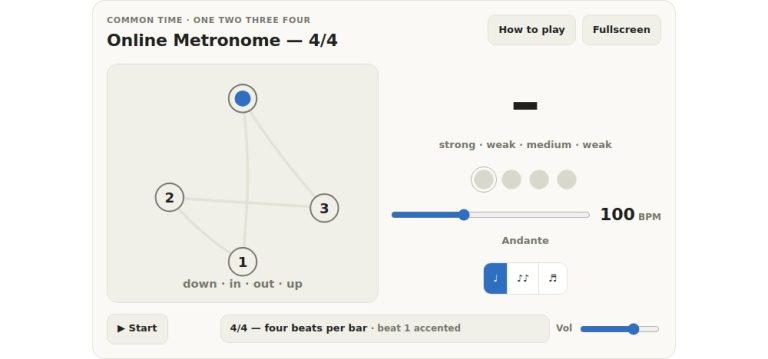
This online metronome run in your browser and gives you a solid beat to practice with. It’s built around a custom 3D model of traditional Wittner Mälzel mechanical metronomes. It include a sliding weight that moves according to your tempo, as well as a swinging pendulum that tracks audio clock. The model can be rotated and controlled by your computer keyboard, your fingers if using a phone or tablet, or even just a mouse.
You do not need to connect, download any external file, or install anything. Set your tempo · tap Start to play appears in the status line once the model is loaded. Tap Start (▶) to start the click. The status becomes Playing, and the first beat is accented. A brief guide appears when you tap on the question mark at the top. Everything stops if you tap Stop, and tapping Full screen makes the metronome fill the screen. Now it’s Exit full screen. Tap that again or Esc to return.
How to Use the Online Metronome
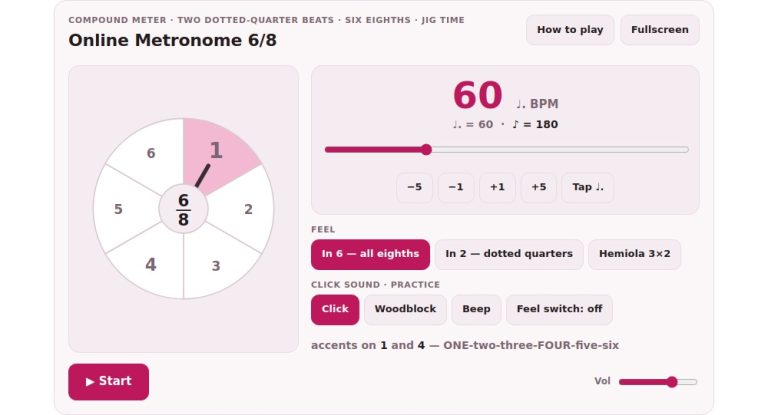
It begins with a tempo of 100, which is the big number in the center of the panel. Tap the − and + buttons flanking it to decrease or increase one beat per minute each, or use the long slider below for an all-in-one sweep through the range: 30-240 BPM. You can enter a known tempo directly into the small box beside the slider. The Start button (■ Stop when the metronome is active) can also be tapped right on the 3D metronome to turn it on/off.
A row of beat lights appears under the slider indicating your current place in the bar. You can also hear it as the first beat will sound higher than the rest; that’s beat one lit up in its own colour. By default, there is four beats per bar but this can be set in the Beats menu from 1-9 or 12. Subdivisions between the main beats can be added to the Division menu. Use Beat for just main beats; otherwise, select Eighths, Triplets or 16ths to fill out with the soft division.
Two sounds are available from the Click menu: Beep (an electronic click) and Wood (a short synthesized resonant click). The metronome cleanly resets the bar whenever you alter the tempo, division or beats, so the beat always falls on beat 1. Use the Volume slider to set the loudness of the clicks.
Tap it in if you’re uncertain. At least twice, click Tap tempo steadily. It will say One more tap… after the first tap. Then it will show the tapping consistency as a percentage and the number of taps so far. It uses your last eight intervals to combine a tempo, ignoring any isolated timing slip. A pause of over four seconds begin a new estimate and Reset taps immediately clears it. Tapping is just measuring; it doesn’t begin playing back until you press Start. The ×2 and ½ buttons doubles or half the result.
It’s possible to practice hands free using the keyboard shortcuts. Press the Space bar to start and stop the click. Press T to tap a tempo. Use the arrow keys to increase or decrease the BPM by one. Up and right make it go quicker, while down and left make it go slower. These work only after clicking inside the frame that contains the metronome, not on one of the sliders.
Click Rotate 3D and drag the background around to see the model from another perspective. Pinch to zoom in/out (or scroll) and click Front view to bring it back to the starting angle. The digital controls span a broader range of 30 to 240 BPM, whereas the weight on the pendulum move across a mechanical scale that spans 40 to 208 BPM.
Remember that clicking Stop all will stop the online metronome, just like clicking outside of it, leaving the page, or going to another tab. To continue at the previous tempo simply press Start again. There are no sound files to download; all the clicks is made live in your browser.
Start easy by putting the slider on 60 BPM, keep Beats on 4 and just tap your foot in time with the accent on beat 1, clapping on beat 1 if you like. Once you feel comfortabley, use the arrow keys or + button to increase the tempo gradualy by a couple of beats each time. You should of tried it more than once to get the feel for it.