It’s an online metronome designed specificaly for three-four time music, such as a folk song or minuet/waltz. The idea behind this one is that you will feel the regular pulse of the beat as if you were hearing a musical piece played at the specified tempo. The interface is clean and focused on the rhythm. Use your mouse to control the widget to get the exact feel, or tap away on your computer keyboard for a quicker response.
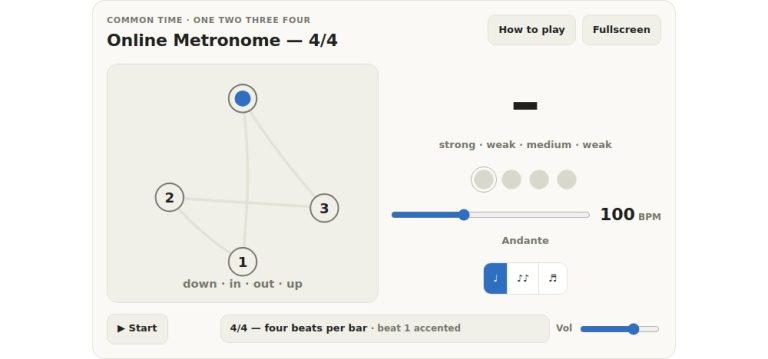
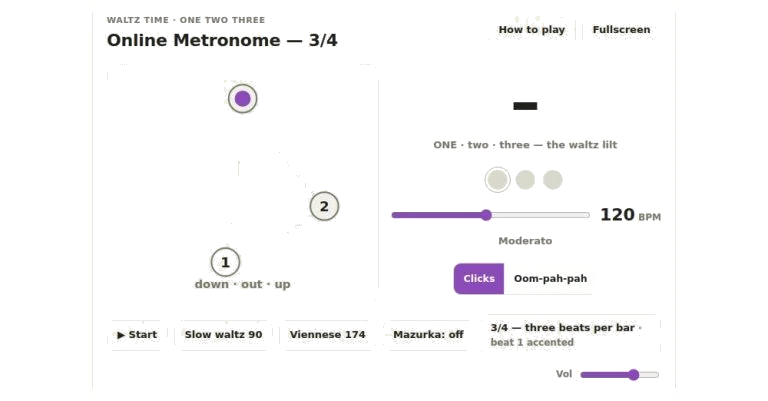
What you see is the big screen in the centre, which indicates the number of beats currently being played: one through to three. On the left-hand side is a conducting triangle that visualizes the conductor’s path. So on the first beat (one), the dot descends downwards; on the second beat (two), it moves to the right and on the third beat (three) it rises upwards. It follow the shape of the physical movement required when conducting a waltz. If you place your hand over it and follow its trajectory, then you begin to ‘get’ the pulse of the bar.
How to Use the Online Metronome
When you are ready, press the Start button which will start the click track. While the metronome is playing, the button will change to Stop. You can also use the Space bar on your keyboard to do this. This means that you don’t have to move away from the typing keys with your hands but can leave them close to the keyboard.
To change the tempo, simply slide along the tempo slider from forty up to two hundred eight beats per minute. Pressing the Up and Down arrows will change the tempo in steps of two beats per minute. This enables you to fine tune a tempo during practice.
There are two different options for sound in the widget. The first is called Clicks mode. Each beat is represented by a high pitched tick. The downbeat (beat one) is just a little higher. In the second mode which they call Waltz, these clicks becomes a more musical accompaniment. On beat one you’ll hear a low bass note. On beats two and three you’ll hear a couple of lighter taps on the chords. That’s the classic oom pah pah patter of the ballroom band. It will help you feel how the harmony underpins the melody.
There are three preset buttons that jump to popular tempos. Slow waltz sets it at ninety beats per minute. That’s slow enough to play or learn to dance with ease. Viennese speeds up to one hundred seventy four beats per minute. At that rate, the individual beats blur into a single flying pulse. Mazurka changes the accent from beat one to beat two. It moves the emphasis, giving it that familiar Polish dance feeling. The pitch of the sound and the accent lamp both light up to show you has changed.
The Transport Row is a volume slider that can be used to adjust the master output level to balance with a backing track or your own playing. The Fullscreen Button expands the widget to fill your entire screen. Removes distractions and also makes the triangle and the beat counter bigger. Handy if you’re on a tablet, or sat back away from the screen. The Help Button displays a brief help guide inside the widget that reminds you what each mode does and which keyboard shortcuts are available.
To get practical is to find a slower pace. Slide the meter to roughly eighty beats per minute. Hit start and clap out each beat. Aim to keep the first beat of the bar strong. The second and third should be light. When confident try swapping over to Waltz. You’ll hear that it anchors the bar in the bass note. Play a simple melody alongside the oom pah pah. Notice there’s space between your notes as the chord taps on two and three.
Try out the Mazurka accent when you practice. The odd-feeling rhythm that’s characteristic of many mazurkas is what trips up so many learners. The effect of turning the accent on is to highlight beat two. Your ear gets used to hearing the emphasis coming at the ‘wrong’ time. It is useful if you are playing any music from, for example, the Romantic period such as works by Chopin. Quickly turn it on and off to compare how it feels.
But it’s also about what we see. Look at the triangle and follow where the dot of the baton falls inside the triangle. Every time the dot hits each point, you hear the audio click. Watching the dot helps you time things accurately. A form takes the count from an abstract concept to something concrete that you can move to. If you’re off the dot visually, you have the beat counter there for support numerically.
In your first practice session, don’t turn the volume too high. If you do, then you may not hear yourself above the click of the metronome. Get that down lower where you can both hear yourself and the tick tick. Then use the arrow buttons to very gradually adjust the speed up or down two beats every time. This will keep you in tune as you creep the number up by two beats per minute.
It also supports both dark mode and light mode. It automatically detects your system preference to adjust the colors. It will also automatically adjust its color based on your system preference to reduce eye fatigue over an extended period of practice. Either way, the layout is the same. All of your controls are located in the same positions each time.
Press Space, or use the Start Button to begin. Select your preferred pace. Allow yourself to hear the accent, and the lift on the second and third beat. Once you have the pulse, play along with it slowly and work up to playing at a faster pace. Explore other variations of the waltz using the preset buttons. 3/4 time has a steady swing.