A steady timekeeper for your practice sessions Use a visual aid to follow patterns during practice. You can operate it via your computer keyboard (faster), or with a mouse by simply clicking on screen controls. Includes an animated conductor diagram that flashes and makes sounds to give immediate feedback from the interface.
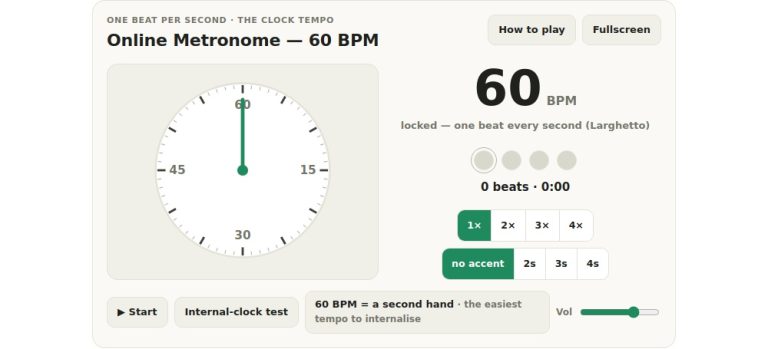
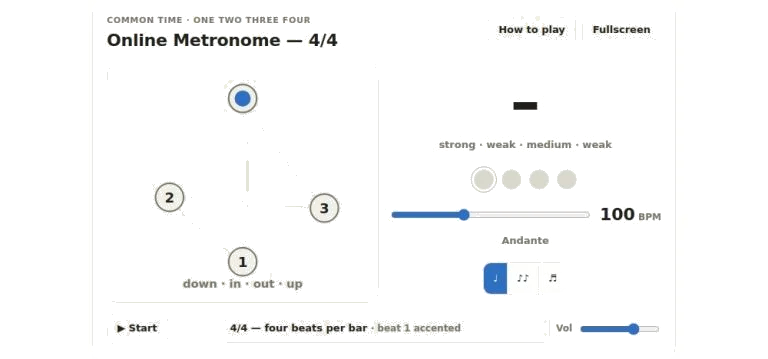
Press the Space bar on your keyboard, or the Start button to start. The metronome will count 4 beats to each bar with a blue visual cue and higher pitched click on the first beat. At the top, four circular lamps flashes to the rhythm. They flash alongside a larger number in the center of the screen that indicates which beat you’re currently hearing. To stop the metronome simply press Space again or the Stop button.
How to Use the Metronome
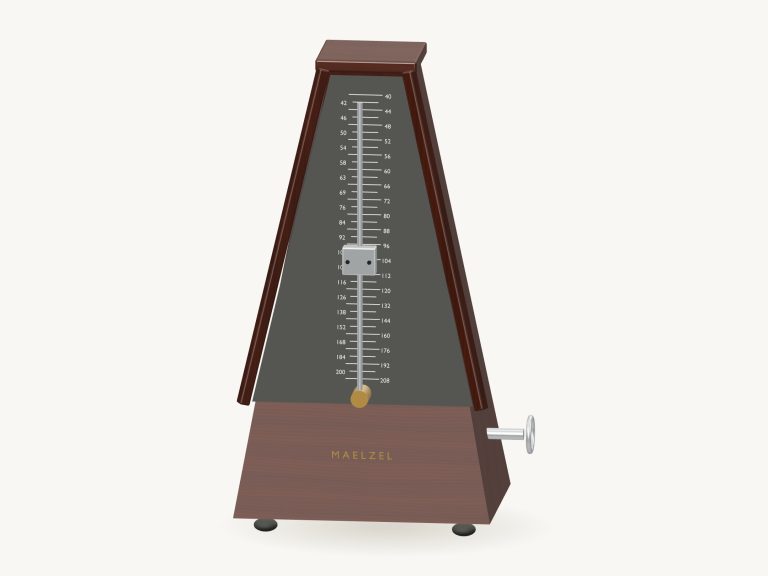
You can also adjust the speed of the click from a minimum of 40 beats per minute to a maximum of 208 beats per minute using the tempo slider. The tempo is displayed in Italian tempo markings (Allegro, Andante etc.) while you drag the slider so that the current BPM is always visible. Alternatively, you don’t need to rely on the mouse at all. You can use the up/down arrows on your keyboard to finely adjust the tempo in increments of two beats each time you press the key. This means you’re never searching for the perfect place on the slider.
A subdivision selector allow you to also include additional click beats between the main beats of the music. By default this is set to show quarter notes (four beats per bar), but you can select eighth notes if you want a quicker pulse or even sixteenth notes for really fast sections of music. These is played softer than the main beat so they don’t distract you, but they still help you lock into complicated rhythms.
One of the nicest features is that you can customize the accent pattern too. There are actualy interactive buttons above each of the four lamps in the beat display. Clicking on any lamp cycles its behavior between three settings: accented, normal, and silent. This allows you to mute certain beats so that you have to internalize the pulse without the sound to reinforce it.
This would of been great for learning to land on the first beat by muting it so that you learn to do it mentally instead of waiting for the click. You could also accent the second or even fourth beats so that you get a sense of the backbeat common to many musical styles.
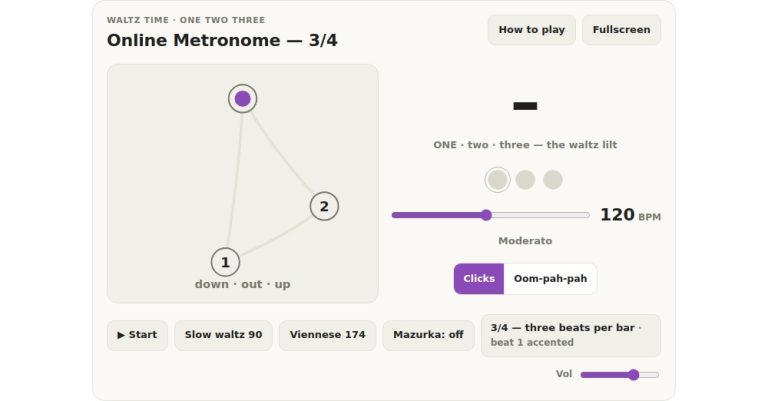
Looking at the conducting diagram (left), you can see how the common four-four is illustrated. As the conductor’s baton travels down, in, out and then up, so does a dot on its journey following the baton’s movement. Listening to the clicks that go with the animation allows you to link the sound to the movement of the hand. If you’re learning to conduct yourself or want to gain a clearer understanding of the way the conductor shapes a phrase, then watching the animation aids this process.
Finally, located on the bottom right-hand side of the screen is the master output volume slider. This comes in handy when playing along with others or needing to have the metronome audible but not intrusive. The interface also includes a help panel (accessible via the question mark key or How to play button). It offers a rapid overview of how features work and their associated keyboard shortcuts, all from within the same page.
You will want to begin slowly enough that you can play the piece comfortabley and then gradually pick up speed once you are able to keep time with the metronome and not drop any notes. Additionally, it features a fullscreen button. This opens the widget to full screen, providing extra space to view both the beat numbers and the conducting diagram properly.
As you work through it, play around with accents and try changing the subdivisions. See how a muted beat can help you feel your way through a passage or use it as practice for tricky rhythms. It’s intended to adjust to meet the needs of an advanced player looking to fine-tune their more complicated rhythms. It also works for a beginner who is still trying to get to grips with counting in time.
Hit the Space bar to begin, at a comfortable pace. As you play, use the controls to adjust the rhythm and speed to create your own practice session. The combination of sound and visual cues help you stay in time so you can concentrate on your playing instead of thinking about where you are in the beat. Take some time to explore the features and find what works best for your practice routine.