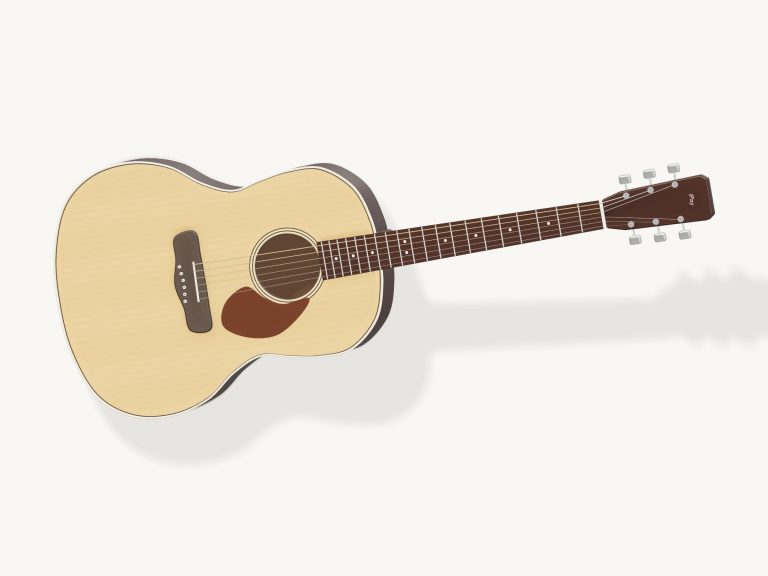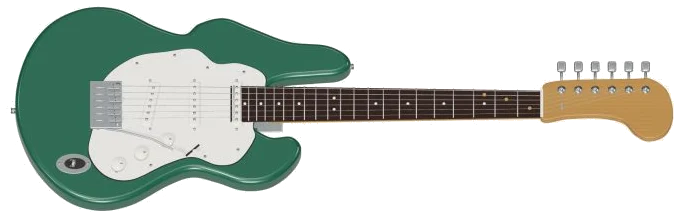
This online virtual instrument lets you play a six-string electric guitar right in your browser. It’s a detailed 3D model of an actual electric guitar, a jade electric guitar, to be precise. The model is complete enough that you can even zoom and turn it around to view it from different angles. And each note is produced using 102 real recordings of an electric guitar, not some kind of synthesizer sound.
To play, use either your computer keyboard, your fingers on a tablet or phone, or a mouse. You do not need to install or download anything. To start, click Enable sound at the top of the widget. It loads the recordings and then the button starts counting up; when it reaches Sound on, you’re good to go. Beside it is a round Record button. Open the help and credits by clicking the question mark. The full-screen button makes the guitar take over the entire screen. Press Esc or click the button again to back out to the page.
How to Play the Virtual Guitar
First up is the 3D guitar. You can tap the frets along its neck to play individual notes as well as drag your finger across the strings to strum. The chord you’ve selected has amber dots along the fretboard showing you how to finger them. At the top of the stage is the name of the note or chord you’ve just played.
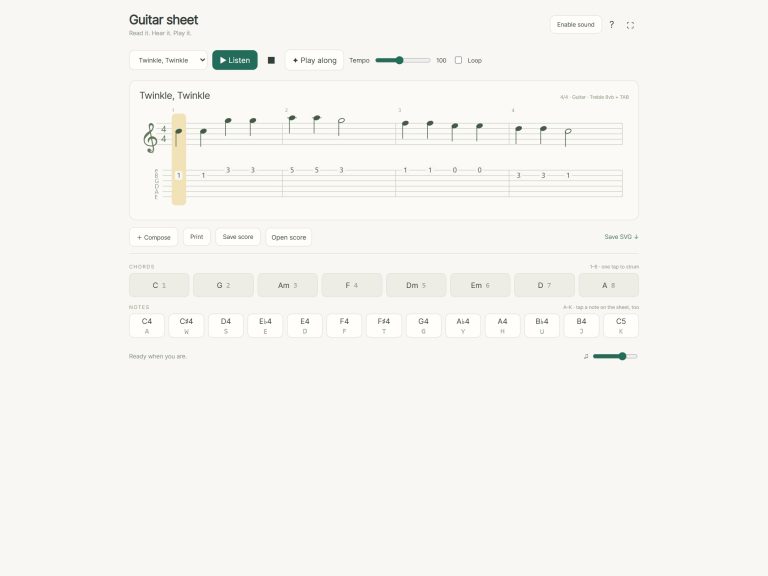
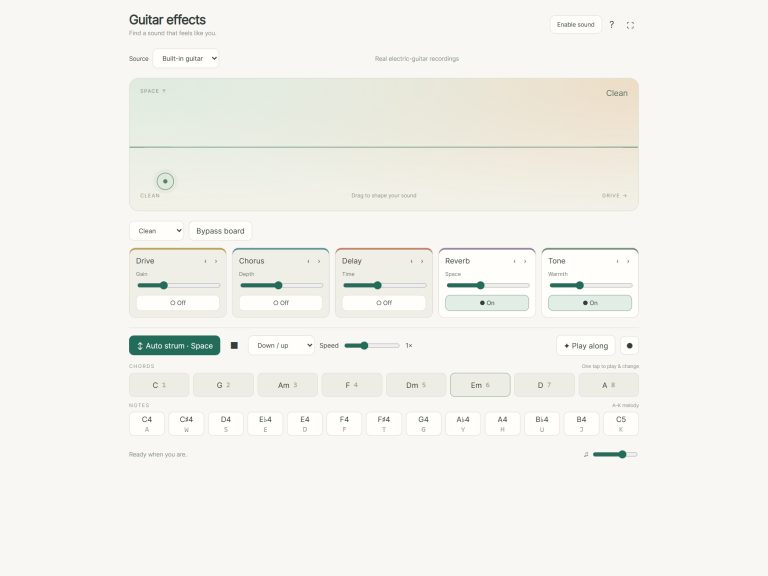
CHORDS pads is played from the keyboard by tapping the number keys 1, 8 which select and strum the pad. Tapping again will change the chord being played. The guitar begins with a C chord so you can start playing straight away.
Six string pads are also included in a row. These correspond to one pad per string, starting with low E2 and finishing on high E4. On the keyboard, these keys play the strings using the same fingers used to play the chord: Z X C V B N. A muted string is indicated by a dimmed pad.
There are 13 note pads on the row marked NOTES. These are a full chromatic octave from C4 up to C5. They are laid out as if they were the keys of a piano. They zig-zag across the keyboard, sitting on A W S E D F T G Y H U J K. Each pad indicates which key plays it. Click inside the guitar frame before beginning to play from the keyboard.
Electric sound really comes alive on the preset menu. Clean is the default, no amp drive and a light touch. Crunch picks harder and adds some drive. Lead picks hardest of all with the most drive and a little more room sound. All three combine the strength of the recorded picking with the drive of an amplifier. They also include cabinet style filtering and room ambience. The harder presets don’t just have more volume but are recorded with stronger picking too. The overall level is set by the volume slider at the bottom of the guitar.
Press the Space bar or click the Auto strum for a regular beat. The guitar will play the same chord over and over on its own. Click Auto strum or press the Space bar and the button changes to Strumming. Now you can keep the guitar playing while changing chords with a single click. The pattern menu includes Down / up; Downstrokes and Fingerpicking. The Speed slider goes from half speed to double speed. This affects not only how fast the pattern moves but also how far apart the strokes occur. It also controls the song’s tempo. To stop everything instantly, use the square Stop button or press the Esc key.
There are a selection of songs in the song menu including Ode to Joy, Night drive, Garage chords, Electric blues and First riff. The song is selected and then when you click on Listen, it plays through once. It has a guide showing which note or chord is being played. There’s also a Then line that gives an idea of what is coming next. It has a progress bar and counter tracking the song.
For the beginner game, click Play along. On the 3D guitar are green dots showing where to play. The pad you need glows green and says PLAY. If the same note or chord repeats then it’s again marked with a green dot. As soon as you play the right note or chord, the game moves on. So you can take your time and the other pads remain quiet until you find it. The Then line shows what will happen in the next three steps. When you finish the tune the guide says LOVELY: You played the whole tune. At any time you can stop by clicking End game.
It records what you play on the guitar. There’s no mic required. Just click the Record button, and off you go. Perform your riff. Tap record a second time to end the recording. A Save recording link will appear below the guitar for you to save your take. It all records locally in your browser.
While playing, click on Explore 3D. You can look all around the guitar. Pinch and scroll to zoom in and out. Rotate the background by dragging it. The frets and strings remain playable. It will then say Front view on the button. Click that and return the guitar to its regular playing position.
Shared on CC0, the sound in this online virtual electric guitar comes from the Karoryfer Black and Green Guitars collection. This uses the green guitar recorded by Brian Wood. Seventeen pitches are sampled. Two alternative takes per pitch are included, each recorded at three dynamics. Not all repeated notes sound identical. None of the notes are off by more than a semitone from the actual recording. Tails have been shortened to play back in the browser. The 3D guitar is an original model.
Select the Clean preset if you’re a beginner. Strum through Em, G, D and A. Those are the Garage chords. Change to Crunch now and strum the same chords again. Notice the difference? If you’re feeling confident enough, select First riff then Play along. The online virtual electric guitar will lead you note by note.