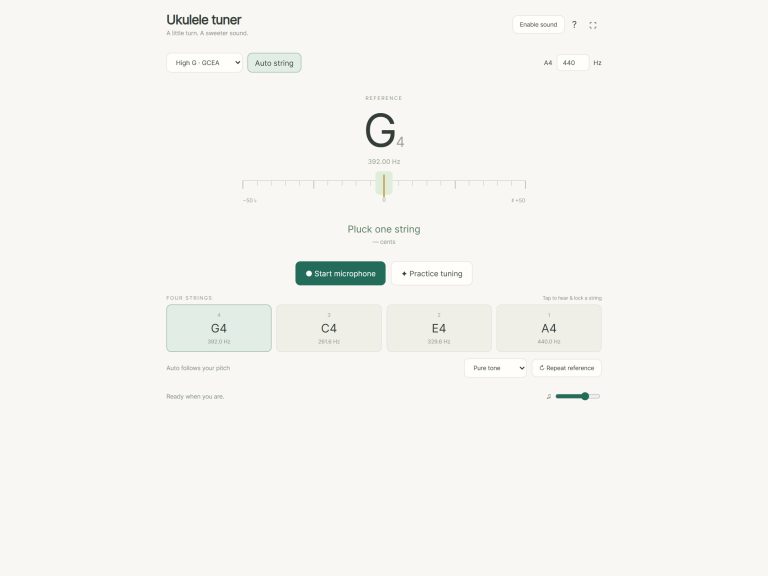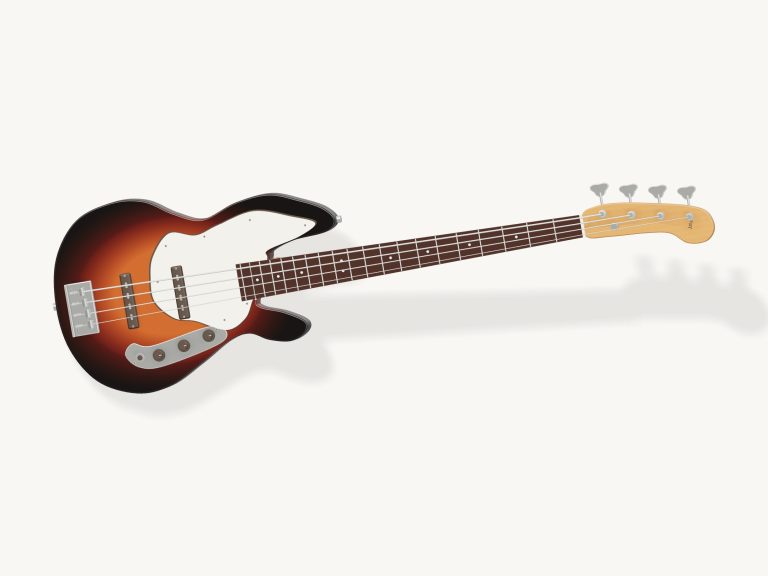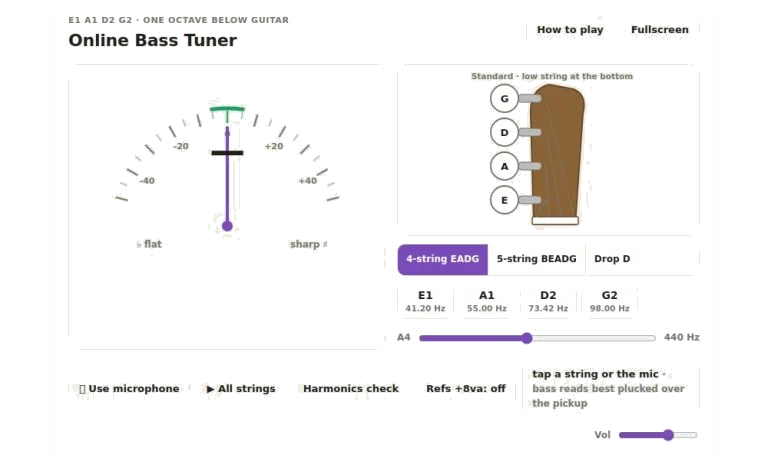
There are two methods available when using this online bass tuner. First, you can ‘tap’ each button or chip on the virtual headstock pegs using your trackpad or mouse to play a reference tone. Alternatively, for rapid control there’s also the option to use your computer keyboard. With this method, you’ll be able to listen to reference pitches and even detect the actual pitch of your own bass guitar by picking up sound from your device mic.
Control the layout. Layout-wise, it makes sense: First choose your tuning setup with the central-segmented buttons. The default is Standard four-string EADG tuning (the typical pitch for both upright and electric bass). Choose the five-string option if you’re playing a five-stringer; this will include the low B string on the interface. If you’re into heavier rock, choose the Drop D option for the lower end string drop from E down to D. When you change any of these options, the widget automaticly refreshes the reference frequencies and included strings to match.
How to Use the Online Bass Tuner
The illustrated headstock and the large chip buttons controls the reference tones. When you press any of the headstock graphics’ circular tuning pegs, it plays a synthesized representation of that specific string. This enables you to compare your physical bass to an electronically perfect standard. If you need a quick sound check then you can use the sweep button which sounds all the strings currently set-up in turn from lowest pitch to highest. This is particularly helpful when you want to check that the strings are tuned correctly relative to each other without having to stop and press each one individually.
Microphone, The large mic button in the Transport area engages this neat feature that lets the tool detect your instrument’s pitch. After engaging, it “hears” what’s around you and shows the corresponding pitch in the analog style gauge. Note that left means flat while right means sharp. There’s also a green zone that surrounds the center which represents anything within five cents of the goal pitch. Beneath the gauge is the exact note name and frequency. This allows you to figure out the pitch regardless of the fluctuation of the needle.
The Bass Frequencies are Very Low Bass frequencies are very low and can be hard to reproduce accurately on the speakers of phones and laptops. To address that, the octave reference toggle plays all reference tones at an octave above their normal bass pitch. That way they’re easy to hear on a small speaker without losing any accuracy in the tuning. Remember, an octave up or down is exactly the same pitch relation. If you have trouble hearing the basic low B or E notes, or if they just sound muffled, use this feature.
Perform a harmonic check. This helps tune intervals accurately. It plays the seventh fret harmonic on the next string in line alongside the fifth-fret harmonic on its own string. When the bass is in perfect tune these two notes should be identical. If not then there will be a very slight beat or pulsing sound as it slowly gets closer together. You’d use the tuning pegs on a real guitar to stop this beating. What it does here is play them together so you know how it sounds and what you’re listening out for when tuning by hand.
For those who don’t want to reach for their mouse, there are keyboard shortcuts as well. From left to right, hitting the number keys 1-5 will sound each of the strings’ reference tones in turn (beginning with the low string). “M” is the mic toggle, just hit it when you want to listen only to your instrument’s sound rather than the reference tone, then click back into the app. Lastly, a question mark pulls up and hides the help panel where you can find some handy tips for getting the best out of it all.
Below the tuning selector, there is a slider that enables calibration. By adjusting this, you can change the default A4 pitch to be anywhere from forty-three to forty-six hertz. This could of been helpful if you were accompanying or perhaps performing alongside other instruments that may be pitched different than standard. If you want to account for a deliberately detuned bass, you can use the calibration slider to do that.
On the bottom right-hand side of the screen is the volume slider. This gives control over how loudly the reference tone sounds so that it can still be heard but not drown out what you’re playing.
The most accurate readings is reached by playing each string individually and allowing it to ring through briefly until ready to be read. Often the first part of the note will distort the pitch detection, taking into account that it takes a fraction of a second for bass notes to settle. The green area of the dial is the ‘in tune’ zone showing you’re within plus or minus five cents of the correct frequency. Trust the needle position as the sound decays rather than at the moment of pluck.
After locating it, the tuning process couldn’t be simpler. Turn on the reference tone or microphone if necessary. Select your tuning, then adjust your instrument until you see the visual indicators confirming you’re in tune. All of the hard work of calculating frequencies is done for you on the interface, allowing you to concentrate on playing. Try turning the octave and harmonic check on to test which one suits you best depending on your listening environment and specific instrument.